
Введение
This manual provides detailed instructions for the installation, operation, and maintenance of your IEI DM-F12A/R-R30 12-inch XGA LCD Monitor. This industrial-grade monitor features a 600 cd/m² brightness, an aluminum front panel, and a USB R-touch screen, designed for robust performance in various environments. It supports a wide 9~36VDC input range.
Содержимое упаковки
Please verify that all items are present and in good condition upon unpacking. If any items are missing or damaged, contact your vendor immediately.
- IEI DM-F12A/R-R30 LCD Monitor
- Power Adapter (if included with specific model variant)
- USB Cable for Touch Function
- VGA/HDMI Cable (depending on model configuration)
- Монтажное оборудование (если применимо)
- Documentation (Quick Start Guide, Driver CD if applicable)
Настраивать
1. Крепление монитора
The DM-F12A/R-R30 monitor is designed for various mounting options, including panel mount or VESA mount. Refer to the specific mounting instructions provided with your mounting kit.
2. Соединительные кабели
- Видео вход: Connect a VGA or HDMI cable (depending on your system and monitor's available ports) from your computer's video output to the corresponding input port on the monitor.
- USB Touch: Connect the supplied USB cable from your computer's USB port to the USB port on the monitor. This enables the R-touch screen functionality.
- Власть: Connect the 9~36VDC power input to the monitor. Ensure the power source matches the specified voltagе диапазон.
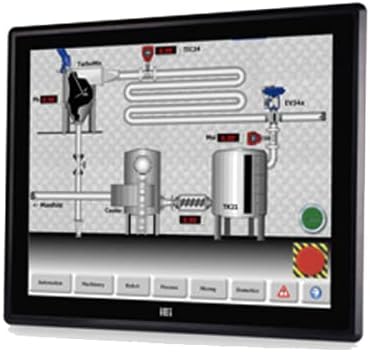
Figure 1: The IEI DM-F12A/R-R30 monitor, showcasing its display and industrial design. This image illustrates the monitor's appearance and typical use in a control system interface.
3. Включение
After all cables are securely connected, power on your computer and then the monitor. The monitor should automatically detect the input signal.
Операционная
Basic Display Functions
The monitor will display the video output from your connected computer. Adjust display settings such as resolution and refresh rate through your computer's operating system display settings for optimal performance.
Using the R-Touch Screen
The R-touch screen functions as a standard mouse input. Once the USB cable is connected and recognized by your operating system, you can interact with the display by touching the screen directly. Calibration may be required for precise touch input, typically accessible through your operating system's tablet PC or touch screen settings.
- Одно нажатие: Equivalent to a left-click.
- Нажмите и удерживайте: Equivalent to a right-click (may vary by OS settings).
- Бремя: Touch and move your finger across the screen to move items or scroll.
Обслуживание
Очистка монитора
- Перед чисткой всегда выключайте монитор и отключайте его от сети.
- Используйте мягкую, безворсовую ткань, слегкаampened with water or a non-abrasive LCD screen cleaner.
- Do not use alcohol, ammonia-based cleaners, or abrasive materials, as these can damage the screen surface or casing.
- Аккуратно протрите экран и сasing. Avoid spraying liquid directly onto the screen.
Экологические соображения
Ensure the monitor is operated within its specified temperature and humidity ranges. Avoid exposing the monitor to direct sunlight, excessive dust, or extreme temperatures.
Поиск неисправностей
| Проблема | Возможная причина | Решение |
|---|---|---|
| Нет отображения на экране |
|
|
| Сенсорный экран не отвечает |
|
|
| Изображение размыто или искажено |
|
|
Технические характеристики
| Особенность | Деталь |
|---|---|
| Модель | ДМ-Ф12А/Р-Р30 |
| Бренд | ИЭИ |
| Размер экрана | 12 дюйма |
| Разрешение | XGA |
| Яркость | 600 кд/м² |
| Материал передней панели | Алюминий |
| Тип сенсорного экрана | USB R-Touch |
| Vol входtage | 9~36 В постоянного тока |
| Поверхность экрана | Глянцевый |
| Специальная характеристика | Сенсорный экран |
| Производитель | IEI Technology |
Гарантия и поддержка
For warranty information and technical support, please refer to the documentation included with your product or visit the official IEI Technology webсайт. Контактная информация службы поддержки клиентов обычно доступна на странице поддержки производителя.
Производитель Webсайт: www.ieiworld.com