
BirdDog BD-BDPF120
Руководство пользователя для бокс-камеры BirdDog PF120 Full HD NDI 20x
Model: BD-BDPF120
1. Введение
The BirdDog PF120 is a high-performance Full HD NDI box camera designed for professional video production environments. It features an Exmor R back-illuminated sensor, 20x optical zoom, and a full color matrix, all housed within a durable all-metal chassis. This manual provides essential information for the proper setup, operation, and maintenance of your PF120 camera.
2. Содержимое упаковки
Убедитесь, что все перечисленные ниже предметы присутствуют в вашей посылке. Если какие-либо предметы отсутствуют или повреждены, немедленно свяжитесь с продавцом.
- BirdDog PF120 Full HD NDI 20x Box Camera
- Адаптер питания (12 В постоянного тока)
- Крышка объектива
- Документация (Краткое руководство пользователя, Информация по технике безопасности)
3. Продукт закончилсяview
The BirdDog PF120 is engineered for versatility and robust performance. Key features include:
- Full NDI support for seamless integration into IP workflows.
- 20x optical zoom for detailed close-ups.
- Exmor R back-illuminated sensor for superior low-light performance.
- Durable all-metal housing.
- Multiple connectivity options including HDMI, NDI/PoE, RS-232, and USB2.0.
3.1 Камера Views and Components

Рисунок 3.1: Лицевая сторона view of the BirdDog PF120 camera, showcasing the lens and the BirdDog logo on the side panel.
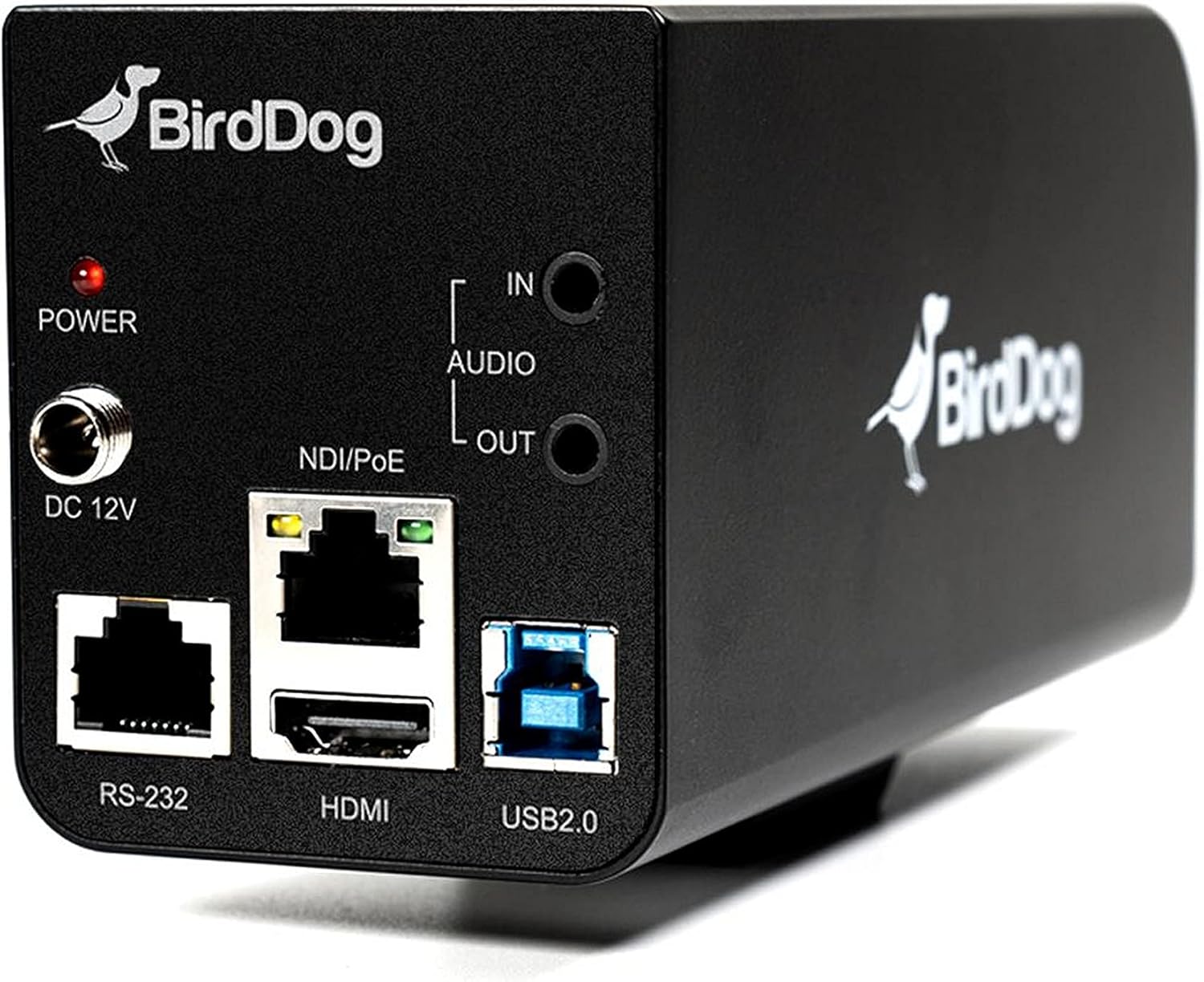
Рисунок 3.2: Rear panel of the BirdDog PF120, displaying the power input (DC 12V), audio input/output, NDI/PoE port, HDMI output, RS-232 port, and USB2.0 port.
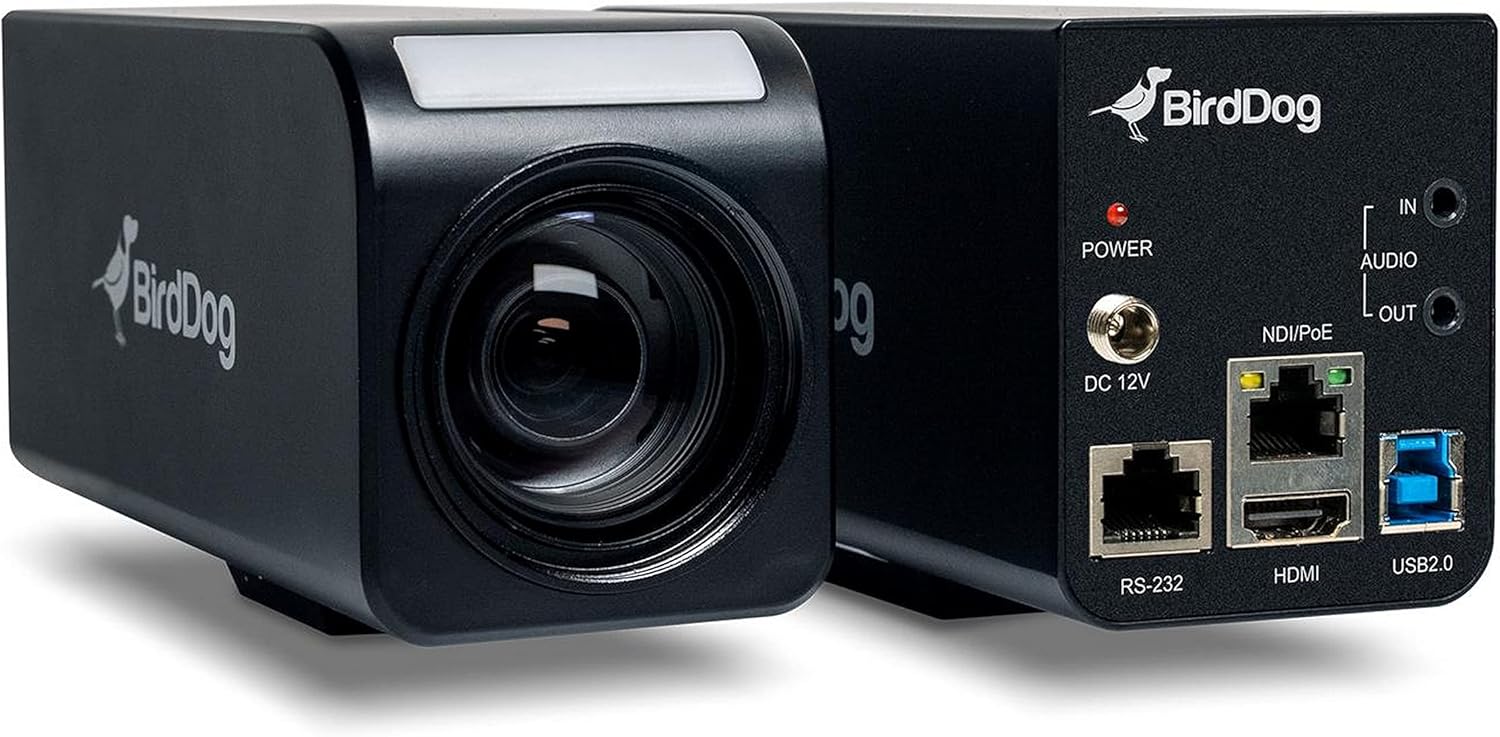
Рисунок 3.3: Комбинированный view of the BirdDog PF120, showing both the front lens assembly and the rear connectivity panel.

Рисунок 3.4: Вершина view of the BirdDog PF120 camera, highlighting the sleek design and BirdDog branding.
4. Настройка
4.1 Включение
- Connect the supplied DC 12V power adapter to the "DC 12V" port on the rear of the camera.
- Подключите адаптер питания к подходящей розетке.
- Alternatively, if using a PoE-enabled network switch, connect an Ethernet cable to the "NDI/PoE" port. The camera will power on via Power over Ethernet.
4.2 Network Connection (NDI)
- Connect an Ethernet cable from the "NDI/PoE" port on the camera to your network switch or router.
- Ensure your network is configured to support NDI protocols.
- The camera will obtain an IP address automatically via DHCP. For static IP configuration, refer to the BirdDog Central application or web интерфейс.
4.3 видеовыхода
- NDI Output: The primary video output is via NDI over the Ethernet connection.
- HDMI-выход: Connect an HDMI cable from the "HDMI" port on the camera to a monitor or video switcher for direct video monitoring.
5. Эксплуатация камеры
5.1 Доступ к Web Интерфейс
- Once connected to the network, use the BirdDog Central application or an IP scanner to discover the camera's IP address.
- Откройте web браузер и введите IP-адрес камеры, чтобы получить к ней доступ web интерфейс.
- Из web interface, you can configure video settings, network parameters, and control camera functions.
5.2 Управление камерой
The PF120 can be controlled via:
- NDI Tools: Utilize NewTek NDI Tools (e.g., NDI Studio Monitor) for basic control.
- BirdDog Central / Cam Control: BirdDog's dedicated software provides comprehensive control over camera settings, including zoom, focus, iris, and color matrix.
- РС-232: Connect a compatible serial controller to the RS-232 port for hardware control.
- Дистанционное управление: The camera supports remote control methods as specified in the product documentation.
5.3 Масштаб и фокус
The PF120 features a 20x optical zoom lens. Zoom and focus adjustments are typically made through the web interface or compatible control software.
6. Техническое обслуживание
- Уборка: Use a soft, dry cloth to clean the camera body. For the lens, use a specialized lens cleaning solution and microfiber cloth. Avoid abrasive cleaners.
- Обновления прошивки: Periodically check the BirdDog website for firmware updates. Keeping the firmware updated ensures optimal performance and access to new features.
- Хранилище: При длительном неиспользовании храните камеру в прохладном, сухом месте, вдали от прямых солнечных лучей и экстремальных температур.
7. Поиск Неисправностей
7.1 Нет питания
- Убедитесь, что адаптер питания надежно подключен к камере и рабочей розетке.
- If using PoE, verify that the Ethernet cable is connected to a PoE-enabled port on your switch and that the switch is providing power.
7.2 No NDI Signal
- Проверьте подключение кабеля Ethernet.
- Verify that the camera has obtained an IP address (check your router's DHCP client list or use BirdDog Central).
- Ensure your network firewall is not blocking NDI traffic.
- Confirm that NDI tools or software on your receiving device are correctly configured to discover NDI sources.
7.3 Проблемы с качеством изображения
- Check lens for smudges or dust and clean if necessary.
- Adjust focus settings via the web Программное обеспечение интерфейса или управления.
- Review exposure, white balance, and color matrix settings in the camera's web интерфейс.
8. Технические характеристики
| Особенность | Деталь |
|---|---|
| Номер модели | BD-BDPF120 |
| Разрешение видеозахвата | 1080p |
| Эффективное разрешение видео | 720 пикселей |
| Оптический зум | 20x |
| Тип зума | Digital Zoom, Optical Zoom |
| Технология связи | Проводной |
| Протокол подключения | Wi-Fi (for control/management, NDI is primary video) |
| Метод контроля | Remote, Iris, RS-232 |
| Источник питания | AC/DC, PoE |
| Ватtage | 5 Вт |
| Материал | Металл |
| Размеры изделия (Д x Ш x В) | 9.9 x 9 x 3.6 дюйма |
| Вес товара | 2.94 фунта |
| Тип крепления | Wall Mount (as per spec, but typically box cameras are versatile) |
| Международный рейтинг защиты | IP65 |
| Технология слабого освещения | Ночной цвет |
9. Гарантия и поддержка
For warranty information and technical support, please refer to the official BirdDog website or contact your authorized BirdDog reseller. Keep your proof of purchase for warranty claims.
BirdDog Official Webсайт: www.bird-dog.tv
Ask a question about this manual
Ask about setup, troubleshooting, compatibility, parts, safety, or missing instructions. Manuals+ will review the question and use this page’s manual context to help answer it.