
Введение
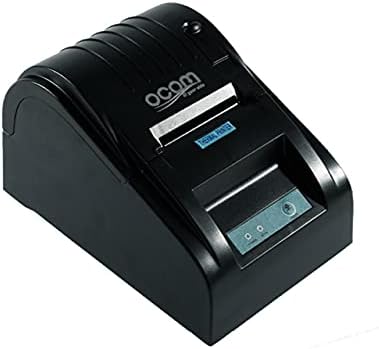
This image shows the OCOM OCPP-585A-U-B Thermal Receipt Printer from a slightly elevated front-right angle. The printer is black with a sleek, compact design. The paper output slot is visible at the top, and the control panel with 'POWER' and 'MODE' indicators is located on the front.
This manual provides detailed instructions for the OCOM OCPP-585A-U-B Thermal Receipt Printer. Please read this manual carefully before using the printer to ensure proper operation and longevity.
Руководство по настройке
1. Распаковка
Carefully remove the printer and all accessories from the packaging. Verify that all components are present: printer unit, power adapter, USB cable, and a roll of thermal paper.
2. Загрузка термобумаги
- Open the paper cover by pushing the cover open button (usually located on the side or front).
- Insert the thermal paper roll into the paper compartment, ensuring the printing side of the paper faces the print head. The paper should feed smoothly from the bottom of the roll.
- Pull out a small length of paper beyond the paper exit slot.
- Плотно закройте бумажную обложку, пока она не защелкнется.
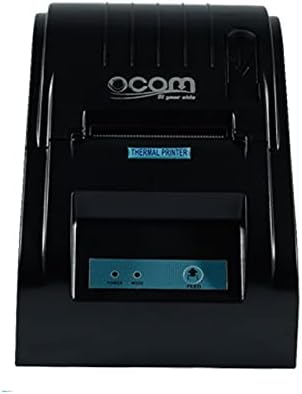
This image displays the OCOM OCPP-585A-U-B Thermal Receipt Printer from a direct top-down perspective. The paper compartment is visible, showing a thermal paper roll correctly inserted. The 'THERMAL PRINTER' label and the control panel with 'POWER' and 'MODE' indicators are clearly visible.
3. Подключение принтера
- Подключите адаптер питания к входному разъему питания принтера, а затем вставьте его в розетку.
- Connect the USB cable to the printer's USB port and the other end to your computer or POS system.
- Нажмите кнопку питания, чтобы включить принтер. Должен загореться индикатор питания.
Инструкция по эксплуатации
Базовая печать
Once connected and powered on, the printer is ready to receive print commands from your connected device. Ensure the correct printer driver is installed on your computer/POS system.
- Откройте документ или приложение, из которого вы хотите распечатать.
- Select 'Print' from the file меню.
- Choose 'OCOM OCPP-585A-U-B' as your printer.
- Adjust print settings if necessary (e.g., paper size, print quality).
- Нажмите «Печать».
Self-Test Print
To perform a self-test print, ensure the printer is off. Hold down the 'FEED' button (if available, or a combination of buttons as per specific model) while turning on the printer. Release the button once printing begins. This will print a configuration page, confirming basic printer functionality.
Обслуживание
Очистка печатающей головки
Regular cleaning of the print head ensures optimal print quality and extends printer life.
- Выключите принтер и отсоедините шнур питания.
- Откройте бумажную крышку.
- Слегка протрите ватным тампоном.ampened with isopropyl alcohol to gently wipe the thermal print head (the dark strip inside the printer).
- Перед закрытием крышки и включением принтера дайте печатающей головке полностью высохнуть.
Cleaning the Paper Path
Удалите бумажную пыль и мусор из тракта подачи бумаги с помощью мягкой щетки или сжатого воздуха.
Поиск неисправностей
| Проблема | Возможная причина | Решение |
|---|---|---|
| Принтер не включается | Power cable loose; Power outlet faulty | Проверьте силовые соединения; попробуйте другую розетку. |
| Нет вывода на печать. | Paper loaded incorrectly; Out of paper; Driver not installed/selected | Reload paper correctly; Replace paper roll; Install/select correct printer driver |
| Faint or blank print | Thermal paper loaded upside down; Print head dirty; Paper quality issue | Flip paper roll; Clean print head; Try new thermal paper |
| Принтер отключен | USB cable disconnected; Printer driver issue | Reconnect USB cable; Reinstall printer driver |
Технические характеристики
| Особенность | Деталь |
|---|---|
| Первая доступная дата | 2021 июня 20 г. |
| Производитель | OCOM |
| ASIN | B097LSGP62 |
| Номер модели товара | OCPP-585-U-B |
| Название бренда | OCOM |
| Технология связи | USB |
| Технология печати | Термальный |
| Цвет | Черный |
| Название модели | OCPP 585 U B |
| Печатные СМИ | Этикетки |
| Тип сканера | Квитанция |
Гарантия и поддержка
This OCOM printer typically comes with a standard manufacturer's warranty. Please refer to the warranty card included with your product for specific terms and conditions, or visit the official OCOM webсайт для получения подробной информации о гарантии.
For technical support, driver downloads, or further assistance, please visit the OCOM official support website or contact their customer service. Keep your model number (OCPP-585A-U-B) and purchase details ready when seeking support.


