
1. Введение
Thank you for choosing the Yanmai USB Bluetooth 5.0 Adapter. This compact device enables wireless communication between your computer and various Bluetooth-enabled peripherals. This manual provides essential information for proper setup, operation, and maintenance to ensure optimal performance.
2. Продукт закончилсяview
The Yanmai USB Bluetooth 5.0 Adapter is a nano-sized dongle designed to add Bluetooth 5.0 capabilities to your desktop or laptop computer. It supports a wide range of Bluetooth devices, offering enhanced speed and efficiency for wireless connectivity.
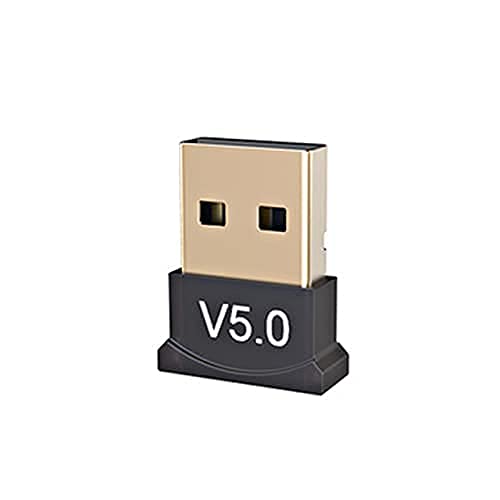
Рисунок 2.1: The Yanmai USB Bluetooth 5.0 Adapter. This image shows the compact design of the adapter, featuring a black base with 'V5.0' marking and a gold-colored USB connector.

Рисунок 2.2: The adapter held between fingers, illustrating its small, unobtrusive size. The 'V5.0' branding is visible on the black casing.
3. Особенности
- Технология Bluetooth 5.0: Utilizes the latest Bluetooth 5.0 standard, backward compatible with Bluetooth V4.0, 3.0, 2.1, 2.0, and 1.0.
- Nano-sized Design: Ultra-small form factor allows it to remain plugged into a USB port without obstruction.
- Надежное подключение: Enables wireless communication with a broad range of Bluetooth-enabled devices including computers, printers, phones, headsets, and speakers.
- Широкий диапазон рабочих условий: Offers a transmission distance of up to 20 meters (65 feet) for flexible use.
- Энергосбережение: Incorporates Bluetooth Low Energy (BLE) technology for efficient power consumption.
- Подключи и работай: Supports plug-and-play functionality on Windows 10, 8.1, and 8 operating systems.
4. Технические характеристики
| Бренд | Янмай |
| Стандарт Bluetooth | В5.0 |
| Чип | КСР8510 |
| Диапазон частот | 2.4ГГц |
| Поддержка операционной системы | Windows 10, Windows 8.1, Windows 8 (Plug & Play); Windows Me/2000/XP/Vista, Windows 7 (Driver installation may be required) |
| Интерфейс | USB |
| Скорость передачи данных | 10 Мбит/с |
| Receiving/Sending Range | До 20 м (65 футов) |
| Размеры (ДxШxВ) | 50 x 50 x 50 мм (приблизительно) |
| Вес товара | 60 г |
| СКП | 193356049370 |
5. Инструкции по настройке
Follow these steps to install and set up your Yanmai USB Bluetooth 5.0 Adapter:
- Вставьте адаптер: Locate an available USB port on your desktop or laptop computer. Carefully insert the Yanmai USB Bluetooth 5.0 Adapter into the USB port.
- Автоматическая установка драйверов (Windows 10/8.1/8): For Windows 10, 8.1, and 8, the operating system should automatically detect the adapter and install the necessary drivers. A notification will typically appear once the device is ready for use.
- Manual Driver Installation (Older Windows Versions): If you are using Windows Me, 2000, XP, Vista, or 7, you may need to install drivers manually. Please refer to the manufacturer's website or included driver CD (if applicable) for specific instructions and driver downloads.
- Проверьте установку: After installation, check your computer's Device Manager (search for 'Device Manager' in Windows search bar) under 'Bluetooth' or 'Network adapters' to confirm that the 'Bluetooth Radio' or 'Generic Bluetooth Adapter' is listed and functioning correctly.
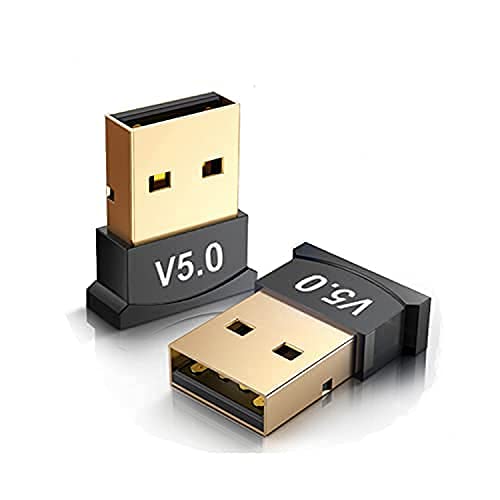
Рисунок 5.1: Two adapters shown, highlighting their compact size and USB connector. This illustrates the small footprint of the device when plugged in.
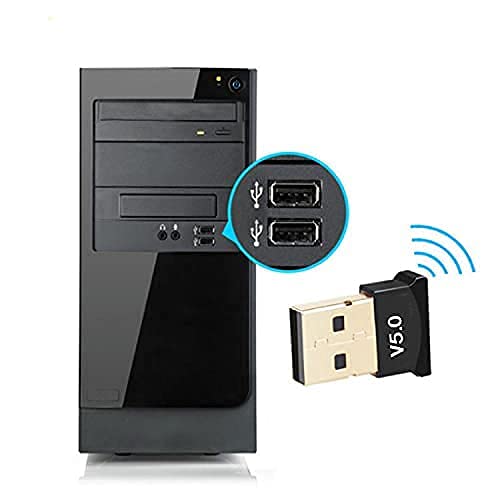
Рисунок 5.2: The adapter inserted into a USB port on the front of a desktop computer tower. A magnified inset shows the USB ports clearly.
6. Инструкция по эксплуатации
Once the adapter is installed, you can connect your Bluetooth devices:
- Enable Bluetooth on Your Computer:
- Windows 10: Перейти к Настройки > Устройства > Bluetooth и другие устройства. Ensure Bluetooth is turned On.
- Windows 8.1/8: Перейти к Настройки ПК > ПК и устройства > Bluetooth. Ensure Bluetooth is turned On.
- Put Your Bluetooth Device in Pairing Mode: Refer to your specific Bluetooth device's manual for instructions on how to enter pairing mode. This usually involves pressing and holding a button until an indicator light flashes.
- Add a Bluetooth Device:
- In the Bluetooth settings window on your computer, click «Добавить Bluetooth или другое устройство».
- Выбирать 'Bluetooth' из вариантов.
- Ваш компьютер выполнит поиск ближайших устройств Bluetooth. Выберите своё устройство из списка, когда он появится.
- Follow any on-screen prompts to complete the pairing process, which may include entering a PIN (e.g., '0000' or '1234') if requested.
- Наслаждайтесь беспроводным подключением: Once paired, your device should connect automatically when in range and Bluetooth is enabled on both ends.
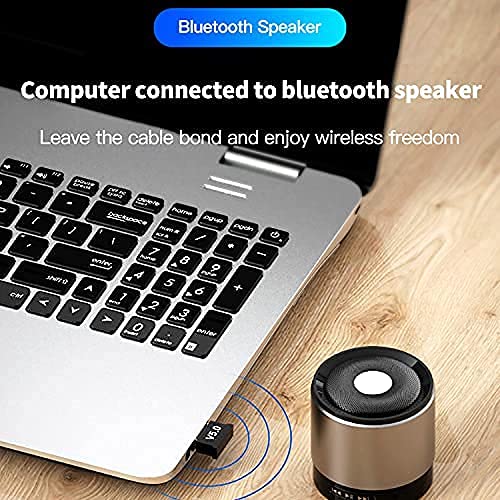
Рисунок 6.1: A laptop with the Bluetooth adapter connected, wirelessly streaming audio to a small Bluetooth speaker. This demonstrates a common use case for the adapter.

Рисунок 6.2: A person's hand adjusting a Bluetooth speaker, with a laptop and the adapter visible in the background. The image emphasizes wireless audio enjoyment.
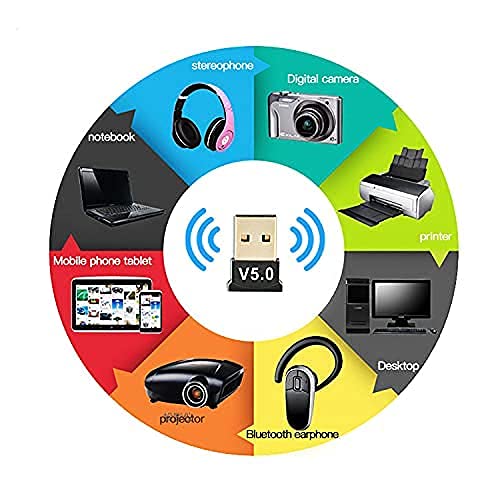
Рисунок 6.3: A circular diagram illustrating the wide range of devices compatible with the Bluetooth adapter, including laptops, mobile phones, projectors, Bluetooth earphones, desktops, printers, digital cameras, and stereophones.
7. Техническое обслуживание
The Yanmai USB Bluetooth 5.0 Adapter requires minimal maintenance. Follow these guidelines to ensure its longevity:
- Содержать в чистоте: Periodically wipe the adapter with a soft, dry cloth to remove dust. Avoid using liquid cleaners.
- Хранить правильно: Когда адаптер не используется, храните его в прохладном, сухом месте, вдали от прямых солнечных лучей и экстремальных температур.
- Обращаться с осторожностью: Avoid dropping the adapter or subjecting it to physical shock, which can damage internal components.
- Избегайте воды: Do not expose the adapter to water or other liquids.
8. Поиск Неисправностей
If you encounter issues with your Yanmai USB Bluetooth 5.0 Adapter, refer to the following common problems and solutions:
- Адаптер не обнаружен:
- Убедитесь, что адаптер полностью вставлен в исправный USB-порт. Попробуйте использовать другой USB-порт.
- Перезагрузите компьютер.
- Check Device Manager for any unknown devices or errors under 'Bluetooth' or 'Network adapters'. If an error exists, try updating or reinstalling the driver.
- Невозможно подключить устройства:
- Убедитесь, что Bluetooth включен как на вашем компьютере, так и на устройстве, которое вы пытаетесь подключить.
- Убедитесь, что ваше устройство Bluetooth находится в режиме сопряжения.
- Bring the Bluetooth device closer to the adapter.
- Удалите все ранее сопряженные экземпляры устройства из настроек Bluetooth на вашем компьютере и попробуйте выполнить сопряжение снова.
- Убедитесь, что поблизости нет источников сильных помех (например, Wi-Fi-роутеров, других беспроводных устройств).
- Poor Connection Quality or Disconnections:
- Уменьшите расстояние между адаптером и подключенным устройством.
- Убедитесь, что между адаптером и устройством нет никаких физических препятствий (стен, крупных металлических предметов).
- Check for updated drivers for the Bluetooth adapter.
- Minimize other wireless activity on the 2.4GHz band if possible.
9. Гарантия и поддержка
Для получения информации о гарантии или технической поддержке обратитесь к документации, прилагаемой к вашей покупке, или свяжитесь напрямую с продавцом/производителем. Сохраните чек о покупке для предъявления гарантийных претензий.