
Введение
This manual provides comprehensive instructions for the setup, operation, and maintenance of your VSVABEFV USB 3.0 Hard Drive Docking Station. This versatile device is designed to provide easy access to 2.5-inch and 3.5-inch SATA HDDs/SSDs, offering high-speed data transfer, a multi-card reader, and a convenient one-key backup function. Please read this manual thoroughly before use to ensure proper functionality and to maximize the lifespan of your device.

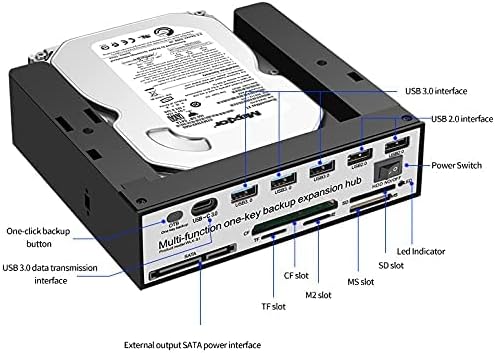
The VSVABEFV USB 3.0 Hard Drive Docking Station with a 3.5-inch HDD inserted, highlighting its multi-functionality.
Содержимое упаковки
Проверьте наличие всех предметов в упаковке:
- VSVABEFV USB 3.0 Hard Drive Docking Station (Model: WLX-S1)
- Кабель данных USB 3.0
- Адаптер питания
- Руководство по эксплуатации
Характеристики продукта
- Multifunctional Hard Disk Docking Station: Supports all 2.5-inch / 3.5-inch SATA/SSD hard disks with capacities up to 10TB.
- Усовершенствованный чип: Features a high-performance main control HUB chip for data transfer speeds up to 6 Gbps, ensuring faster and more stable operation.
- All-in-one Card Reader: Supports SD/CF/MS/XD/TF/M2 series memory cards, with a maximum capacity of 120GB.
- One-key Backup Function: Simple button operation for easy file copying from your computer to the hard disk.
- Широкая совместимость: Compatible with Windows 98/Me/2000/XP/Vista/7/8/10, Mac OS 9.X/10.X, Linux, and later versions. Backward compatible with USB 2.0/1.1 connections.

Болееview of the docking station's multi-functional capabilities.
Настраивать
- Подключите питание: Plug the provided power adapter into the DC 12V port on the back of the docking station and then into a power outlet.
- Подключиться к компьютеру: Connect one end of the USB 3.0 data cable to the USB 3.0 port on the docking station and the other end to an available USB 3.0 port on your computer.
- Вставьте жесткий диск: Gently insert your 2.5-inch or 3.5-inch SATA HDD/SSD into the top slot of the docking station. The tool-free design allows for easy insertion and removal. Ensure the SATA connectors align properly.
- Включение питания: Flip the power switch on the docking station to the 'ON' position. The device should be recognized by your computer automatically.

Proper insertion of a 3.5-inch hard drive into the docking station.
Инструкция по эксплуатации
Передача данных
Once the hard drive is inserted and the docking station is powered on and connected to your computer, the drive should appear as an external storage device. You can then drag and drop files to and from the drive, or use it for backups and other storage needs. The USB 3.0 interface ensures fast data transfer speeds.
One-Key Backup (OTB) Function
The docking station features a dedicated One-Key Backup button for quick data replication. To utilize this feature, you typically need to install specific software provided by the manufacturer. Refer to the manufacturer's website for the appropriate OTB software for your operating system. Once installed, configure the software to define your backup source and destination, then press the OTB button on the docking station to initiate the backup process.

Visual representation of the One-Key Backup function.
Using the Multi-Card Reader
The front panel of the docking station includes multiple card slots for various memory card formats (SD/CF/MS/XD/TF/M2). Simply insert your memory card into the corresponding slot. The card will appear as a removable drive on your computer, allowing you to access and transfer files.
HDD Independent Switch Control
The docking station is equipped with an independent power switch for the HDD. This allows you to power down the hard drive when not in use, contributing to energy saving and prolonging the drive's lifespan, without needing to disconnect the entire docking station from your computer.

The independent HDD power switch for convenient control.
Совместимость
The docking station is compatible with a wide range of operating systems and hardware:
- Операционные системы: Windows 98/Me/2000/XP/Vista/7/8/10, Mac OS 9.X/10.X, Linux, and later versions.
- Интерфейс жесткого диска: SATA I/II/III for 2.5-inch and 3.5-inch HDDs/SSDs.
- USB-интерфейс: USB 3.0 (backward compatible with USB 2.0/1.1).
- Card Reader Support: SD/CF/MS/XD/TF/M2 series memory cards.

The docking station supports multiple operating systems.
Обслуживание
Чтобы обеспечить оптимальную производительность и долговечность вашей док-станции:
- Содержите устройство в чистоте и не допускайте попадания на него пыли. Для чистки используйте мягкую сухую ткань.
- Не подвергайте устройство воздействию экстремальных температур, влажности или прямых солнечных лучей.
- Не роняйте и не подвергайте устройство сильным ударам.
- Always safely eject hard drives from your operating system before physically removing them from the docking station.
Поиск неисправностей
- Диск не распознан: Ensure the power adapter is securely connected and the docking station is powered on. Verify the USB cable is properly connected to both the docking station and your computer. Try a different USB port on your computer. For new drives, you may need to initialize and format them through Disk Management (Windows) or Disk Utility (Mac).
- Низкая скорость передачи данных: Ensure you are connected to a USB 3.0 port on your computer. Older USB 2.0/1.1 ports will result in slower speeds. The speed also depends on the hard drive's performance.
- One-Key Backup Not Working: Confirm that the OTB software is correctly installed and configured on your computer. Ensure the hard drive is properly inserted and recognized.
- Intermittent Drive Connection: Check all cable connections. Ensure the hard drive is fully seated in the SATA port.
Технические характеристики
| Особенность | Деталь |
|---|---|
| Бренд | ВСВАБЭФВ |
| Модель | WLX-S1 |
| Совместимые типы дисков | 2.5" / 3.5" SATA HDD/SSD |
| Максимальная вместимость привода | 10 ТБ |
| аппаратный интерфейс | USB 3.0 (обратная совместимость с USB 2.0/1.1) |
| Скорость передачи данных | До 6 Гбит/с (USB 3.0) |
| Поддержка считывателей карт | SD/CF/MS/XD/TF/M2 series (Max 120GB) |
| Совместимая ОС | Windows, Mac OS, Linux |
| Размеры изделия (ДхШхВ) | 6.61 x 6.14 x 1.81 дюйма |
| Вес товара | 11.8 унции (335 граммов) |
| Цвет | Черный |
Dimensions of the docking station.
Официальное видео о продукте
This video demonstrates the features and functionality of a FIDECO USB 3.0 to SATA Hard Drive Docking Station, including speed tests for HDD and SSD.
Гарантия и поддержка
For warranty information, technical support, or any inquiries regarding your VSVABEFV USB 3.0 Hard Drive Docking Station, please refer to the product packaging or contact VSVABEFV customer service directly. Contact details can typically be found on the manufacturer's official webсайт или через вашу платформу покупок.