Спасибо за покупкуasing the Trust Wireless Mouse. This manual provides detailed instructions for setting up, operating, maintaining, and troubleshooting your new wireless mouse. Please read this manual thoroughly before using the product to ensure optimal performance and longevity.
Изображение 1.1: Верх view of the Trust Wireless Mouse, showcasinг его эргономичный дизайн и расположение кнопок.
2. Информация по технике безопасности
Пожалуйста, соблюдайте следующие правила техники безопасности, чтобы предотвратить повреждение устройства или получение травм:
Не допускайте контакта мыши с водой или чрезмерной влажностью.
Не допускайте падения мыши и не подвергайте ее сильным ударам.
Не пытайтесь разбирать или ремонтировать мышь самостоятельно. Обратитесь к квалифицированному специалисту.
Утилизируйте батареи в соответствии с местным законодательством.
3. Содержимое упаковки
Проверьте наличие всех предметов в упаковке:
1x Trust Wireless Comfort Mouse
1x USB-микроприемник
1x батарея AA
1x Руководство пользователя (этот документ)
Image 3.1: The retail packaging of the Trust Wireless Mouse, showing the mouse and included accessories.
4. Настройка
4.1. Установка батареи
Найдите батарейный отсек на нижней стороне мыши.
Откройте крышку батарейного отсека.
Insert the provided AA battery, ensuring the positive (+) and negative (-) terminals align correctly with the markings inside the compartment.
Плотно закройте крышку батарейного отсека.
Image 4.1: Underside of the mouse with the battery compartment open, showing the insertion of an AA battery.
Изображение 4.2: Внизу view of the Trust Wireless Mouse, illustrating the battery compartment and the storage slot for the USB micro receiver.
4.2. Подключение USB-микроприемника
Locate the USB micro receiver, which is typically stored inside the mouse's battery compartment for transport.
Remove the USB micro receiver from its storage slot.
Plug the USB micro receiver into an available USB port on your computer (laptop or PC).
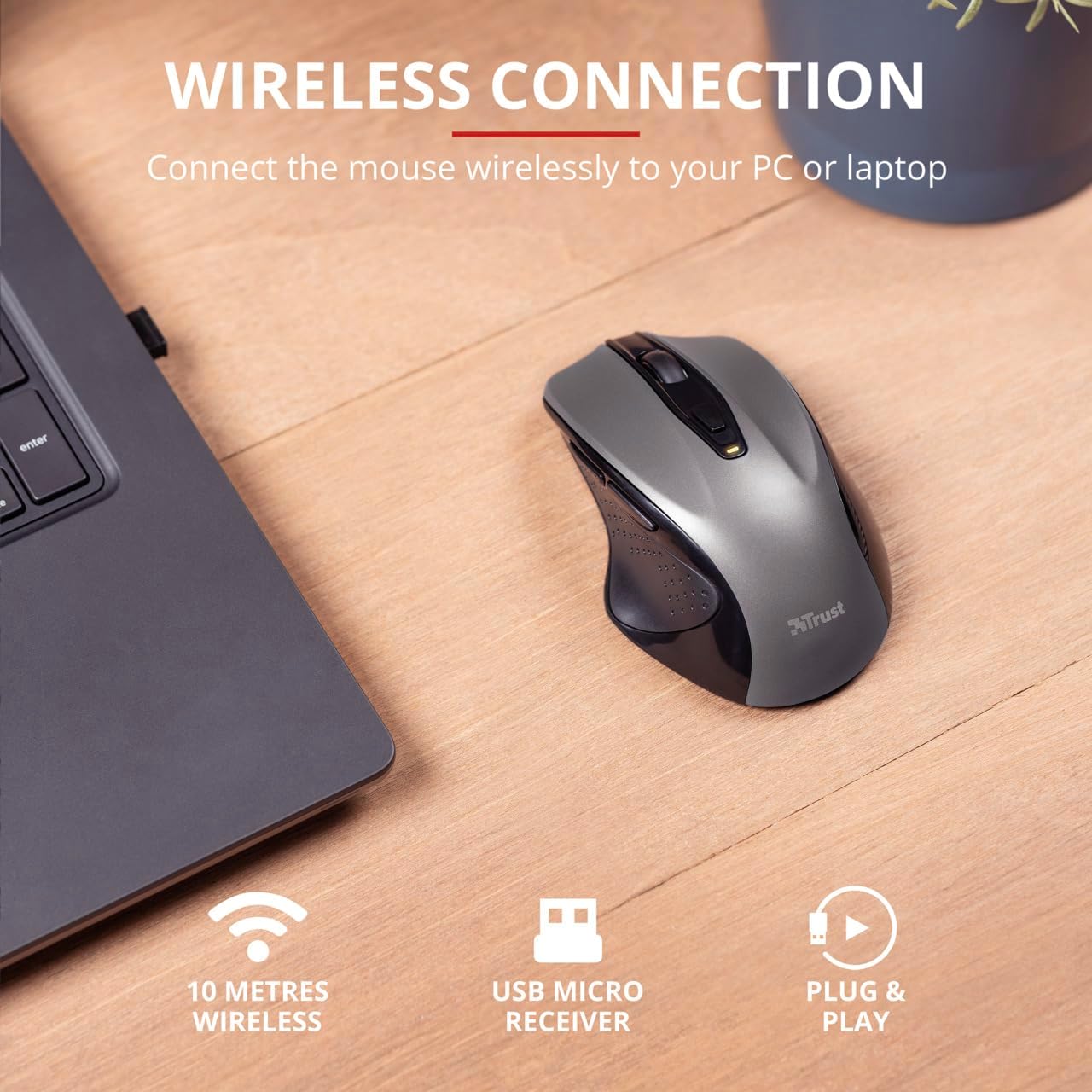
The mouse should automatically connect to your computer. No additional drivers are typically required for Windows 10, 8, 7, or Mac OS X 10.15 (Catalina) or higher.
Image 4.3: The Trust Wireless Mouse positioned next to a laptop, demonstrating the wireless connection via the USB micro receiver plugged into the laptop's USB port.
5. Управление мышью
5.1. Основные функции
Щелчок левой кнопкой мыши: Основная кнопка для выбора элементов и взаимодействия с программным обеспечением.
Щелкните правой кнопкой мыши: Второстепенная кнопка для контекстных меню и дополнительных опций.
Колесо прокрутки: Прокрутите вверх или вниз, чтобы прокрутить документы и web pages. Press the scroll wheel for middle-click functionality.
5.2. Регулировка DPI
The Trust Wireless Mouse features an adjustable DPI (Dots Per Inch) setting, allowing you to control the cursor speed. There are 5 different speeds available: 800, 1200, 1600, 1800, and 2200 DPI.
Найдите кнопку DPI, обычно расположенную за колесиком прокрутки.
Нажмите кнопку DPI, чтобы просмотреть доступные настройки DPI.
An LED indicator on the mouse will briefly show the current DPI setting.
Изображение 5.1: вид сбоку view of the Trust Wireless Mouse highlighting its comfortable shape, thumb rest with extra grip, and the adjustable speed (DPI) feature.
5.3. Thumb Buttons
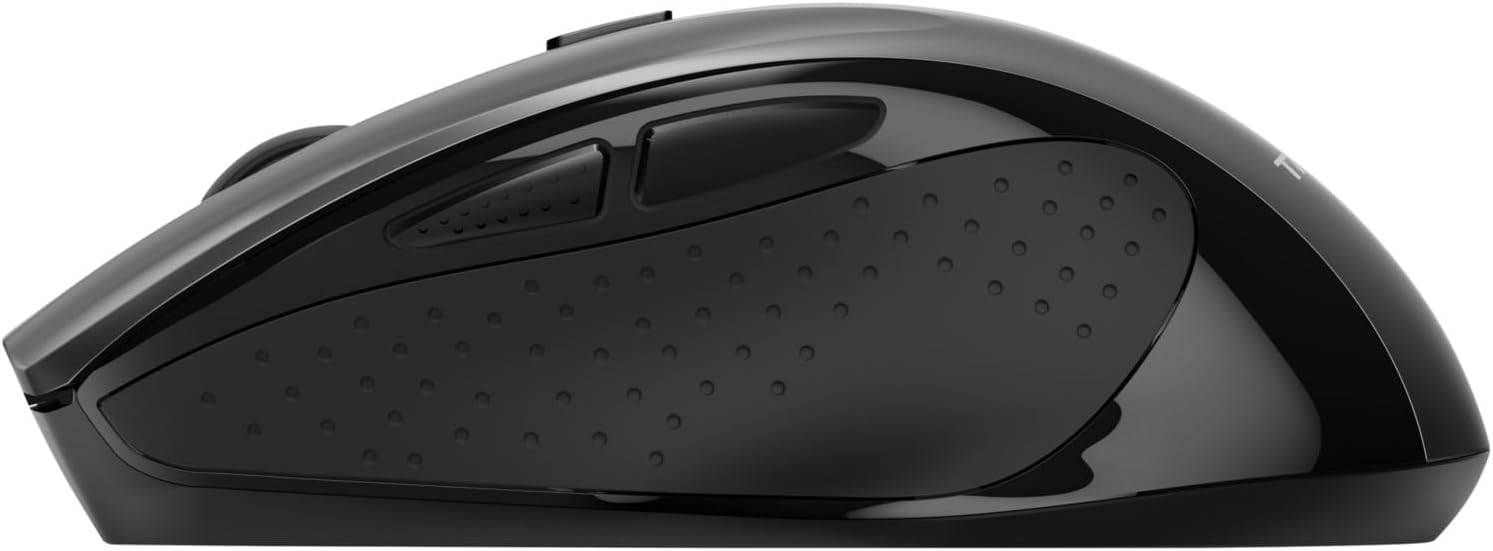
The mouse is equipped with two conveniently placed thumb buttons (forward and backward) on the left side. These buttons facilitate easy navigation, such as browsing through fileс или web страниц.
Нажмите Вперед button to move to the next page or item.
Нажмите Назад button to return to the previous page or item.
Изображение 5.2: вид сбоку view of the Trust Wireless Mouse, clearly showing the placement of the two thumb buttons for forward and backward navigation.
Note: Functionality of side buttons may vary between operating systems.
5.4. Функции энергосбережения
To conserve battery life, the mouse includes a power-saving mode and an on/off switch.
Переключатель Вкл/Выкл: Located on the underside of the mouse. Turn the mouse off when not in use for extended periods to maximize battery life.
Светодиодный индикатор батареи: An LED indicator will light up when the battery level is low, signaling that it's time to replace the AA battery.
6. Техническое обслуживание
6.1. Уборка
To maintain optimal performance, clean your mouse regularly:
Протрите поверхность мыши мягкой сухой тканью.
Для удаления стойких загрязнений слегкаampСмочите ткань водой или мягким чистящим средством. Избегайте использования агрессивных химикатов.
Не допускайте попадания жидкостей во внутренние компоненты мыши.
6.2. Замена батареи
When the battery indicator lights up, replace the AA battery promptly to ensure uninterrupted use. Refer to section 4.1 for battery installation instructions.
7. Поиск Неисправностей
Проблема
Возможная причина
Решение
Мышь не отвечает.
Низкий или полностью разряженный аккумулятор.
Замените батарейку АА.
Мышь не отвечает.
USB-приемник подключен неправильно.
Убедитесь, что USB-приемник надежно вставлен в исправный USB-порт. Попробуйте другой USB-порт.
Мышь не отвечает.
Мышь выключена.
Включите мышь с помощью выключателя на нижней стороне.
Движение курсора хаотичное или медленное.
Low DPI setting.
Press the DPI button to increase cursor speed.
Движение курсора хаотичное или медленное.
Dirty sensor or unsuitable surface.
Clean the optical sensor on the underside of the mouse. Use the mouse on a clean, non-reflective surface.
Проблемы с беспроводным подключением.
Помехи или расстояние до приемника.
Ensure the mouse is within 10 meters of the receiver. Remove any large metal objects between the mouse and receiver.
8. Технические характеристики
Особенность
Деталь
Номер модели
24115
Связность
Wireless (RF 2.4GHz)
Дальность беспроводной связи
10 метров
Настройки DPI
800, 1200, 1600, 1800, 2200 DPI (adjustable)
Количество кнопок
6 (Left, Right, Mid, Forward, Backward, DPI loop)
Тип датчика
Оптический
Эргономика
Ergonomic design with thumb rest and rubber inlay
Источник питания
1 батарейка типа АА (в комплекте)
Размеры (Д x Ш x В)
113 мм x 74 мм x 41 мм (4.45 x 2.91 x 0.04 дюйма)
Масса
100 г (2.65 унции)
Совместимые операционные системы
Windows 10, 8, 7; Mac OS X 10.15 (Catalina) or higher
9. Гарантия и поддержка
The Trust Wireless Mouse comes with a Гарантия 1 год с даты покупки. Данная гарантия распространяется на дефекты материалов и изготовления при нормальном использовании.
Гарантия не распространяется на:
Повреждения, вызванные несчастным случаем, неправильным обращением, неправильным использованием, наводнением, пожаром, землетрясением или другими внешними причинами.
Damage caused by operating the product outside the permitted or intended uses described by Trust.
Damage caused by service (including upgrades and expansions) performed by anyone who is not a representative of Trust or a Trust Authorized Service Provider.
For technical support or warranty claims, please visit the official Trust website or contact their customer service department. Refer to the product packaging or Trust's official webсайт для получения самой актуальной контактной информации.