
1. Введение
This user manual provides detailed instructions for the proper use and maintenance of your Zebra DS8178 Wireless 2D/1D Barcode Scanner. Please read this manual thoroughly before operating the device to ensure optimal performance and safety. The DS8178 is designed for efficient and reliable barcode scanning in various environments, offering both 1D and 2D barcode reading capabilities with wireless connectivity.
2. Информация по технике безопасности
Соблюдайте следующие меры предосторожности, чтобы предотвратить травмы или повреждение устройства:
- Do not expose the scanner or cradle to extreme temperatures, moisture, or corrosive substances.
- Avoid direct eye exposure to the scanner's light source.
- Для зарядки используйте только указанный адаптер питания и USB-кабель.
- Не пытайтесь разбирать или модифицировать устройство. По всем вопросам обслуживания обращайтесь к квалифицированному персоналу.
- Держите устройство вдали от сильных магнитных полей.
3. Содержимое упаковки
Проверьте наличие всех предметов в посылке:
- Zebra DS8178 Wireless Barcode Scanner
- USB Communication/Charging Cradle
- USB-кабель
- Краткое руководство пользователя (не входит в данное руководство)
4. Продукт закончилсяview
Familiarize yourself with the components of your Zebra DS8178 scanner and its cradle.

Рисунок 4.1: Сторона view of the Zebra DS8178 Wireless Barcode Scanner, showing its ergonomic design.

Рисунок 4.2: Передний view of the Zebra DS8178 Wireless Barcode Scanner, highlighting the scanning window and trigger button.

Рисунок 4.3: Передний view of the USB Communication/Charging Cradle, featuring the pairing button.
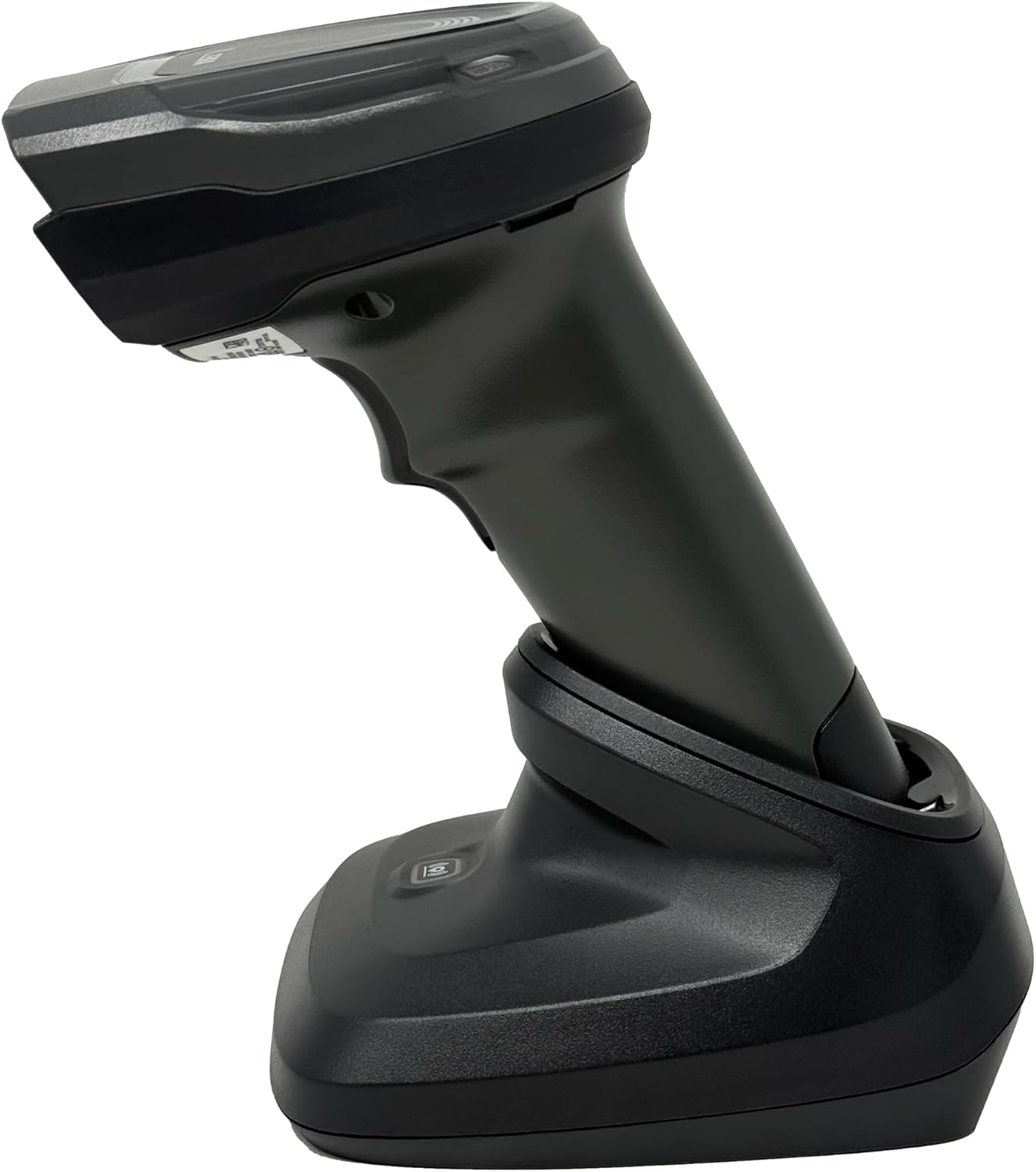
Рисунок 4.4: The Zebra DS8178 scanner securely docked in its USB cradle, ready for charging or communication.
4.1 Компоненты сканера
- Окно сканирования: Area through which barcodes are read.
- Курок: Активирует сканирующий луч.
- Светодиодные индикаторы: Provide status feedback (e.g., battery, scan success).
- Отсек для батареи: Houses the removable/rechargeable battery.
4.2 Cradle Components
- Scanner Slot: Where the scanner docks for charging and communication.
- USB-порт: Connects the cradle to a host device (PC, laptop).
- Кнопка сопряжения: Initiates Bluetooth pairing with the scanner.
- Светодиодные индикаторы: Show cradle status (e.g., power, connection).
5. Настройка
5.1 Зарядка сканера
- Connect the USB cable to the cradle's USB port.
- Другой конец USB-кабеля подключите к USB-порту с питанием на компьютере или к USB-адаптеру.
- Place the DS8178 scanner into the cradle. Ensure it is seated correctly.
- The scanner's LED indicator will show charging status. A full charge typically takes approximately 3-4 hours.
5.2 Connecting the Cradle to a Host Device
The cradle connects to your computer via a standard USB cable.
- Plug the USB cable into the USB port on the back of the cradle.
- Connect the other end of the USB cable to an available USB port on your desktop or laptop computer.
- Операционная система должна автоматически обнаружить и установить необходимые драйверы.
5.3 Сопряжение по Bluetooth
The DS8178 offers two primary Bluetooth pairing methods: via the cradle or direct to a host device.
5.3.1 Pairing via Cradle (Recommended for PC/Laptop)
- Ensure the cradle is connected to your host device (PC/Laptop) via USB.
- Place the DS8178 scanner into the cradle.
- The scanner will automatically pair with the cradle. Once paired, the scanner can be removed from the cradle and will communicate wirelessly with the host device through the cradle.
- A successful connection is indicated by a specific LED pattern on both the scanner and cradle (refer to the scanner's LED guide for details).
5.3.2 Direct Bluetooth Pairing (for Phones/Tablets or PC/Laptop without cradle)
- Power on the DS8178 scanner.
- Scan the "Pairing Barcode" (usually found in a quick start guide or on the scanner itself) to put the scanner into discoverable mode. Alternatively, press and hold the Bluetooth pairing button on the scanner (if available) or scan a specific Bluetooth pairing configuration barcode.
- On your phone, tablet, or computer, navigate to the Bluetooth settings.
- Искать available devices. The DS8178 should appear in the list (e.g., "Zebra DS8178").
- Select the scanner to initiate pairing. You may be prompted to confirm a passkey or scan a pairing barcode displayed on your screen.
- Once paired, the scanner's LED will indicate a successful connection.
6. Операция
6.1 Сканирование штрихкодов
- Point the scan window of the DS8178 scanner at the barcode you wish to read.
- Press and hold the trigger button. A red aiming pattern will appear.
- Center the aiming pattern over the barcode. For 1D barcodes, the aiming line should cross the entire barcode. For 2D barcodes, the aiming pattern should encompass the entire code.
- Once the barcode is successfully read, the scanner will emit an audible beep and/or the LED indicator will flash green.
- Отпустите курок.
6.2 Cordless Range
The Zebra DS8178 offers a cordless range of up to 330 feet (100 meters) from its cradle or directly paired host device, depending on environmental conditions and line of sight. Obstructions such as walls or other electronic devices may reduce the effective range.
6.3 Режимы сканирования
- Режим триггера: The scanner reads a barcode only when the trigger is pressed.
- Presentation Mode (Hands-Free): When placed in the presentation cradle, the scanner can be configured to automatically detect and read barcodes placed within its field of view without requiring a trigger press. This mode is ideal for high-volume scanning applications.
7. Техническое обслуживание
7.1 Очистка сканера
To maintain optimal scanning performance, keep the scan window clean.
- Используйте мягкую, чистую, безворсовую ткань.ampened with water or a mild cleaning solution (e.g., isopropyl alcohol).
- Gently wipe the scan window and the exterior of the scanner.
- Не используйте абразивные чистящие средства, растворители или едкие химикаты.
- Перед чисткой убедитесь, что сканер выключен.
7.2 Уход за аккумулятором
The DS8178 features a 2500mAh removable and rechargeable battery. Proper battery care extends its lifespan.
- Перед первым использованием полностью зарядите аккумулятор.
- Avoid completely discharging the battery regularly.
- Если сканер не используется в течение длительного времени, храните его в прохладном, сухом месте.
- If the battery performance significantly degrades, it may need replacement. Contact support for genuine replacement batteries.
8. Поиск Неисправностей
| Проблема | Возможная причина | Решение |
|---|---|---|
| Сканер не включается. | Низкий или разряженный аккумулятор. | Charge the scanner using the USB cradle and cable. |
| Сканер не подключается через Bluetooth. | Не в режиме сопряжения; вне зоны действия; помехи; Bluetooth на главном устройстве выключен. | Ensure scanner is in pairing mode. Check host device Bluetooth settings. Move closer to the host device. Reduce interference. |
| Сканер не считывает штрихкоды. | Barcode damaged/poor quality; scan window dirty; incorrect symbology enabled; scanner not aimed correctly. | Try scanning a different barcode. Clean the scan window. Ensure correct aiming. Check scanner configuration for enabled symbologies. |
| Данные на хост не передавались. | Not paired; application not in focus; incorrect interface settings. | Confirm successful Bluetooth pairing. Ensure the target application (e.g., text editor, POS software) is active and ready to receive input. |
9. Технические характеристики
| Особенность | Деталь |
|---|---|
| Модель | ДС8178 |
| Бренд | Zebra (formerly Symbol) |
| Технология связи | Bluetooth, USB-кабель, беспроводная связь |
| Совместимые устройства | Desktop, Laptop, Phones, Tablets |
| Источник питания | Battery Powered, Corded Electric, Rechargeable |
| Емкость аккумулятора | 2500mAh (Removable/Rechargeable) |
| Беспроводной тир | До 330 футов (100 метров) |
| Возможность сканирования | Одномерные и двухмерные штрихкоды |
| Реальный угол View | 17 градусов |
| UPC/GTIN | 649661651499 |
10. Гарантия и поддержка
This Zebra DS8178 Barcode Scanner comes with a 90-дневная ограниченная гарантия. This warranty covers defects in materials and workmanship under normal use. It does not cover damage caused by misuse, accidents, unauthorized modifications, or external causes.
For technical support, warranty claims, or to purchase genuine replacement parts (such as batteries), please contact your reseller or visit the official Zebra support website. Please have your model number (DS8178) and any purchase information ready when contacting support.