
SAMSON GOMICS
Samson Go Mic Portable USB Condenser Microphone User Manual
Model: GOMICS
Бренд: SAMSON
1. Введение
The Samson Go Mic is a compact, plug-and-play USB condenser microphone designed for versatile audio recording. It requires no drivers and is compatible with both Mac and Windows operating systems. This microphone is ideal for various applications including podcasting, voice recognition software, music recording, and general speech.
Key features include a USB audio output, a 1/8" (3.5mm) headphone output for monitoring, and a folding clip for convenient laptop screen mounting. The Go Mic offers switchable polar patterns, allowing users to select between cardioid and omnidirectional pickup patterns for enhanced flexibility in different recording environments. With a wide frequency response and 44.1 kHz / 16-bit resolution, the Go Mic delivers clear and high-quality audio.
2. Содержимое упаковки
Пожалуйста, убедитесь, что все перечисленные ниже предметы включены в ваш пакет:
- Samson Go Mic USB Condenser Microphone
- USB-кабель
- Кабельный зажим
- Адаптер для микрофонной стойки
- Сумка для переноски
- USB 2.0 Hub with Individual LED lit Power Switches (Deluxe Bundle)
- Photo4Less Black Cleaning Cloth (Deluxe Bundle)

Image: The Samson Go Mic Deluxe Bundle, showing the Go Mic microphone, a USB hub with individual power switches, and a black cleaning cloth.
3. Возможности закончилисьview
- Компактная и портативная конструкция: The Go Mic features a unique folding design, making it highly portable and easy to transport.
- USB-соединение: Plug-and-play operation with no drivers required for both Mac and Windows computers.
- Двойные полярные узоры: Switchable between Cardioid and Omnidirectional pickup patterns for versatile recording applications.
- Кардиоида: Ideal for capturing sound directly in front of the microphone, minimizing background noise. Suitable for vocals, instruments, and podcasts.
- Всенаправленная: Captures sound equally from all directions, suitable for group discussions, ambient recordings, or capturing room sound.
- Выход для наушников: 1/8" (3.5mm) stereo headphone output for zero-latency monitoring of your audio.
- Интегрированный клип: A durable folding clip allows for secure attachment to laptop screens or use as a desktop stand.
- Высококачественный звук: 44.1 kHz / 16-bit resolution ensures clear, CD-quality audio recording.
- Sound Deck Software Compatibility: Supports Samson Sound Deck Noise Cancellation Software (available as a paid download) for enhanced VoIP communication and computer recording by minimizing background noise.

Image: The Samson Go Mic in its folded, compact state, highlighting its portability.
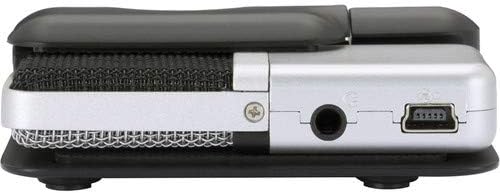
Изображение: сбоку view of the Samson Go Mic, showing the 3.5mm headphone jack and the mini-USB port.
4. Руководство по установке
- Unpack the Go Mic: Carefully remove the Samson Go Mic and all accessories from its packaging.
- Расположение микрофона:
- Laptop Mounting: Open the integrated clip and securely attach the Go Mic to the top of your laptop screen. Adjust the angle as needed.
- Настольное использование: The clip can also serve as a stable desktop stand. Place the Go Mic on a flat surface.
- Mic Stand Mounting: For use with a standard microphone stand, attach the included mic stand adapter to the Go Mic's clip, then mount it onto your stand.

Image: The Samson Go Mic securely clipped to the top of a laptop screen, ready for use.
- Подключиться к компьютеру: Use the provided USB cable to connect the Go Mic's mini-USB port to an available USB port on your computer.
- If using the included USB 2.0 Hub, connect the Go Mic to one of the hub's ports, and then connect the hub to your computer. Ensure the hub has power if required.

Image: The included USB 2.0 Hub with individual LED-lit power switches, used to expand USB connectivity.
- Установка драйверов (автоматическая): Your computer should automatically recognize the Go Mic and install the necessary drivers. This process typically takes a few moments.
- Select Go Mic as Input/Output Device:
- Окна: Go to Control Panel > Sound > Recording tab. Select "Samson Go Mic" as your default recording device. For monitoring, go to the Playback tab and select "Samson Go Mic" as your default playback device if you wish to monitor through the microphone's headphone jack.
- Мак: Go to System Preferences > Sound > Input tab. Select "Samson Go Mic". For monitoring, go to the Output tab and select "Samson Go Mic".
- Подключите наушники (по желанию): Plug your headphones into the 1/8" (3.5mm) headphone jack on the side of the Go Mic for direct, zero-latency monitoring of your audio.
5. Инструкция по эксплуатации
5.1. Polar Pattern Selection
The Go Mic features a switch on its side to select between two polar patterns:
- Кардиоидная (однонаправленная): This pattern picks up sound primarily from the front of the microphone, rejecting sounds from the sides and rear. It is best suited for single vocalists, instruments, or when you want to isolate a sound source and minimize background noise.
- Всенаправленная: This pattern picks up sound equally from all directions around the microphone. It is ideal for recording group conversations, ambient sounds, or capturing the overall sound of a room.
Select the appropriate pattern based on your recording environment and desired sound capture.
5.2. Запись звука
- Ensure the Go Mic is properly connected and selected as your input device in your computer's sound settings and your recording software.
- Open your preferred audio recording software (e.g., Audacity, GarageBand, OBS, Zoom).
- In your software's audio settings, confirm that "Samson Go Mic" is selected as the input device.
- Adjust the input gain/level within your software to prevent clipping (distortion) while ensuring a strong signal. Monitor your audio through headphones connected to the Go Mic's headphone jack.
- Begin your recording.
5.3. Мониторинг звука
The Go Mic provides a direct headphone output for real-time, zero-latency monitoring of your input signal. This allows you to hear exactly what the microphone is picking up without any delay from your computer's processing.
- Connect your headphones to the 3.5mm jack on the side of the Go Mic.
- Adjust your computer's output volume or the volume within your recording software to control the headphone monitoring level.
6. Техническое обслуживание
- Уборка: Use the provided Photo4Less Black Cleaning Cloth or a soft, dry cloth to wipe down the microphone's exterior. Do not use liquid cleaners or solvents.

Image: The Photo4Less black cleaning cloth, suitable for cleaning delicate electronics.
- Хранилище: When not in use, store the Go Mic in its included carrying pouch to protect it from dust and physical damage.
- Умение обращаться: Избегайте падения микрофона и сильных ударов, так как это может повредить внутренние компоненты.
- Условия окружающей среды: Держите микрофон подальше от экстремальных температур, высокой влажности и прямых солнечных лучей.
7. Поиск Неисправностей
| Проблема | Возможная причина | Решение |
|---|---|---|
| Нет звука с микрофона. |
|
|
| Audio sounds distorted or clipped. |
|
|
| Чрезмерный фоновый шум. |
|
|
| Headphone monitoring not working. |
|
|
8. Технические характеристики
| Особенность | Деталь |
|---|---|
| Тип микрофона | USB-конденсатор |
| Полярные узоры | Cardioid (Unidirectional), Omnidirectional |
| Частотная характеристика | 20Hz - 18kHz (Typical) |
| Sampле Скорость | 44.1 кГц |
| Бит-глубина | 16-битный |
| Связность | USB |
| Выход для наушников | 1/8" (3.5mm) Stereo Jack |
| Аппаратная платформа | Laptop, PC (Windows & Mac compatible) |
| Материал | Титан |
| Вес товара | 16 унций (приблизительно 0.45 кг) |
| Номер модели | GOMICS |
| СКП | 657701047591 |
9. Гарантия и поддержка
The Samson Go Mic is covered by a Limited 2-Year Warranty. Please refer to the warranty card included in your package for detailed terms and conditions.
For technical support, product registration, or further information, please visit the official Samson webили обратитесь в службу поддержки клиентов. Сохраните чек о покупке для предъявления гарантийных претензий.
Производитель: Самсон
Ask a question about this manual
Ask about setup, troubleshooting, compatibility, parts, safety, or missing instructions. Manuals+ will review the question and use this page’s manual context to help answer it.