
SYSTEMTREFF 20192505-a
SYSTEMTREFF PC AMD Ryzen 7 5700G User Manual
Model: Ed2505 (20192505-a)
Введение
This manual provides essential information for setting up, operating, maintaining, and troubleshooting your SYSTEMTREFF PC AMD Ryzen 7 5700G. Please read this manual thoroughly before using your new computer to ensure proper functionality and longevity.

Изображение: лицевая сторона view of the SYSTEMTREFF PC, showcasing its transparent side panel and illuminated internal components.
Руководство по настройке
Follow these steps to set up your SYSTEMTREFF PC.
1. Распаковка и размещение
- Аккуратно извлеките компьютер из упаковки. Сохраните все упаковочные материалы для дальнейшей транспортировки или обслуживания.
- Place the PC on a stable, flat surface with adequate ventilation. Ensure there is sufficient space around the computer for airflow, especially at the front, rear, and top vents.
- Avoid placing the PC near heat sources, in direct sunlight, or in areas with excessive dust or humidity.

Изображение: Разное views of the PC case illustrating its physical dimensions for proper placement.
2. Подключение периферийных устройств
Подключите монитор, клавиатуру, мышь и другие устройства к соответствующим портам.
- Монитор: Connect your monitor to the HDMI or DVI-D port on the rear of the PC. Ensure the cable is securely fastened.
- Клавиатура и мышь: Connect your USB keyboard and mouse to any available USB ports (USB 2.0 or USB 3.0/3.2). PS/2 ports are also available for compatible devices.
- Аудио: Connect speakers or headphones to the audio output jack (green) and a microphone to the microphone input jack (pink) on the rear or front panel.
- Сеть: For a wired connection, connect an Ethernet cable from your router to the RJ45 LAN port on the rear. For wireless connectivity, ensure the included USB Wi-Fi stick is connected.
- Власть: Connect the power cable to the power supply unit (PSU) at the rear of the PC, then plug the other end into a grounded electrical outlet.

Изображение: подробное view of the available front and rear ports for connecting various peripherals.
Инструкция по эксплуатации
1. First Boot and Initial Setup
- After connecting all peripherals, press the power button located on the top front of the PC.
- The system will boot into Windows 10 Pro. Follow the on-screen instructions to complete the initial Windows setup, including region, language, and user account creation.
- Drivers for all components are pre-installed, ensuring a plug-and-play experience.
2. Основное использование
- Включение/выключение питания: Press the power button to turn on. To shut down, click the Start button in Windows, then select Power > Shut down.
- Перезапуск: Для перезагрузки системы нажмите кнопку «Пуск», затем выберите «Питание» > «Перезагрузка».
- Спящий режим: To put the system into sleep mode, click the Start button, then select Power > Sleep.
- Связь: The PC supports Wi-Fi and Bluetooth for wireless connections. Use the Windows settings to connect to wireless networks or pair Bluetooth devices.

Изображение: Бывшийamples of typical usage scenarios for the PC, including productivity, entertainment, and gaming.
Обслуживание
Regular maintenance helps ensure the optimal performance and longevity of your PC.
1. Уборка
- Экстерьер: Используйте мягкий, damp Для протирки внешней поверхности чехла используйте ткань. Избегайте абразивных чистящих средств.
- Пыль: Periodically clean dust from the vents and fans using compressed air. Ensure the PC is powered off and unplugged before cleaning. The case features a mesh front and side panel for improved airflow and dust filtration.

Image: Features of the PC case designed for efficient cooling and maintenance access.
2. Обновления программного обеспечения
- Регулярно проверяйте и устанавливайте обновления Windows, чтобы обеспечить стабильность и безопасность системы.
- Keep your graphics drivers updated for optimal performance, especially for gaming and multimedia applications.
Поиск неисправностей
В этом разделе рассматриваются распространенные проблемы, с которыми вы можете столкнуться.
Нет питания
- Убедитесь, что кабель питания надежно подключен к ПК и электрической розетке.
- Verify that the power switch on the back of the power supply unit (PSU) is in the 'On' position.
- Проверьте розетку с помощью другого устройства, чтобы убедиться в ее работоспособности.
Нет изображения на мониторе
- Check that the monitor is powered on and its video cable is securely connected to the PC's HDMI or DVI-D port.
- Ensure the monitor input source is correctly selected (e.g., HDMI 1, DVI).
- If you have multiple display outputs, try connecting to a different port.
System Slowdown or Freezing
- Закройте ненужные приложения, работающие в фоновом режиме.
- Check for sufficient free space on your drives, especially the C: drive (SSD).
- Запустите проверку на вирусы, чтобы проверить наличие вредоносного ПО.
- Ensure the PC has adequate ventilation and is not overheating.
Технические характеристики
Detailed technical specifications of your SYSTEMTREFF PC.
| Компонент | Спецификация |
|---|---|
| Процессор | AMD Ryzen 7 5700G (8 Cores, up to 4.6 GHz Turbo) |
| Графика | Integrated AMD Radeon RX Vega 8 (4GB, 2000 MHz, DirectX 12.1) |
| БАРАН | 32 ГБ DDR4 3200 МГц |
| Хранилище | 1TB M.2 NVMe SSD + 2TB HDD |
| Операционная система | Windows 10 Pro (64-bit, pre-installed) |
| Источник питания | 500 Вт |
| Связность | Wi-Fi, Bluetooth, Gigabit LAN (RJ45) |
| Передние порты | 1 порта USB 3.0, 2 порта USB 2.0, аудиовход/выход. |
| Задние порты | HDMI 4K HD, DVI-D, PS/2, 4x USB 3.2, 2x USB 2.0, HD 7.1 Sound, RJ45 LAN |
| Размеры (ВxШxГ) | 45 х 20.5 х 38.5 см |
| Масса | 12 кг |

Image: Visual summary of the PC's core performance components.


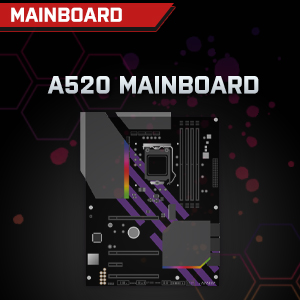

Image: Individual component representations for CPU, RAM, Graphics, Storage, Mainboard, and Power Supply.
Гарантия и поддержка
SYSTEMTREFF is committed to providing excellent customer service.
- Гарантия производителя: Your SYSTEMTREFF PC comes with a 36-month (3-year) manufacturer's warranty. This warranty covers defects in materials and workmanship under normal use.
- Контроль качества: All individually assembled PCs undergo a quality control check before shipment.
- Возврат: In case of issues, SYSTEMTREFF offers free returns.
- Связаться со службой поддержки: For technical assistance, warranty claims, or any other inquiries, please contact SYSTEMTREFF customer support. Contact details can typically be found on the manufacturer's official webсайте или в документации, прилагаемой к вашей покупке.

Image: Information regarding warranty, ease of setup, and customer support availability.
Ask a question about this manual
Ask about setup, troubleshooting, compatibility, parts, safety, or missing instructions. Manuals+ will review the question and use this page’s manual context to help answer it.