
1. Введение
This manual provides detailed instructions for the installation, operation, and maintenance of your JOOAN 3MP Wireless Security Camera System, Model 703. This system is designed to provide reliable surveillance with features such as 3MP resolution, AI human detection, audio recording, and remote access.

Изображение 1.1: оконченоview of the JOOAN Wireless Security Camera System components.
2. Компоненты системы
The JOOAN 3MP Wireless Security Camera System typically includes the following components:
- NVR (Network Video Recorder) with pre-installed 1TB HDD
- Wireless IP Cameras (4 units)
- Адаптеры питания для NVR и камер
- USB-мышь
- Ethernet-кабель
- Монтажные винты и анкеры
- Руководство пользователя (этот документ)

Image 2.1: The 1TB Hard Disk Drive included with the NVR for video storage.
3. Руководство по установке
3.1 Первое включение и подключение
- Подключите сетевой видеорегистратор к монитору с помощью кабеля HDMI или VGA.
- Подключите USB-мышь к сетевому видеорегистратору.
- Connect the NVR to power using its adapter.
- Подключите каждую камеру к соответствующему адаптеру питания.
- The cameras will automatically pair with the NVR upon power-up.

Image 3.1: Illustration of the 'Auto Pair, Plug N Play' setup process for the camera system.
The system is designed for 'Plug N Play' functionality, meaning cameras should automatically connect to the NVR once powered. For optimal wireless signal, consider the NVR's built-in router capabilities.

Image 3.2: The NVR features a built-in router, providing up to 200ft range with one wall obstruction and up to 1640ft in open spaces.
3.2 Remote Access Setup (Eseecloud App)
К view your cameras remotely on mobile devices or PC, download the Eseecloud application.
- Download the Eseecloud app from your mobile app store (iOS/Android) or the Eseecloud software for PC.
- Зарегистрируйте учетную запись и войдите в систему.
- On the NVR interface, navigate to Network Setup to find the Cloud ID (QR code).
- In the Eseecloud app, scan the Cloud ID QR code or manually enter the ID to add your device.
- Ensure your NVR is connected to the internet for remote viewинж.

Изображение 3.3: Пульт дистанционного управления viewing setup showing the Eseecloud app on mobile and PC for multi-device access.
Video 3.1: Demonstrates how to get a local image within one minute, showcasing the quick setup process.
Видео 3.2: Оверview of the Jooan 3MP Super HD Wireless System, highlighting its features and ease of use.
4. Инструкция по эксплуатации
4.1 Прямой эфир View и воспроизведение
После настройки системы вы можете view жить фуtage on your connected monitor or through the Eseecloud app. Recorded footage can be accessed via the NVR interface or the app for playback.
4.2 Обнаружение движения и оповещения
The system features advanced AI Human Detection to minimize false alarms. When motion or a human shape is detected, the system can trigger various alerts:
- NVR Buzzer
- Уведомление по электронной почте
- APP Notification (Push Alert)

Image 4.1: Demonstrates motion detection and the corresponding app push alerts and email notifications.
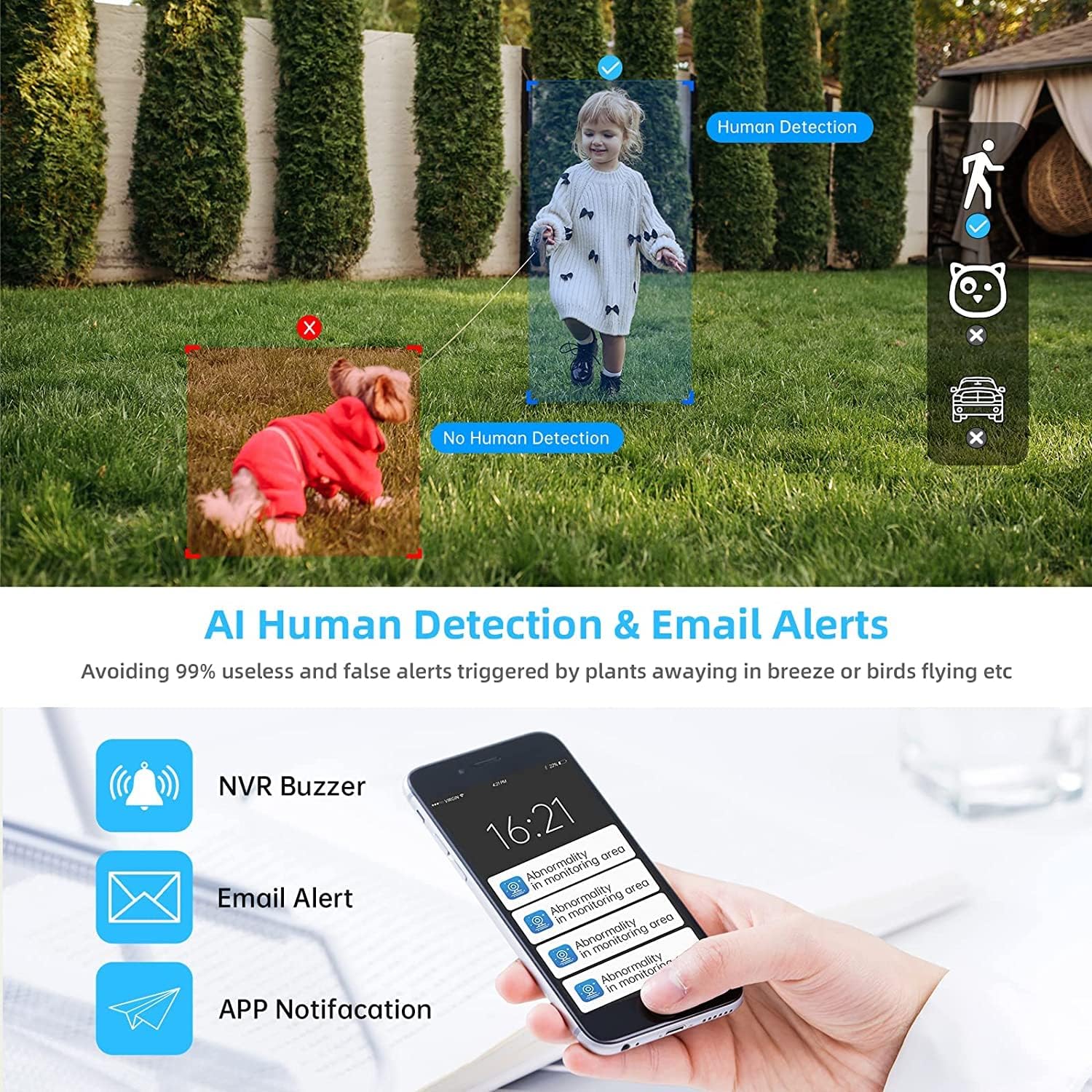
Image 4.2: AI Human Detection feature, distinguishing human shapes from other movements to reduce false alarms.
4.3 Audio Recording (One-Way Audio)
Each camera is equipped with a microphone, allowing for one-way audio recording. You can hear the sound from the monitoring scene during live viewсчитывание и воспроизведение.
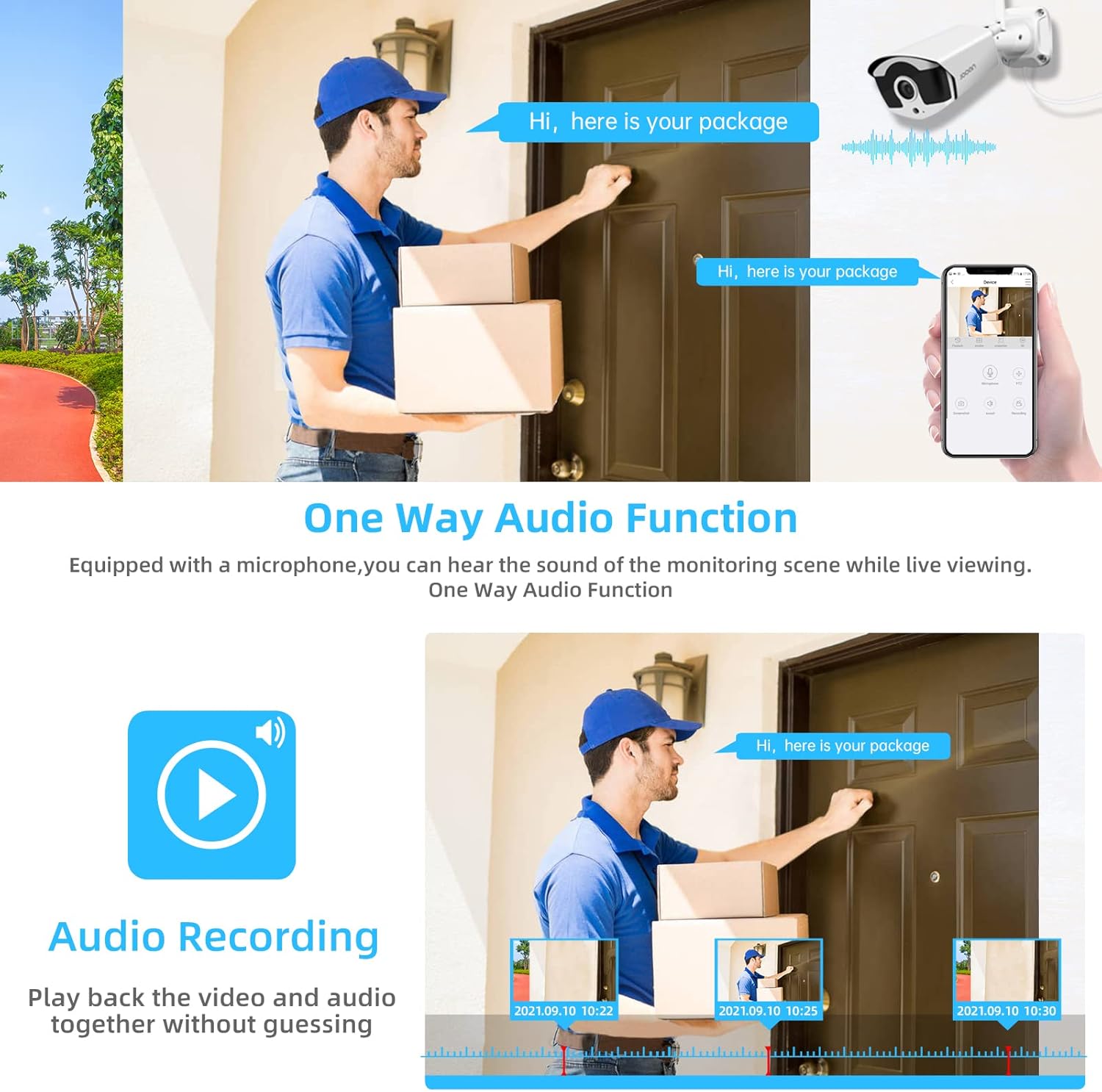
Image 4.3: Illustration of the one-way audio function, showing a delivery person speaking and the audio being recorded.
4.4 Ночное видение
The cameras provide clear night vision, ensuring continuous surveillance even in low-light conditions.

Image 4.4: Depiction of the camera's night vision feature, providing clear images in darkness.
Video 4.1: A short clip demonstrating the night time monitoring capabilities of the camera system.
4.5 Сжатие видео H.265+
The system utilizes advanced H.265+ video compression technology, which significantly reduces storage space requirements while maintaining high video quality. This allows for longer recording times on the 1TB HDD.

Image 4.5: Comparison showing how H.265+ compression saves storage space compared to H.264 and H.265.
5. Техническое обслуживание
Регулярное техническое обслуживание обеспечивает долговечность и оптимальную работу вашей системы безопасности.
- Очистка объектива камеры: Периодически очищайте линзы камеры мягкой тряпкой.amp Для удаления пыли и пятен используйте тряпку. Избегайте абразивных чистящих средств.
- Управление кабелями: Убедитесь, что все кабели надежно подключены и защищены от воздействия окружающей среды.
- Обновления программного обеспечения: Проверьте производителя website or the Eseecloud app for firmware updates for the NVR and cameras to ensure the latest features and security patches.
- Охрана окружающей среды: While cameras are IP67 waterproof, extreme weather conditions can still affect performance. Ensure cameras are mounted securely and protected where possible.

Image 5.1: The IP67 waterproof rating ensures the camera's durability against various weather conditions, including rain, snow, and dust.
6. Поиск Неисправностей
If you encounter issues with your JOOAN Security Camera System, refer to the following common troubleshooting steps:
6.1 Нет видеодисплея
- Проверьте мощность: Убедитесь, что видеорегистратор и все камеры должным образом включены.
- Подключение монитора: Проверьте правильность подключения кабеля HDMI/VGA между видеорегистратором и монитором.
- Сопряжение камеры: If a specific camera has no video, check its power and ensure it's within range of the NVR for wireless connection. Re-pair if necessary (refer to NVR manual for specific re-pairing steps).
6.2 Проблемы с удаленным доступом
- Интернет-соединение: Убедитесь, что сетевой видеорегистратор подключен к интернету через кабель Ethernet.
- Вход в приложение: Verify your Eseecloud app login credentials.
- Идентификатор облака: Double-check that the correct Cloud ID is entered in the app.
- Настройки сети: Ensure your router settings are not blocking the NVR's internet access.
6.3 Проблемы с записью
- Состояние жесткого диска: Check the NVR's settings to ensure the 1TB HDD is detected and functioning correctly.
- График записи: Verify that the recording schedule is properly configured.
- Настройки обнаружения движения: If using motion-triggered recording, ensure motion detection is enabled and sensitivity is adjusted appropriately.
7. Технические характеристики
| Особенность | Спецификация |
|---|---|
| Бренд | JOOAN |
| Номер модели | 703 |
| Разрешение видеозахвата | 3MP (Clearer than 1080p) |
| Количество каналов | 8 |
| Ночное Видение | Night color (up to 100ft) |
| Режим записи | Непрерывное обнаружение движения, обнаружение событий |
| аппаратный интерфейс | 802.11 ac/b/g/n (Wireless) |
| Видеовход | VGA-выход, HDMI-выход |
| Технология оптических датчиков | КМОП |
| Рейтинг водонепроницаемости | IP67 |
| HDD Included | 1ТБ |
8. Гарантия и поддержка
Информацию о гарантии и технической поддержке можно получить на официальном сайте JOOAN. webсайт или свяжитесь со службой поддержки клиентов напрямую. Сохраните чек о покупке в качестве доказательства покупки для гарантийных претензий.
Дополнительные ресурсы и ответы на часто задаваемые вопросы вы также можете найти на сайте Магазин JOOAN на Amazon.