
1. Продукт закончилсяview
The ProCase Keyboard Case is designed for Microsoft Surface Pro 7 Plus (2021), Surface Pro 7 (2019), Surface Pro 6 (2018), Surface Pro 5th Gen (2017), and Surface Pro 4 (2015) 12.3-Inch Tablets. This product combines a protective case with a functional, laptop-style detachable wireless keyboard, enhancing the usability of your tablet.
Key features include a magnetically detachable wireless keyboard, multiple adjustable viewing angles, and comprehensive protection for your device. The case also supports the Surface Pen's magnetic attachment feature and the tablet's auto Sleep/Wake function when the keyboard is not attached.

Image 1: ProCase Keyboard Case with a Microsoft Surface Pro tablet, showcasing the detachable keyboard and stand functionality.
2. Содержимое упаковки
После вскрытия упаковки убедитесь в наличии всех компонентов:
- Беспроводная клавиатура с магнитной съемкой
- Tablet Case (with integrated stand)
- Кабель для зарядки Micro-USB
- Instruction Manual / Thanks Card
Видео 1: Распаковка и продолжениеview of the ProCase Keyboard Case components, including the keyboard, case, and charging cable.
3. Настройка и установка
3.1 Installing the Tablet into the Case
- Align your Microsoft Surface Pro tablet with the hard shell case.
- Аккуратно вставьте планшет в чехол, убедившись, что все края надежно зафиксированы.
- Confirm that all ports, buttons, and the camera are accessible through the precise cutouts.

Image 2: Compatibility chart showing the ProCase Keyboard Case fits Surface Pro 7 Plus / 7 / 6 / 5 / 4 (12.3 inch) tablets.
3.2 Pairing the Wireless Keyboard
- Убедитесь, что клавиатура заряжена (инструкции по зарядке см. в разделе 3.3).
- Slide the power button on the keyboard to the 'ON' position. The blue status light will illuminate briefly and then turn off.
- Press the 'Connect' button on the keyboard. The blue Bluetooth indicator light will blink, indicating it is in pairing mode.
- On your Microsoft Surface Pro, navigate to Settings > Devices > Bluetooth & other devices. Ensure Bluetooth is turned 'On'.
- Select 'Bluetooth 3.0 Keyboard' from the list of available devices.
- If prompted, enter the displayed code on the keyboard and press 'Enter'.
- Once connected, the blue Bluetooth indicator light on the keyboard will turn off.
3.3 Зарядка клавиатуры
To charge the keyboard, connect the provided Micro-USB charging cable to the keyboard's charging port and a suitable USB power source. The Battery status light will be red while charging. Charge the keyboard for 1 to 3 hours, or until the Battery status light turns off, indicating a full charge.
4. Инструкция по эксплуатации
4.1 Использование встроенной подставки
The case features three dents that allow you to prop up your tablet at different viewing angles in landscape mode. Adjust the tablet's position in the case to achieve your desired viewугол наклона.
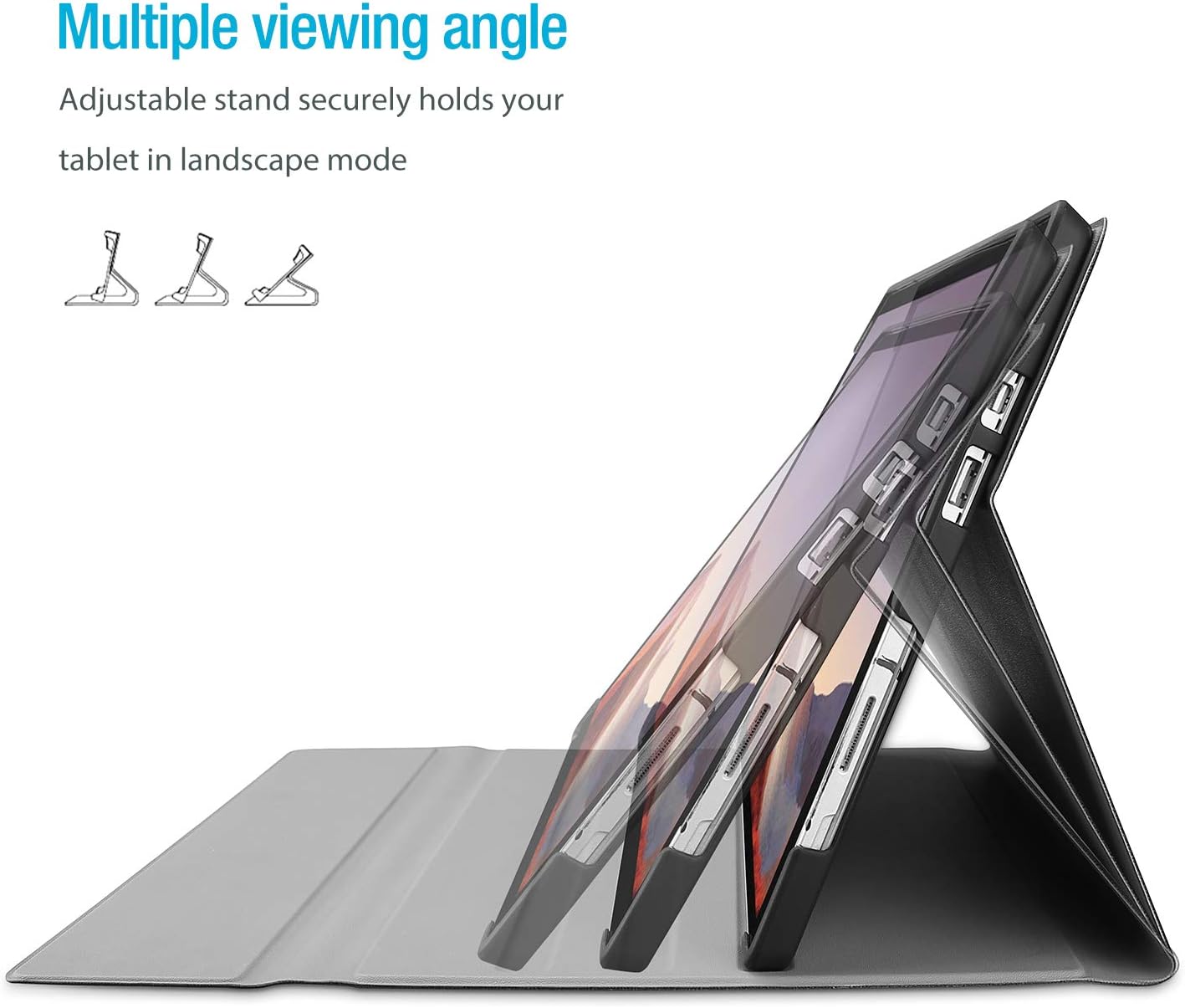
Image 3: The case's design allows for multiple viewуглы, обеспечивая гибкость для различных задач.
4.2 Detachable Keyboard Functionality
The wireless keyboard is magnetically detachable, allowing you to use the tablet independently or position the keyboard for optimal typing comfort. The laptop-style keys with a spring mechanism offer a tactile typing experience.
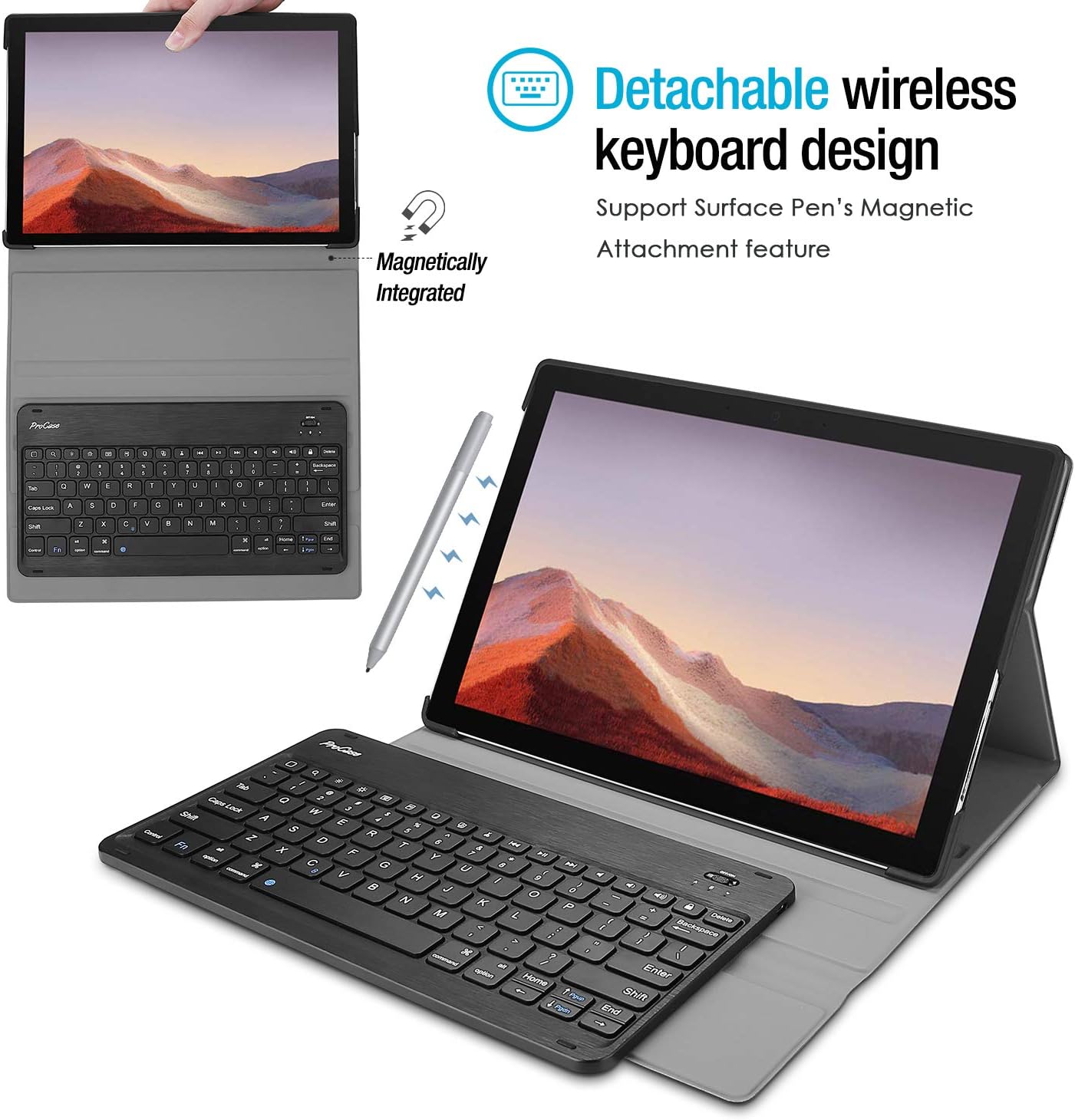
Image 4: The keyboard is magnetically integrated and supports the Surface Pen's magnetic attachment feature.
4.3 Функция автоматического перехода в спящий режим/пробуждения
The case supports the auto Sleep/Wake function of your tablet. This feature works only when the keyboard is not attached to the case. Closing the cover will put your tablet to sleep, and opening it will wake it up.
4.4 Changing Keyboard Language Settings
To change the input language of the keyboard on your tablet, navigate to Settings > General > Keyboard > Keyboards > Add New Keyboard. Select your desired language from the list. For iOS devices, you can typically switch between languages by pressing the 'Control' and 'Space' keys simultaneously.
5. Техническое обслуживание и уход
- Keep the keyboard and case away from sharp objects to prevent scratches or damage.
- Avoid placing heavy objects on the keyboard or case.
- Do not expose the product to microwave items.
- Do not force or distort the keyboard or the case.
- Keep the keyboard and case away from water, oil, chemical substances, or other organic liquids.
- If a key falls off, it can typically be reassembled by pressing it back into place until you hear a click.
- Clean the case and keyboard with a soft, dry cloth. Avoid abrasive cleaners.
6. Поиск Неисправностей
6.1 Клавиатура не подключается/не отвечает
- Проверьте мощность: Ensure the keyboard is turned 'ON' and has sufficient battery charge.
- Повторное сопряжение устройства: Go to your tablet's Bluetooth settings, forget the 'Bluetooth 3.0 Keyboard' device, and then repeat the pairing process (Section 3.2).
- Перезагрузите устройства: Перезагрузите планшет и клавиатуру.
- Вмешательство: Отойдите от других беспроводных устройств, которые могут создавать помехи.
6.2 Клавиши работают неправильно
- Проверьте языковые настройки: Ensure the correct keyboard language is selected on your tablet (Section 4.4). Incorrect settings can cause keys to produce unexpected characters.
- Чистая клавиатура: Dust or debris under the keys can affect functionality. Gently clean around the affected keys.
- Ремонт: Try re-pairing the keyboard as described in Section 6.1.
7. Технические характеристики
| Бренд | ProCase |
| Номер модели | PC-08362125 |
| Совместимые устройства | Surface Pro 7 Plus (2021), Surface Pro 7 (2019), Surface Pro 6 (2018), Surface Pro 5th Gen (2017), Surface Pro 4 (2015) 12.3 inch Tablet |
| Технология связи | Беспроводной |
| Описание клавиатуры | Беспроводной |
| Специальная характеристика | Магнитный |
| Цвет | Черный |
| Материал | Акрилонитрил-бутадиен-стирол |
| Вес товара | 10 унции |
| Размеры продукта | 11.5 x 7.9 x 0.29 дюйма |
| Источник питания | Аккумуляторная батарея |
8. Гарантия и поддержка
8.1 Информация о гарантии
Warranty details for your ProCase Keyboard Case are typically included with the product packaging or can be found on the official ProCase webсайт. Пожалуйста, сохраните доказательство покупки для гарантийных претензий.
8.2 Поддержка клиентов
For technical assistance, troubleshooting, or any inquiries regarding your ProCase Keyboard Case, please contact ProCase customer support through their official webсайт или контактную информацию, указанную в документации к вашему продукту.