
1. Введение
The Transcend DrivePro 550 is a dual-lens dash camera designed to provide comprehensive recording of both the road ahead and the vehicle's interior. Equipped with a front lens featuring a Sony image sensor and a rear lens with infrared LEDs, it ensures clear video capture in various lighting conditions. This manual provides detailed instructions for setting up, operating, and maintaining your DrivePro 550 dash camera.
2. Содержимое упаковки
Убедитесь, что все перечисленные ниже предметы включены в ваш пакет:
- Transcend DrivePro 550 Dash Camera Unit
- microSD Memory Card (64GB)
- Car Mount (Suction Mount)
- Car Lighter Power Adapter
- Hardwire Power Cable

Image: Retail box of the Transcend DrivePro 550 Dash Camera, showing included accessories.
3. Продукт закончилсяview
Familiarize yourself with the components of your DrivePro 550 dash camera.
Фронт 3.1 View

Изображение: Спереди view of the DrivePro 550, showing the main screen displaying live dual-channel recording.
- Передняя линза: Records the road ahead. Features a Sony image sensor for high-quality video.
- Задняя линза: Records the vehicle's interior. Equipped with four infrared LEDs for enhanced night vision.
- 2.4-дюймовый ЖК-экран: Дисплеи в прямом эфире viewзаписанная едаtagе, и пункты меню.
- Кнопки управления: For navigation and selection within the menu.
3.2 Сторона View и порты

Изображение: сбоку view of the DrivePro 550, highlighting the power input and microSD card slot.
- Порт постоянного тока: Для подключения адаптера питания.
- Слот для карты microSD: Для установки карты памяти.
3.3 Размеры
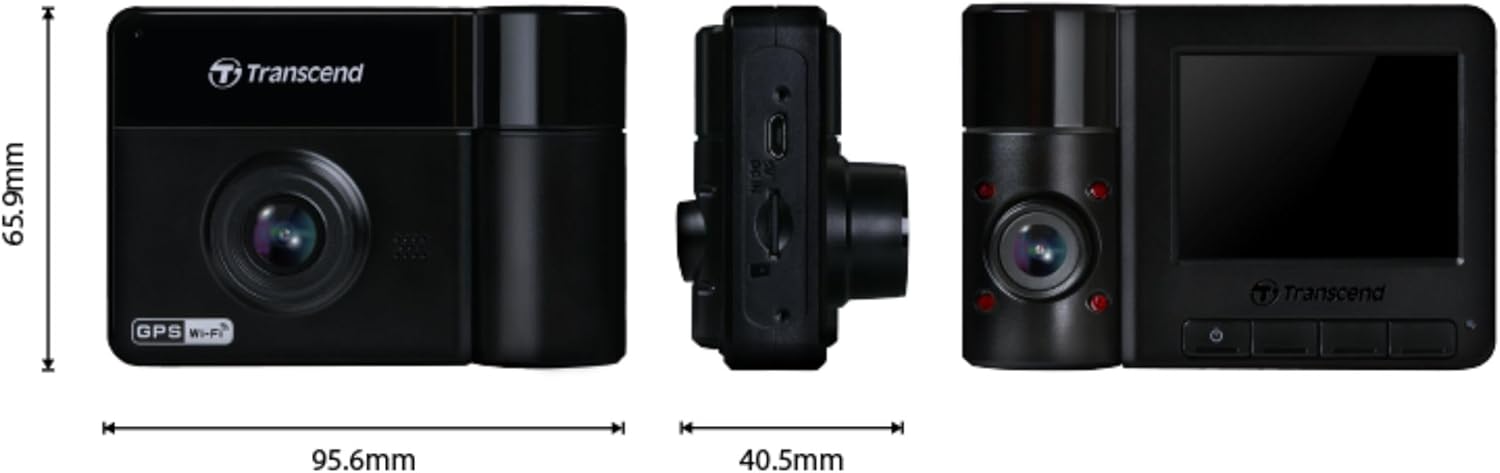
Image: Technical drawing showing the dimensions of the DrivePro 550 unit.
4. Установка
Follow these steps to properly install your DrivePro 550 in your vehicle.
4.1 Установка видеорегистратора
- Выберите на лобовом стекле такое место, которое не будет загораживать обзор. view of the road. The area behind the rearview Зеркало зачастую является идеальным вариантом.
- Тщательно очистите выбранный участок лобового стекла, чтобы обеспечить сильное всасывание.
- Attach the suction cup mount to the windshield and secure it by flipping the lever.
- Slide the DrivePro 550 onto the mount until it clicks into place. Adjust the camera angle to ensure both front and interior lenses have a clear view.

Image: The DrivePro 550 dash camera securely mounted on a car windshield.
4.2 Установка карты microSD
- Убедитесь, что видеорегистратор выключен.
- Найдите слот для карты microSD на боковой панели устройства.
- Insert the provided 64GB microSD card into the slot with the gold contacts facing the back of the camera until it clicks into place.
4.3 Подключение питания
- Connect the car lighter power adapter or the hardwire power cable to the DC IN port on the dash camera.
- Plug the other end of the power adapter into your vehicle's 12V power outlet (cigarette lighter socket). If using the hardwire cable, follow professional installation guidelines.
- Route the power cable neatly along the windshield and dashboard to avoid obstructing your view или вмешиваться в работу органов управления автомобилем.
5. Основные операции
5.1 Включение/выключение питания
- The DrivePro 550 will automatically power on and begin recording when your vehicle's engine starts and power is supplied.
- Для включения/выключения вручную нажмите и удерживайте кнопку питания.
5.2 Режимы записи
- Непрерывная запись: The camera records continuously in a loop. When the memory card is full, the oldest fileс перезаписываются.
- Экстренная запись: Activated automatically by the built-in G-sensor upon detecting an impact or sudden movement. These files are protected from being overwritten. You can also manually trigger emergency recording by pressing the designated button.

Изображение: Разделенный экран view showing simultaneous recording from the front and interior lenses.
5.3 Taking Snapshots
During recording, press the snapshot button to capture a still image of the current view. This can be useful for documenting incidents or scenic views.
6. Расширенные функции
6.1 Wi-Fi Connectivity and DrivePro App
The DrivePro 550 features built-in Wi-Fi, allowing you to connect it to your smartphone or tablet via the Transcend DrivePro App. The app enables:
- В реальном времени view каналов обеих камер.
- Воспроизведение записанных видеороликов.
- Downloading video fileпрямо на ваше мобильное устройство.
- Настройка параметров камеры.
Download the DrivePro App from the App Store (iOS) or Google Play Store (Android).

Image: Smartphone screen showing the Transcend DrivePro App interface, connected to the dash camera.
6.2 Улучшенное ночное видение
The DrivePro 550 is designed for superior low-light performance:
- The front lens utilizes a Sony image sensor to capture high-resolution images with rich color, even in low light. It supports 1440P 2K QHD recording at 30fps for smooth and crisp footage.
- The rear lens is equipped with four infrared LEDs, significantly improving recording quality in dark interior environments.

Image: Visual comparison of video quality captured by the DrivePro 550 during daytime and nighttime conditions.
6.3 Режим парковки
When enabled, Parking Mode activates recording when motion is detected, even when your vehicle is parked and the engine is off. This feature requires a continuous power supply to the dash camera (e.g., via the hardwire power cable).
6.4 Покадровая съемка
Time-lapse recording allows you to condense hours of footage into a shorter video, providing continuous surveillance without consuming excessive storage space.
6.5 Системы помощи водителю (ADAS)
The DrivePro 550 includes several ADAS features to enhance driving safety:
- Проекционный дисплей: Отображает текущую скорость и предупреждения о безопасности водителя.
- Система предупреждения о выезде за пределы полосы движения (LDWS): Предупреждает вас, если ваш автомобиль выезжает за пределы своей полосы движения.
- Система предупреждения о фронтальном столкновении (FCWS): Warns you if you are getting too close to the vehicle ahead.
- Сигнализация превышения скорости: Notifies you if your vehicle's speed exceeds a preset limit.
- Напоминание о фарах: Автоматически активируется при обнаружении системой DrivePro плохих условий освещения.
- Предупреждение об усталости водителя: Reminds the driver to rest after driving for a set period.
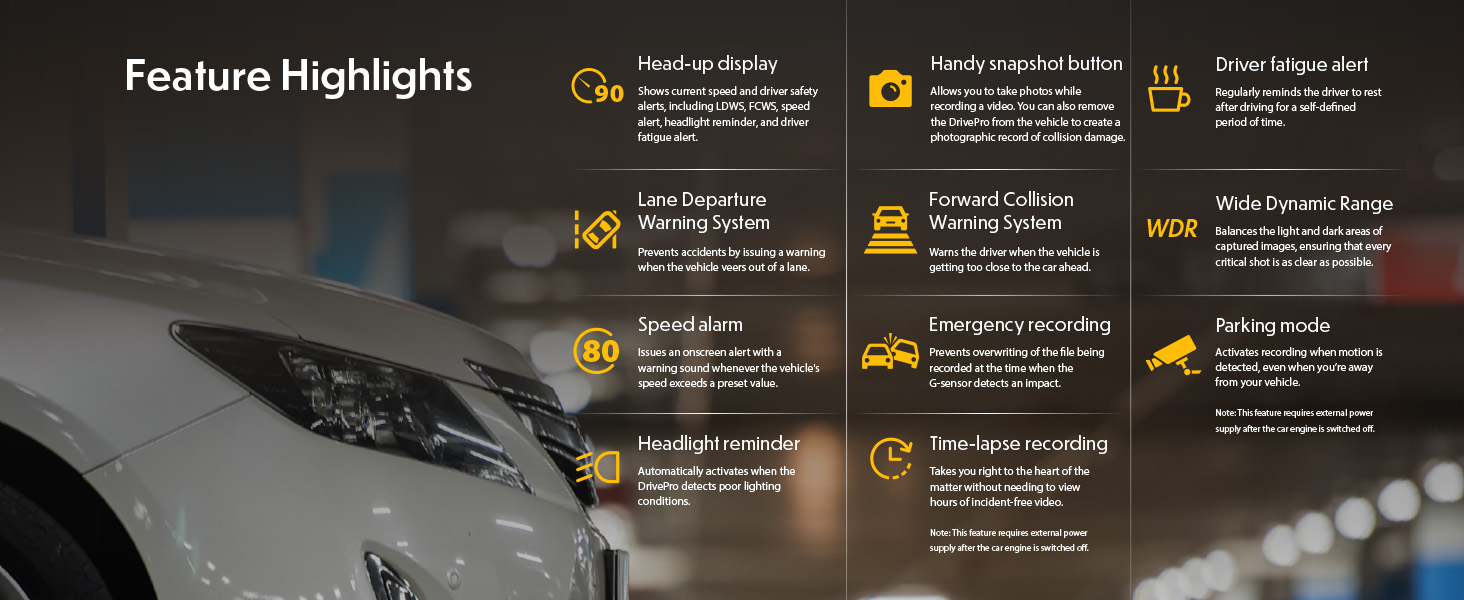
Image: Graphic illustrating the various feature highlights and ADAS functions of the DrivePro 550.
7. Техническое обслуживание
7.1 Formatting the microSD Card
Regularly format the microSD card to ensure optimal performance and prevent data corruption. This can typically be done through the camera's menu settings. Formatting will erase all data on the card, so back up any important fileсперва.
7.2 Чистка камеры
Use a soft, dry cloth to clean the camera body and screen. For lenses, use a specialized lens cleaning cloth and solution to avoid scratches. Do not use harsh chemicals or abrasive materials.
8. Поиск Неисправностей
If you encounter issues with your DrivePro 550, refer to the following common problems and solutions:
- Камера не включается:
- Ensure the power cable is securely connected to both the camera and the vehicle's power outlet.
- Проверьте, исправна ли 12-вольтовая розетка в автомобиле.
- Camera is not recording:
- Verify that a microSD card is inserted correctly.
- Check if the microSD card is full; format it if necessary (after backing up important fileс).
- Ensure the recording function is enabled in the camera settings.
- Плохое качество видео:
- Очистите линзы камеры.
- Ensure the windshield area in front of the camera is clean.
- Check video resolution settings; ensure it's set to the desired quality (e.g., 1440P 2K QHD for front lens).
- Проблемы с подключением к Wi-Fi:
- Ensure Wi-Fi is enabled on the camera and your mobile device.
- Перезагрузите камеру и мобильное устройство.
- Ensure you are within range of the camera's Wi-Fi signal.
9. Технические характеристики
| Особенность | Описание |
|---|---|
| Бренд | Превзойти |
| Название модели | ДрайвПро 550 |
| Номер модели | TS-DP550A-64G |
| Тип обслуживания автомобиля | Машина |
| Технология связи | Инфракрасный, Wi-Fi |
| Разрешение видеозахвата | Front: 1440P 2K QHD (30fps), Rear: 1080p (30fps) |
| Включенные компоненты | Dash Camera, 64GB microSD Card, Car Mount, Car Lighter Adapter, Hardwire Power Cable |
| Тип крепления | Surface Mount (Suction Cup) |
| Цвет | Черный |
| Поле View | Спереди: 150 градусов, сзади: 140 градусов |
| Размер экрана | 2.4 дюйма |
| Технология оптических датчиков | Sony (Front Lens) |
| Тип флэш-памяти | микроSD |
| Вес товара | 107 грамм |
| Размеры товара (Д x Ш x В) | 7.1" x 5.5" x 2.6" |
10. Гарантия и поддержка
10.1 Информация о гарантии
The Transcend DrivePro 550 Dash Camera comes with a Ограниченная гарантия сроком на 2 года. Please retain your proof of purchase for warranty claims. For detailed terms and conditions, refer to the warranty card included in your package or visit the official Transcend webсайт.
10.2 Поддержка клиентов
For further assistance, technical support, or to download the latest firmware updates and user manuals, please visit the official Transcend website or contact their customer service department. Contact information can typically be found on the Transcend webсайте или на упаковке вашего продукта.