
Важные инструкции по технике безопасности
To ensure safe operation and prolong the life of your monitor, please read and follow these instructions carefully:
- Перед чисткой монитора всегда отключайте шнур питания от розетки.
- Во избежание поражения электрическим током не подвергайте монитор воздействию дождя или влаги.
- Обеспечьте надлежащую вентиляцию вокруг монитора, чтобы предотвратить перегрев. Не закрывайте вентиляционные отверстия.
- Используйте только адаптер питания и кабели, поставляемые производителем.
- Не ставьте тяжелые предметы на шнур питания или монитор.
- If the monitor is damaged or malfunctions, do not attempt to repair it yourself. Contact qualified service personnel.
Содержимое упаковки
Before proceeding with the setup, please check the contents of your package to ensure all items are present:
- Acer CB272U smiiprx LED Monitor
- Подставка для монитора (основание и кронштейн)
- Шнур питания
- HDMI-кабель
- Краткое руководство / гарантийный талон
Настраивать
1. Сборка подставки для монитора
- Carefully remove the monitor from its packaging. Place the monitor face down on a soft, clean cloth or surface to prevent scratches to the screen.
- Attach the stand arm to the back of the monitor panel. Ensure it is securely fastened, typically by sliding it into place until it clicks or by tightening screws.
- Connect the stand base to the bottom of the stand arm. Secure the base by tightening the captive screw located underneath the base.

Рисунок 1: Сзади view of the Acer CB272U smiiprx monitor with the stand attached, illustrating the assembly points.
2. Connecting the Monitor to Your Computer
- Connect one end of the provided HDMI cable to the HDMI port on the monitor.
- Connect the other end of the HDMI cable to the HDMI output port on your computer or graphics card.
- Подключите шнур питания к разъему питания монитора, а другой конец подключите к заземленной электрической розетке.

Рисунок 2: Наклонная задняя часть view showing the input ports of the monitor, including HDMI and power connections.
Работа с монитором
Включение и выключение
Locate the power button on the monitor's bezel. Press it once to turn the monitor on. The power indicator light will illuminate. Press it again to turn the monitor off.
Adjusting Display Settings (OSD Menu)
The On-Screen Display (OSD) menu allows you to customize various monitor settings. Use the control buttons (usually located on the back or bottom right of the monitor) to navigate the OSD menu. Common adjustments include:
- Контраст яркости: Отрегулируйте общую яркость и разницу между светлыми и темными областями.
- Настройки цвета: Измените цветовую температуру, гамму и отдельные уровни RGB.
- Источник ввода: Manually select the video input (e.g., HDMI).
- Аудио: Регулировка громкости встроенных динамиков.
Эргономичные регулировки
The Acer CB272U smiiprx monitor stand offers multiple ergonomic adjustments to optimize your viewкомфорт:
- Регулировка высоты: Поднимите или опустите монитор до уровня глаз.
- Наклон: Adjust the screen angle forward or backward to reduce glare.
- Поворотный: Rotate the monitor horizontally to share your screen or adjust viewугол наклона.
- Вращаться: Rotate the screen to a portrait orientation for document viewкодирование или программирование.
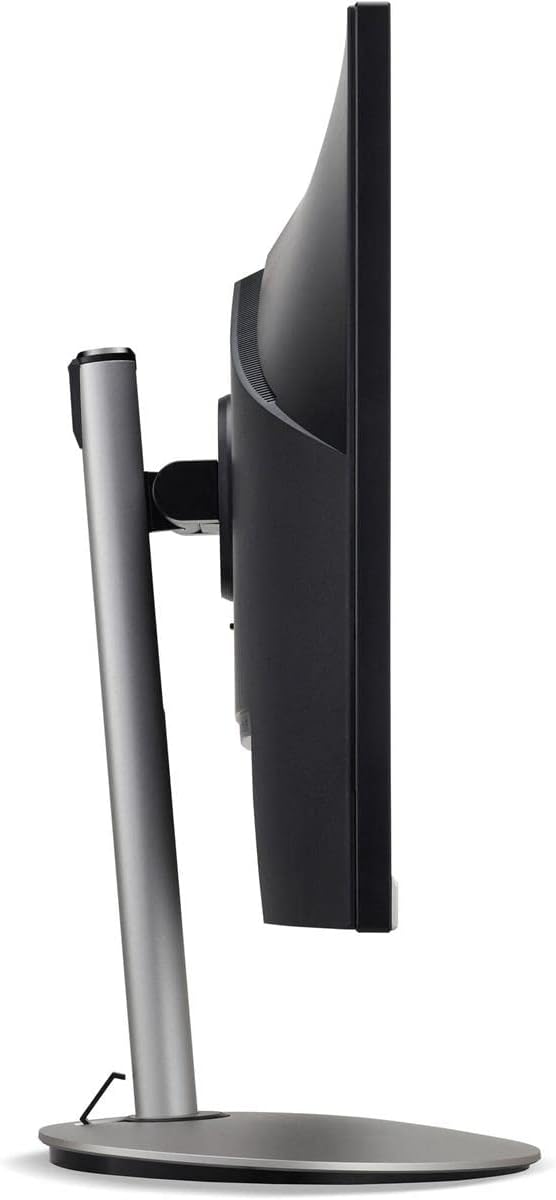
Рисунок 3: Боковая проекцияfile of the monitor, illustrating its adjustable stand for ergonomic positioning.
Обслуживание
Cleaning the Monitor Screen and Casing
To clean your monitor, first ensure it is turned off and unplugged from the power outlet. Use a soft, lint-free cloth. For stubborn marks, lightly dampen the cloth with water or a specialized non-abrasive screen cleaner. Не распыляйте жидкость непосредственно на экран или...asing. Избегайте использования едких химикатов, абразивных чистящих средств и растворителей.
Правила хранения
If you need to store the monitor for an extended period, it is recommended to use its original packaging to protect it from dust, moisture, and physical damage. Store in a cool, dry environment away from direct sunlight and extreme temperatures.
Поиск неисправностей
Распространенные проблемы и способы их решения см. в таблице ниже:
| Проблема | Возможная причина | Решение |
|---|---|---|
| Нет изображения на экране | Кабель питания отключен; Видеокабель отключен; Выбран неправильный источник входного сигнала. | Check power and video cable connections; Ensure the monitor is powered on; Select the correct input source via the OSD menu. |
| Изображение размыто или искажено | Incorrect resolution setting; Faulty video cable. | Set the display resolution to 2560 x 1440 at 75 Hz; Try a different HDMI cable. |
| Нет звука от динамиков | Monitor volume too low or muted; Incorrect audio output selected on computer. | Adjust monitor volume via OSD; Unmute audio; Select the monitor as the audio output device in your computer's sound settings. |
| Мерцание монитора | Refresh rate mismatch; Interference; Faulty cable. | Ensure refresh rate is set to 75 Hz; Check for nearby electronic devices causing interference; Replace video cable. |
Технические характеристики
Key technical specifications for the Acer CB272U smiiprx LED Monitor:
| Особенность | Деталь |
|---|---|
| Название модели | CB272U smiiprx |
| Размер экрана | 24.1 дюйма |
| Собственное разрешение | 2560x1440 (WQHD) |
| Частота обновления | 75 Гц |
| Время отклика | 1 Millisecond (VRB) |
| Соотношение сторон | 16:9 |
| Тип дисплея | LED-backlit LCD / TFT active matrix (IPS) |
| Яркость | 350 кд/м² |
| Коэффициент контрастности | 1000:1 (статический) |
| Связность | HDMI |
| Адаптивная синхронизация | FreeSync |
| Встроенные динамики | Да |
| Dimensions (WxDxH with stand) | 24.1 дюйма x 9.2 дюйма x 20.5 дюйма |
| Вес (с подставкой) | 18.1 фунта |

Figure 4: Monitor dimensions with stand, indicating width, depth, and height.
Информация о гарантии
The Acer CB272U smiiprx LED Monitor comes with a 3-летняя ограниченная гарантия производителя. This warranty covers defects in materials and workmanship under normal use. For complete details regarding warranty coverage, limitations, and how to make a claim, please refer to the warranty documentation included with your product or visit the official Acer support webсайт.
Please retain your proof of purchase (receipt or invoice) as it will be required for any warranty service.
Поддержка клиентов
Should you require further assistance, technical support, or wish to download the latest drivers and firmware updates for your monitor, please visit the official Acer support webсайт:
You can also find contact information for Acer customer service in your region on the support webсайт для персонализированной помощи.