
1. Введение
This manual provides essential information for setting up, operating, maintaining, and troubleshooting your Acer Predator Orion 3000 (PO3-600) desktop computer. Please read this guide thoroughly to ensure proper use and to maximize your system's performance and longevity.
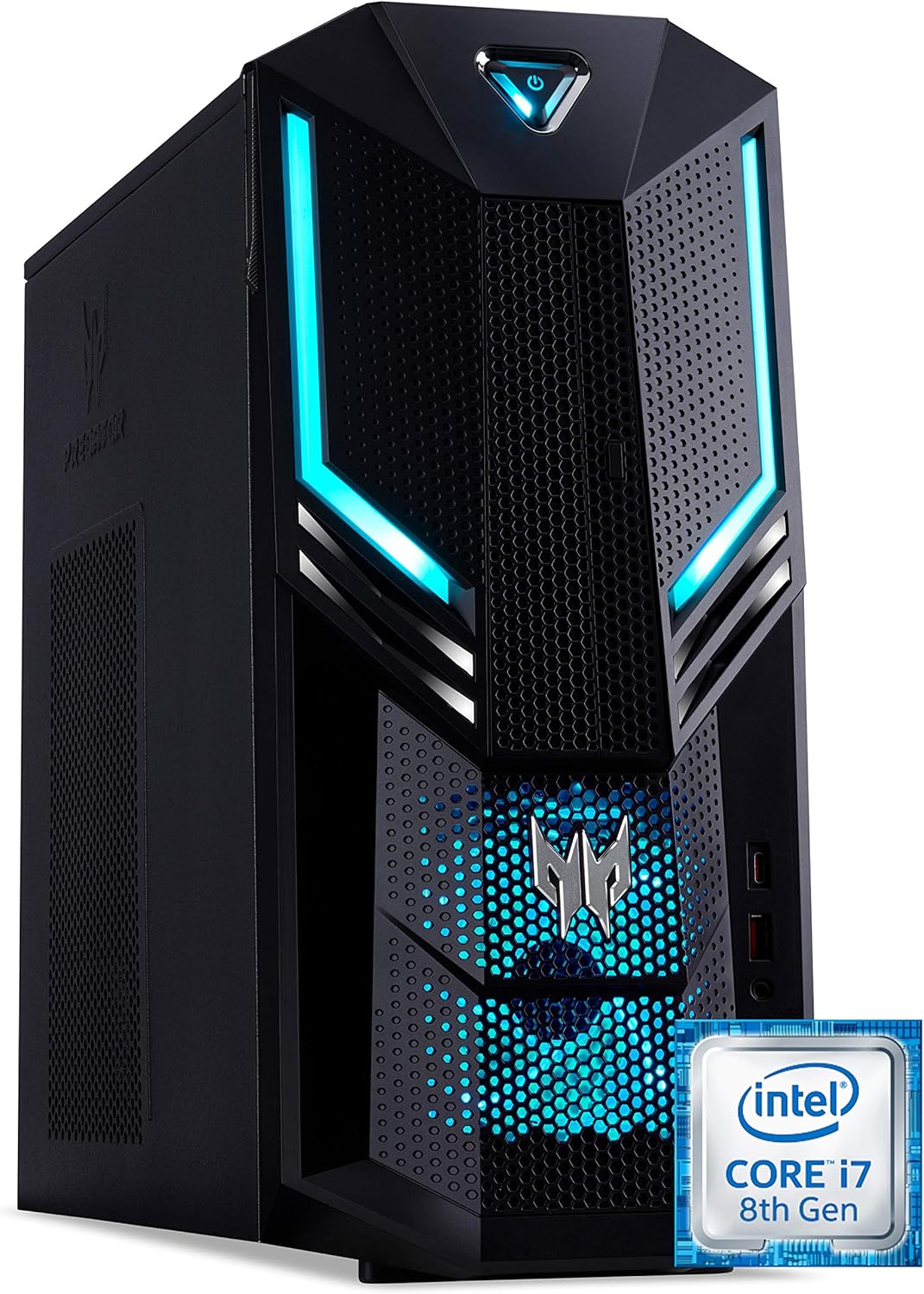
Рисунок 1.1: Передний правый view of the Acer Predator Orion 3000 desktop computer, showcasing its black chassis with blue LED accents and angular design.
2. Настройка
2.1 Распаковка
Carefully remove all components from the packaging. Verify that all items listed in the 'Included Components' section of this manual are present. Retain the packaging for future transport or service needs.
2.2 Подключение периферийных устройств
- Монитор: Connect your monitor to one of the available video output ports (HDMI, DVI, or DisplayPort) on the graphics card at the rear of the computer.
- Клавиатура и мышь: Connect the included Predator USB keyboard and mouse to any available USB ports. The system features both USB 2.0, USB 3.1, and USB 3.1 Type-C ports.
- Сеть: For a wired connection, connect an Ethernet cable from your router or modem to the LAN port on the rear of the computer. For wireless, ensure your Wi-Fi antenna (if external) is connected.
- Аудио: Connect speakers or headphones to the audio output jacks. The system supports Sound BlasterX Pro Gaming Sound Engine for enhanced audio.
- Власть: Connect the power cable to the power supply unit (PSU) at the rear of the computer, then plug the other end into a grounded electrical outlet.
2.3 Первоначальное включение питания
Press the power button located on the top front of the computer. The system will boot up, and the blue LED accents will illuminate. Follow the on-screen instructions to complete the Windows 10 Home operating system setup, including language, region, and user account creation.
3. Работа с компьютером
3.1 Управление питанием
- Включение питания: Нажмите кнопку питания один раз.
- Неисправность: From Windows, click the Start button, then Power > Shut down.
- Перезапуск: From Windows, click the Start button, then Power > Restart.
- Спать: From Windows, click the Start button, then Power > Sleep.
3.2 Windows 10 Домашняя
Your Predator Orion 3000 comes pre-installed with Windows 10 Home. Familiarize yourself with the operating system's interface, settings, and features. Regular updates are recommended for security and performance.
3.3 Игровые возможности
The system is designed for gaming, featuring an Intel Core i7-8700 processor and NVIDIA GeForce GTX 1060 graphics. It is VR-ready, allowing for immersive virtual reality experiences. The integrated Sound BlasterX Pro Gaming Sound Engine provides high-quality audio for gaming and multimedia.

Рисунок 3.1: Acer Predator Orion 3000 desktop with gaming headphones, highlighting its gaming capabilities.
4. Техническое обслуживание
4.1 Очистка
- Экстерьер: Используйте мягкий, damp Для протирки наружных поверхностей используйте ткань. Избегайте абразивных чистящих средств.
- Вентили: Regularly check and clean the air intake vents on the front and left side of the chassis to ensure proper airflow and prevent dust buildup. Use compressed air to gently clear dust.
- Внутренние компоненты: For advanced cleaning of internal components, it is recommended to consult a professional or refer to detailed service guides.
4.2 Обновления программного обеспечения
Keep your operating system, drivers (especially graphics drivers), and applications updated to ensure optimal performance, security, and compatibility.

Рисунок 4.1: Внутренний view of the Acer Predator Orion 3000 desktop computer with the side panel removed, revealing the motherboard, CPU cooler, RAM slots, and storage drive bays. Regular cleaning of these areas is important for system health.
5. Поиск Неисправностей
В этом разделе рассматриваются распространённые проблемы, с которыми вы можете столкнуться. Для решения более сложных проблем обратитесь к официальным ресурсам поддержки Acer.
5.1 Нет питания
- Убедитесь, что кабель питания надежно подключен как к компьютеру, так и к электрической розетке.
- Проверьте работоспособность электрической розетки, подключив к ней другое устройство.
5.2 Нет дисплея
- Check that the monitor is powered on and the video cable is securely connected to both the computer and the monitor.
- Убедитесь, что на мониторе выбран правильный источник входного сигнала.
5.3 System is Slow or Unresponsive
- Закройте ненужные приложения, работающие в фоновом режиме.
- Проверьте наличие вредоносных программ и вирусов с помощью надежного антивирусного программного обеспечения.
- Убедитесь, что на вашем основном жестком диске (SSD) достаточно свободного места.
- Перезагрузите компьютер.
5.4 Чрезмерный шум вентилятора
- Ensure the computer's air vents are not obstructed and are free of dust.
- Verify the computer is in a well-ventilated area.
- Monitor CPU and GPU temperatures using system utilities. High temperatures can cause fans to run faster.
6. Технические характеристики
Below are the key technical specifications for the Acer Predator Orion 3000 (PO3-600) desktop computer.
| Компонент | Спецификация |
|---|---|
| Название модели | Acer Predator Orion 3000 (PO3-600) |
| Операционная система | Windows 10 Домашняя |
| Процессор | Intel Core i7-8700 (6 Cores, 3.2 GHz base, up to 4.6 GHz burst) |
| Видеокарта | NVIDIA GeForce GTX 1060 (6 GB GDDR5 VRAM) |
| БАРАН | 16 ГБ DDR4 (максимум 16 ГБ) |
| Хранилище | 128 GB SSD + 1 TB HDD |
| Оптический привод | DVD+R |
| Связность | Ethernet RJ-45, Wi-Fi (802.11ac) |
| Передние порты | 1x USB 3.1, 1x USB 3.1 Type-C, Audio Jacks |
| Задние порты | 2x USB 3.1, 4x USB 2.0, 1x HDMI, 1x DVI, 3x DisplayPort, 5x Audio Jacks, LAN |
| Слоты расширения | 1x PCIe x16, 1x PCIe x1, 2x M.2 (1x SSD, 1x Wi-Fi) |
| Размеры (В x Ш x Г) | 35 х 16.3 х 34 см |
| Масса | 6 кг |
| Охлаждение | Passive, via air intake |
| Включенные периферийные устройства | Predator USB Keyboard (blue), Predator USB Mouse (blue) |

Рисунок 6.1: Intel Core i7 8th Gen logo, indicating the processor type used in the system.
7. Гарантия и поддержка
7.1 Гарантия производителя
Your Acer Predator Orion 3000 (PO3-600) desktop computer is covered by a 2-летняя гарантия производителя. This warranty covers defects in materials and workmanship under normal use. Please refer to the warranty documentation included with your product for full terms and conditions. Your statutory warranty rights remain unaffected.
7.2 Техническая поддержка
For technical assistance, troubleshooting beyond this manual, or warranty claims, please contact Acer customer support. You can typically find contact information on the Acer official website or in the documentation provided with your computer.