
1. Введение
The URayCoder UHE265-1L-4K is an advanced HDMI to Ethernet IP Video Audio Encoder designed for professional live streaming and video transmission. It supports H.265 and H.264 dual encoding, enabling 4K UHD (3840x2160) video input and output. This device facilitates stable and efficient transmission of video streams across various network environments and platforms.
Основные характеристики:
- Поддержка 4K UHD: Supports 4K (3840x2160) video input and output at 30fps, and up to 120fps at 2K and lower resolutions.
- Dual Encoding: Equipped with H.265 / H.264 dual encoding chip for versatile compatibility.
- Мультипротокольная совместимость: Supports HTTP, RTSP, RTMP(S), SRT, HLS(M3U8), MP4, Multicast (UDP, RTP, PTL), ONVIF, FLV, WebRTC, TRTC, ICECAST.
- Multi-Platform Streaming: Simultaneously stream to platforms like YouTube, Facebook, Twitch, and Vimeo.
- Настраиваемые параметры: Allows adjustment of video resolution, frame rate, bitrate, OSD (text, logo, timestamp), and video editing functions (cropping, rotation, flipping, mirroring).
- Dual Audio Input: Supports HDMI embedded audio and line-in audio with adjustable sound quality.
- HDCP 1.4 Decryption: Decodes various HDMI Ultra HD video sources.

Image 1.1: The advanced H.265/H.264 dual encoding chip at the core of the URayCoder encoder, ensuring powerful and stable performance.

Изображение 1.2: оконченоview of the URayCoder encoder highlighting key features such as HEVC encoding, multi-channel streaming, 4K UHD resolution, and multiple protocol support.
2. Продукт закончилсяview
This section details the physical components and ports of the URayCoder UHE265-1L-4K encoder.
Передняя панель:
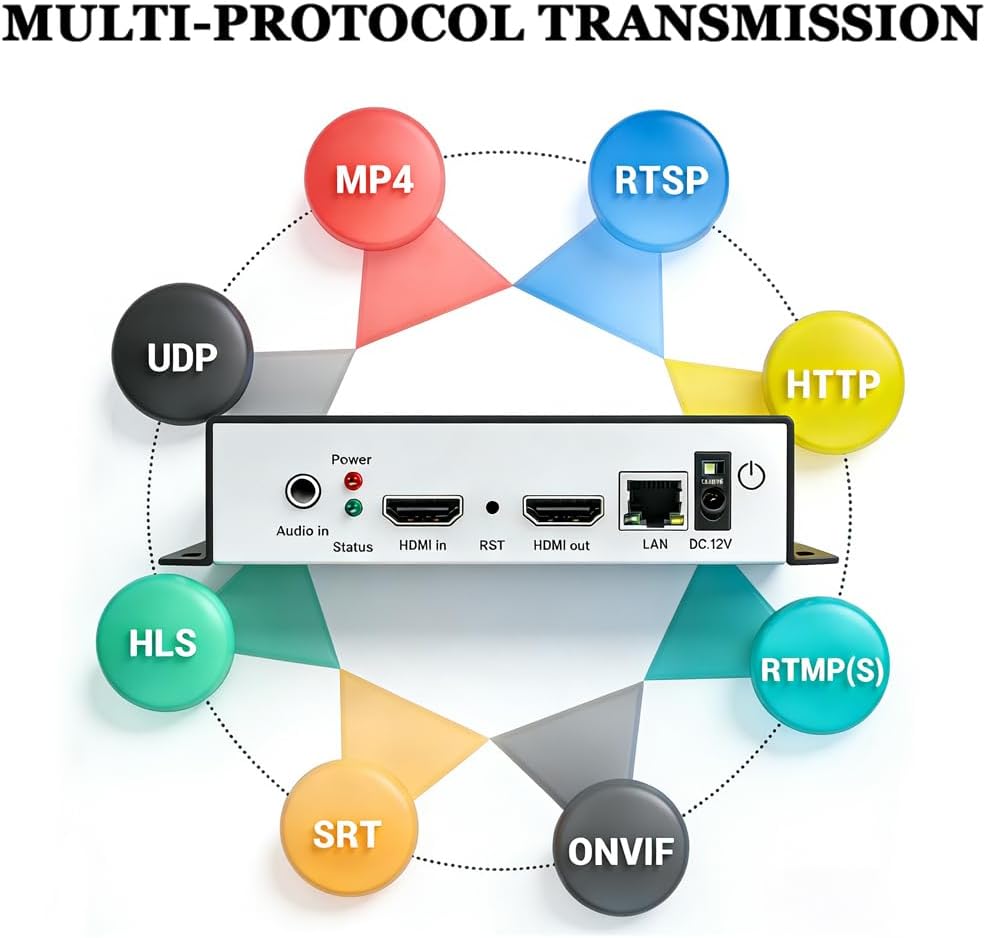
Image 2.1: Front panel of the URayCoder encoder, showing the Audio In port, Status LEDs, HDMI In, RST (Reset) button, HDMI Out, LAN port, and DC 12V power input.
- Аудиовход: Разъем 3.5 мм для подключения внешнего аудиоустройства.
- Светодиоды состояния: Indicators for Power and Status.
- Вход HDMI: Connects to the HDMI video source.
- РСТ: Кнопка сброса.
- Выход HDMI: HDMI loop-out port for local display.
- LAN: Порт Ethernet для подключения к сети.
- 12 В постоянного тока: Входной порт питания.
Задняя панель:

Image 2.2: Rear panel of the URayCoder encoder, showing ventilation and product information.
The rear panel primarily features ventilation openings for heat dissipation and product labeling.
3. Руководство по установке
Follow these steps to set up your URayCoder HDMI encoder for operation.
3.1 Подключение оборудования
- Подключите источник HDMI: Use an HDMI cable to connect your video source (e.g., camera, set-top box, laptop) to the HDMI вход port on the encoder.
- Подключение дисплея (опционально): If you require a local display, connect an HDMI cable from the HDMI-выход (loop-out) port on the encoder to your display monitor.
- Подключить аудио (дополнительно): If using external audio, connect your audio device to the Аудио вход Разъем 3.5 мм.
- Подключить сеть: Подключите кабель Ethernet от Локальная сеть port on the encoder to your router or network switch.
- Подключите питание: Подключите адаптер питания 12 В постоянного тока к 12 В постоянного тока port on the encoder and then into a power outlet. The Power LED should illuminate.

Image 3.1: A typical connection diagram illustrating how to connect the URayCoder encoder to an HDMI source, a local display, a network router, and streaming platforms.
3.2 Доступ к Web Интерфейс
After connecting the hardware, you can access the encoder's web интерфейс для настройки.
- Убедитесь, что ваш компьютер находится в той же сети, что и кодировщик.
- Откройте web браузер (например, Chrome, Firefox).
- Enter the encoder's default IP address in the address bar. (Refer to the device label or included documentation for the default IP address, typically 192.168.1.168 or similar).
- Log in using the default username and password (usually 'admin' for both, refer to documentation).
4. Инструкция по эксплуатации
This section guides you through configuring the encoder via its web интерфейс.
4.1 Страница состояния
Upon logging in, the Status page provides an overview of the encoder's current operation, including running time, input resolution, collected frames, and network status.
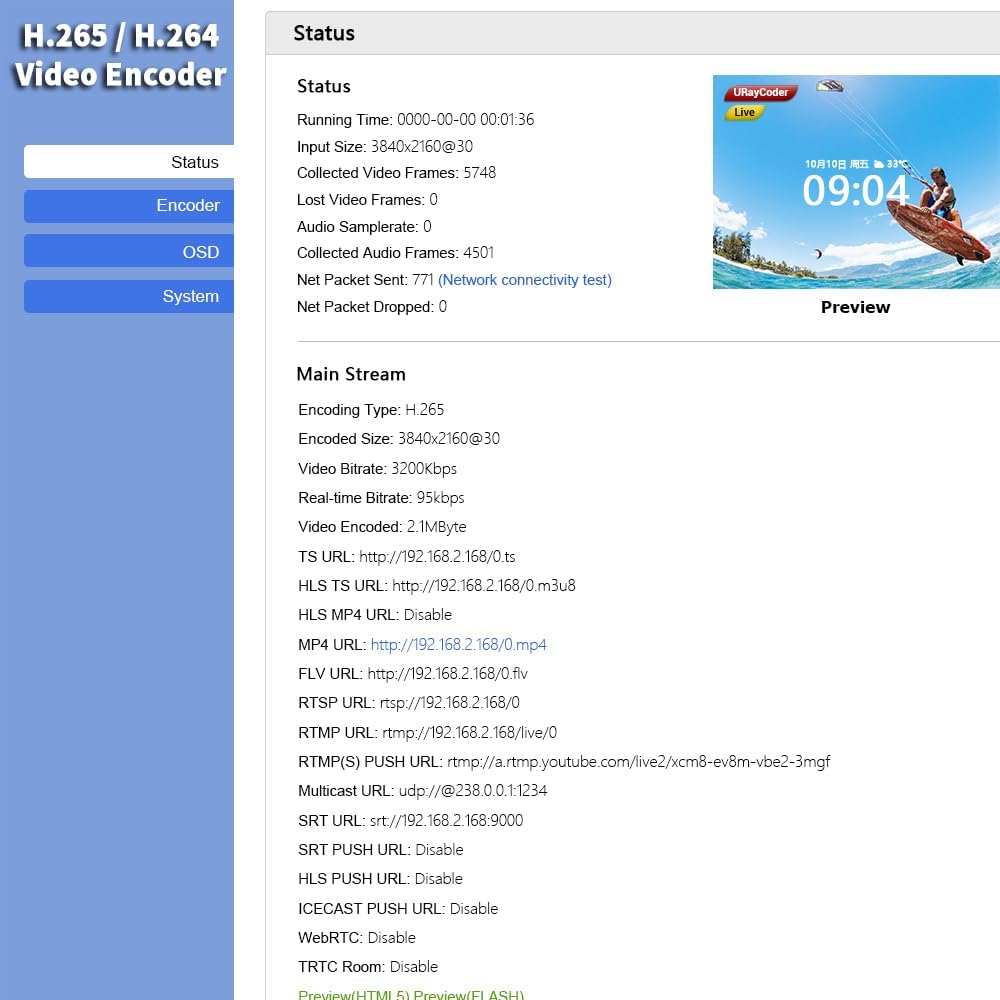
Изображение 4.1: web interface status page displaying real-time operational data and stream URLs.
4.2 Encoder Settings (Main Stream)
Navigate to the 'Encoder' section, then 'Main stream' to configure video encoding parameters.

Image 4.2: Main stream settings page, allowing configuration of encoding type (H.265/H.264), resolution, frame rate, bitrate, and various streaming protocols.
- Тип кодирования: Выберите H.265 или H.264.
- Разрешение: Choose output resolution (e.g., 3840x2160, 1920x1080).
- Кадров в секунду: Установите частоту кадров.
- Битрейт: Adjust the video bitrate for quality and bandwidth control.
- Настройки протокола: Enable and configure URLs for various streaming protocols (RTSP, RTMP(S), HLS, UDP, SRT, etc.).
4.3 Настройки экранного меню (OSD)
The 'OSD' section allows you to add custom text, scrolling captions, logos, and timestamps to your video stream.

Image 4.3: OSD settings interface, where users can enable and customize text, scroll text, or time displays, including font size, color, and background.
- Enable/Disable Zones: Configure up to three OSD zones.
- Тип: Select text, bitmap (logo), scroll text, or time.
- Позиция: Set X and Y coordinates for placement.
- Text/Logo Upload: Enter text or upload a logo image.
- Font/Color: Customize font size, color, and background.
4.4 Настройки звука
In the 'Audio' section, you can configure audio input and encoding parameters.
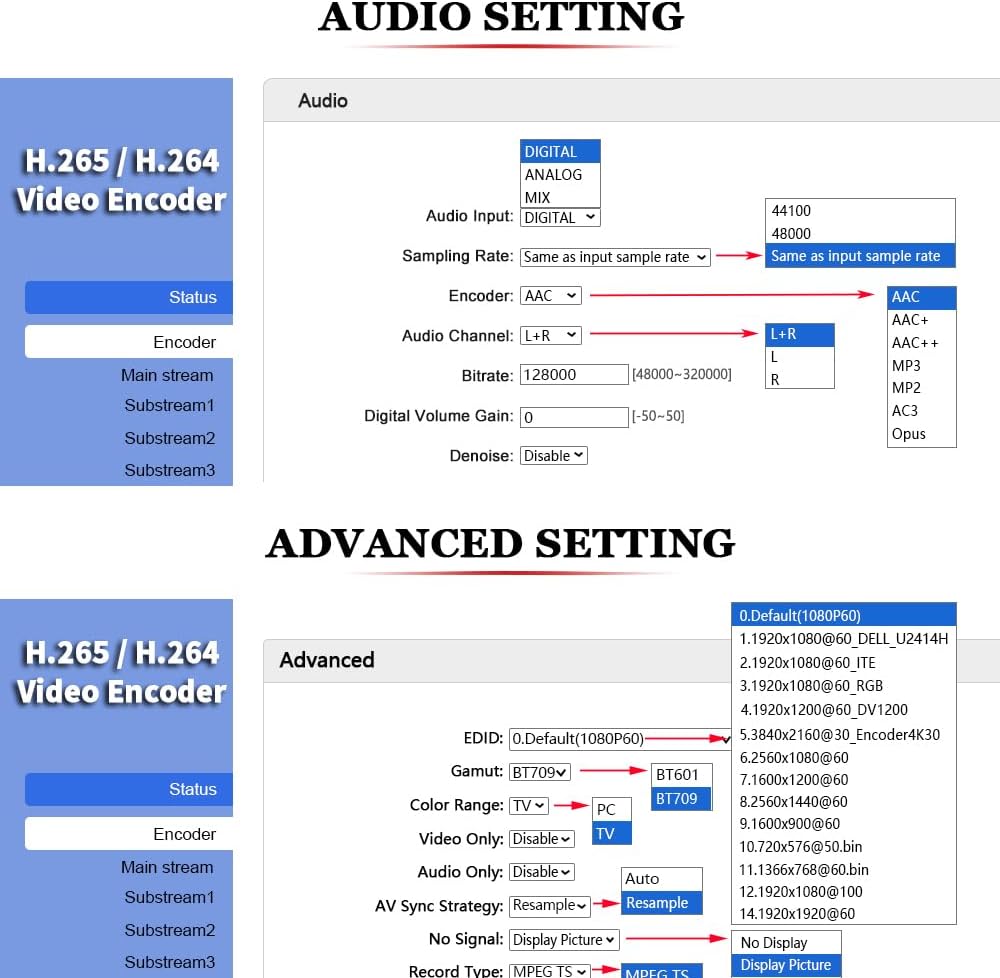
Image 4.4: Audio settings page, allowing selection of audio input type (digital/analog), sampling rate, encoder type (AAC, MP3), channel, bitrate, and digital volume gain.
- Аудиовход: Select Digital (HDMI embedded) or Analog (Line-in).
- Sampскорость: Настройте звуковые параметрыampскорость.
- Кодер: Choose audio codec (e.g., AAC, MP3).
- Битрейт: Adjust audio bitrate.
- Цифровое усиление громкости: Регулировка громкости звука.
4.5 Расширенные настройки
The 'Advanced' section provides options for EDID management, color range, and other system-level configurations.

Image 4.5: Advanced settings page, offering options for EDID, color range, and other fine-tuning parameters for video output.
5. Техническое обслуживание
Proper maintenance ensures the longevity and optimal performance of your URayCoder encoder.
5.1 Общий уход
- Храните устройство в прохладном, сухом и хорошо проветриваемом месте.
- Не подвергайте устройство воздействию прямых солнечных лучей, высоких температур или чрезмерной влажности.
- Протирайте внешнюю поверхность мягкой сухой тканью. Не используйте жидкие чистящие средства или аэрозоли.
- Убедитесь, что все кабели надежно подключены и не находятся под напряжением.
5.2 обновлений прошивки
Periodically check the URayCoder official website for firmware updates. Firmware updates can improve performance, add new features, or fix bugs. Follow the instructions provided with the firmware update package carefully to avoid damaging the device.
6. Поиск Неисправностей
В этом разделе рассматриваются распространенные проблемы, с которыми вы можете столкнуться, и предлагаются решения.
6.1 No Video Output/Signal
- Проверьте кабели HDMI: Ensure all HDMI cables are securely connected to both the source and the encoder. Try different HDMI cables if necessary.
- Verify HDMI Source: Confirm that your HDMI source is powered on and outputting a signal. Test the source with a direct connection to a display.
- Разрешение ввода: Ensure the input resolution from your source is supported by the encoder.
- HDCP: The encoder supports HDCP 1.4. If your source uses a higher HDCP version, it might cause compatibility issues.
6.2 Проблемы с сетевым подключением
- Проверьте кабель Ethernet: Ensure the Ethernet cable is properly connected to the encoder's LAN port and your router/switch.
- Конфигурация сети: Verify that the encoder's IP address, subnet mask, and gateway settings are correct and compatible with your network. If unsure, try resetting the encoder to factory defaults (refer to the reset button on the front panel).
- Межсетевой экран/маршрутизатор: Check your network firewall or router settings to ensure they are not blocking the encoder's communication.
6.3 Streaming Problems (Buffering, Disconnections)
- Пропускная способность сети: Ensure your internet connection has sufficient upload bandwidth for your chosen video bitrate and resolution.
- Encoder Bitrate: Reduce the video bitrate in the encoder settings if your network bandwidth is limited.
- Настройки стриминговой платформы: Verify that the streaming settings (stream key, server URL) on the encoder match those provided by your streaming platform.
- Router/Switch Performance: A congested or underperforming router/switch can cause issues. Try connecting the encoder directly to a high-performance network port if possible.
7. Технические характеристики
Below are the detailed technical specifications for the URayCoder UHE265-1L-4K HDMI to Ethernet IP Video Audio Encoder.
| Особенность | Описание |
|---|---|
| Бренд | URayCoder |
| Название модели | UHE265-1L-4K |
| Технология связи | HDMI, Ethernet |
| Тип разъема | HDMI |
| Разрешение | Max 3840x2160 Input and Output |
| Видеокодек | Н.265, Н.264, МДЖПЕГ |
| Поддерживаемые интернет-сервисы | YouTube, Facebook, Ustream, Livestream, Twitch, Vimeo, Streamspot, Dacast, Tikilive, Netrmedi, etc. |
| Форм-фактор | Video Encoder Box |
| Размеры продукта | 7"Д x 5"Ш x 1"В |
| Совместимые устройства | Devices with HDMI Output |
| Входная мощность | 12 В постоянного тока |
8. Гарантия и поддержка
URayCoder is committed to providing reliable products and excellent customer service.
8.1 Информация о гарантии
All URayCoder video encoders come with a пожизненная бесплатная гарантия. This warranty covers manufacturing defects and ensures long-term product reliability.
8.2 Техническая поддержка
URayCoder provides Бесплатная техническая поддержка на протяжении всей жизни for all its products. If you encounter any issues or have questions regarding setup, operation, or troubleshooting, please contact URayCoder customer support through their official webсайт или контактную информацию, указанную при покупке.
8.3 Услуги по настройке
URayCoder also offers secondary development and feature customization services to meet enterprise-level personalized needs. This includes shell pattern printing, logo addition, and hardware/function development.