
1. Введение и окончаниеview
The URayCoder HEVC H.265 H.264 SD HD 3G SDI to IP Encoder is a professional-grade device designed for high-quality video and audio live streaming and transmission over IP networks. This encoder converts SDI signals into various IP streaming formats, making it suitable for broadcasting, remote monitoring, and other professional video applications. It supports a wide array of streaming protocols and offers extensive customization options for video and audio output.
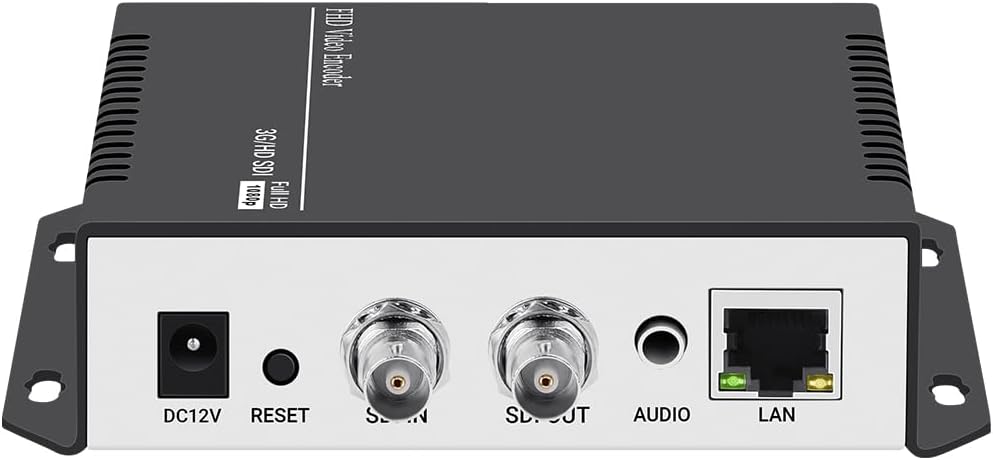
Рисунок 1.1: Передняя и задняя часть View of the URayCoder SDI to IP Encoder, showing DC12V power input, Reset button, SDI IN, SDI OUT, Audio input, and LAN port.
2. Особенности продукта
This encoder is equipped with advanced features to ensure reliable and versatile video streaming:
- Инновационные технологии: Ideal for broadcast video and audio, supporting live streaming to major platforms like YouTube, Facebook, Ustream, Livestream, Twitch, Vimeo, Streamspot, Dacast, and Tikilive.
- Multiple Video Stream Output: Capable of outputting up to 4 video streams simultaneously, each configurable with different streaming protocols.
- Extensive Streaming Protocols: Supports HTTP, RTSP, RTMP(S), SRT, HLS(M3U8), UDP, RTP, MP4, Multicast, Unitcast, FLV, and ONVIF.
- Flexible Video Stream Settings: Customize output video streams by adding static text, scrolling text, logos, or time. Adjust parameters such as resolution, frame rate, bitrate, and apply cropping, rotation, flipping, or mirroring. Audio output is also adjustable.
- Высококачественный чип: Utilizes an upgraded high-end chip (e.g., Ambarella S6L55M) for more powerful and stable performance.
- Круглосуточная работа: Designed for stable and effective continuous operation.

Figure 2.1: Supported Streaming Protocols including MP4, RTSP, HTTP, RTMP(S), HLS, SRT, Onvif, and UDP.

Figure 2.2: Key Features of the URayCoder Encoder.
3. Руководство по установке
Follow these steps to set up your URayCoder SDI to IP Encoder:
- Подключение питания: Connect the provided DC12V power adapter to the encoder's DC12V input port.
- SDI-вход: Connect your SDI video source (e.g., broadcast camera, CCTV camera, other SDI source) to the 'SDI IN' port on the encoder.
- SDI Loop Out (Optional): If you need to monitor the SDI input locally, connect a display monitor to the 'SDI OUT' port. This provides a direct passthrough of the SDI signal.
- Аудиовход (опционально): If using external audio, connect your audio source to the 'AUDIO' 3.5mm jack. The encoder also supports embedded SDI audio.
- Подключение к сети: Connect an Ethernet cable from the encoder's 'LAN' port to your router, switch, or network hub. Ensure your network provides DHCP or configure a static IP address as needed.
- Первоначальный доступ: Once powered on and connected to the network, the encoder will obtain an IP address (if DHCP is enabled). You can typically find the device's IP address using a network scanner tool or by checking your router's connected devices list. Access the encoder's web-based configuration interface by entering its IP address into a web браузер.

Figure 3.1: Typical Setup for Online Live Broadcast.

Figure 3.2: Typical Setup for Remote Video Transmission.

Figure 3.3: Comprehensive Connection Diagram.
4. Инструкция по эксплуатации
The URayCoder encoder is primarily configured and operated via its webграфический пользовательский интерфейс (GUI) на основе графического интерфейса пользователя.
4.1. Web Навигация по интерфейсу
After accessing the encoder's IP address in your web browser, you will be presented with the main dashboard. The left-hand navigation pane allows you to access different settings categories:
- Статус: View real-time operational data, including running time, device time, CPU usage, temperature, network status, input resolution, and collected video/audio frames.
- Кодер: Configure video and audio encoding parameters for main and substreams.
- OSD (экранное меню): Manage text, logo, and time overlays on the output video.
- Система: Access network settings, password management, firmware upgrade, reboot, schedule reboot, and factory reset options.

Рисунок 4.1: Web GUI - Status Display.
4.2. Video and Audio Settings
Navigate to the 'Encoder' section to configure your streaming outputs:
- Тип кодирования: Выберите H.265 или H.264.
- Разрешение и частота кадров: Adjust encoded video resolution (e.g., 1920x1080, 1280x720) and frame rate (FPS).
- Битрейт: Set the target bitrate for your video streams.
- Протоколы потоковой передачи: Enable and configure URLs for various protocols such as TS, HLS, FLV, RTSP, RTMP(S), SRT, UDP, and Multicast.
- Настройки звука: Select audio input (SDI Audio or Line-in Audio), sampling rate, encoder type (AAC, MP3, etc.), bitrate, and digital volume gain.

Рисунок 4.2: Web GUI - Output Video and Audio Settings.
4.3. On Screen Display (OSD)
The OSD feature allows you to overlay custom elements onto your video stream. Go to the 'OSD' section to configure up to four zones:
- Enable/Disable Zone: Activate or deactivate each OSD zone.
- Тип: Choose between text, scrolling text, or time.
- Позиция: Set X and Y coordinates for the overlay.
- Text/Logo: Enter custom text or upload a logo (BMP/PNG format, max 500KB).
- Font Size & Color: Adjust font size and color for text overlays.
- Цвет фона: Set background color for text, including transparent option.
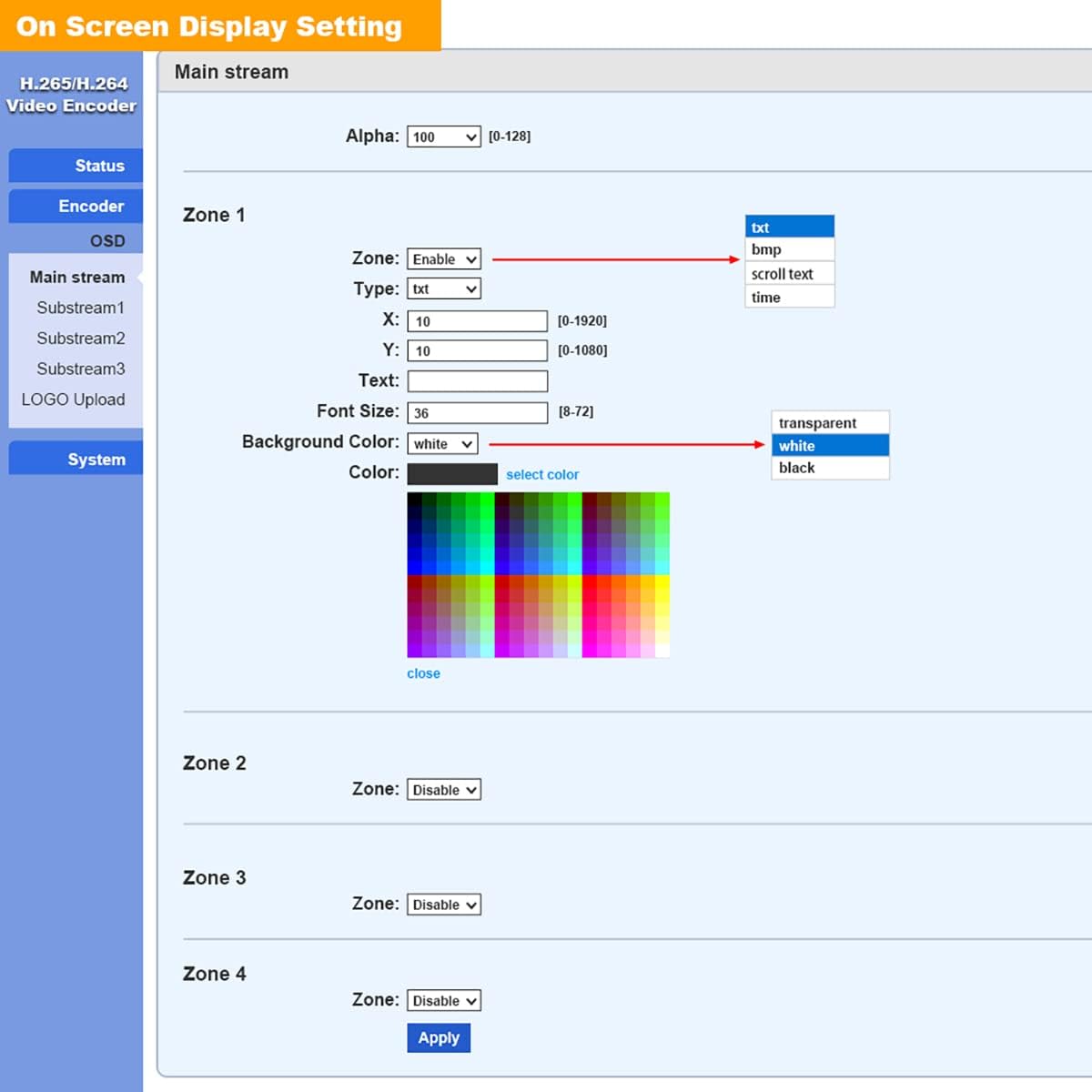
Рисунок 4.3: Web GUI - On Screen Display Setting.
4.4. Расширенные настройки
The 'Advanced' section under 'Encoder' provides granular control over various video processing and network parameters, including EDID settings, deinterlacing, HLS parameters, SRT latency, TS Muxer compatibility, and UDP/RTP settings. Adjust these settings only if you have a clear understanding of their impact on streaming performance.

Рисунок 4.4: Web GUI - Advanced Settings.
5. Техническое обслуживание
To ensure the longevity and optimal performance of your URayCoder encoder, consider the following maintenance practices:
- Физическая среда: Place the encoder in a well-ventilated area to prevent overheating. Avoid exposing it to extreme temperatures, humidity, or direct sunlight.
- Уборка: Регулярно протирайте внешнюю поверхность устройства мягкой сухой тканью. Не используйте жидкие чистящие средства или аэрозоли.
- Обновления прошивки: Периодически проверяйте информацию производителя. website for firmware updates. Firmware updates can improve performance, add new features, and resolve potential issues. You can upload new firmware via the 'System Upgrade' section in the web интерфейс.
- Безопасная конфигурация: Регулярно пересматриватьview and update your device's password to prevent unauthorized access.

Рисунок 5.1: Web GUI - System Upgrade and Logo Upload.
6. Поиск Неисправностей
If you encounter issues with your URayCoder encoder, refer to the following common troubleshooting steps:
- Нет питания: Ensure the DC12V power adapter is securely connected to both the encoder and a working power outlet. Check the power indicator light on the device.
- No Video Output/Input: Verify that the SDI input source is active and properly connected to the 'SDI IN' port. Check the input resolution and format compatibility in the 'Status' section of the web GUI. Ensure the output streaming URLs are correctly configured and accessible.
- Нет звука: Confirm that the audio source is active and connected correctly (either embedded in SDI or via the 3.5mm audio jack). Check audio settings in the web GUI, including input selection and encoding parameters.
- Проблемы с сетевым подключением: Ensure the Ethernet cable is securely connected to the 'LAN' port and your network. Verify the encoder's IP address and network settings (subnet mask, gateway) in the 'System' section. Try rebooting the encoder and your network router.
- Проблемы с синхронизацией аудио и видео: This can sometimes occur due to network latency or incorrect encoding settings. Review the 'Advanced' settings for potential adjustments related to synchronization or buffering.
- Web Interface Unresponsive: Попробуйте очистить кэш браузера или использовать другой браузер. web browser. If the issue persists, power cycle the encoder.
- Сброс к заводским настройкам: As a last resort for persistent issues, you can perform a factory reset via the 'System' section in the web GUI. This will revert all settings to their default values.
7. Технические характеристики
| Атрибут | Ценить |
|---|---|
| Размеры продукта | 6.69 x 5.12 x 1.18 дюйма |
| Вес товара | 1.1 фунта |
| Номер модели | USE265-1L |
| Совместимые устройства | Devices with SDI Output |
| Тип разъема | СОИ |
| Цвет | Black on top, silver on bottom |
| Производитель | Урей |
| Дата первой доступности | 26 апреля 2018 г. |
8. Гарантия и поддержка
All URayCoder video encoders and video decoders include free lifetime technical support and warranty. For assistance, please contact URayCoder customer support through their official channels. Additionally, SDK and API as well as CGI control protocol documents are available for secondary development, enabling advanced integration and customization.
For the most up-to-date support information and resources, please visit the official URayCoder webсайт или обратитесь к контактной информации, указанной на упаковке вашего продукта.