
Введение
The Mercusys MW150US N150 Wireless Nano USB Adapter is a compact and convenient device designed to provide wireless internet connectivity to your desktop or laptop computer. With wireless speeds of up to 150 Mbps, it is suitable for essential internet activities such as web browsing, email, and stable online communication. Its miniature design allows it to remain connected to a USB port without obstruction.
This adapter also features a Soft AP function, enabling your computer to act as a Wi-Fi hotspot, sharing its wired internet connection with other wireless devices like smartphones and tablets.
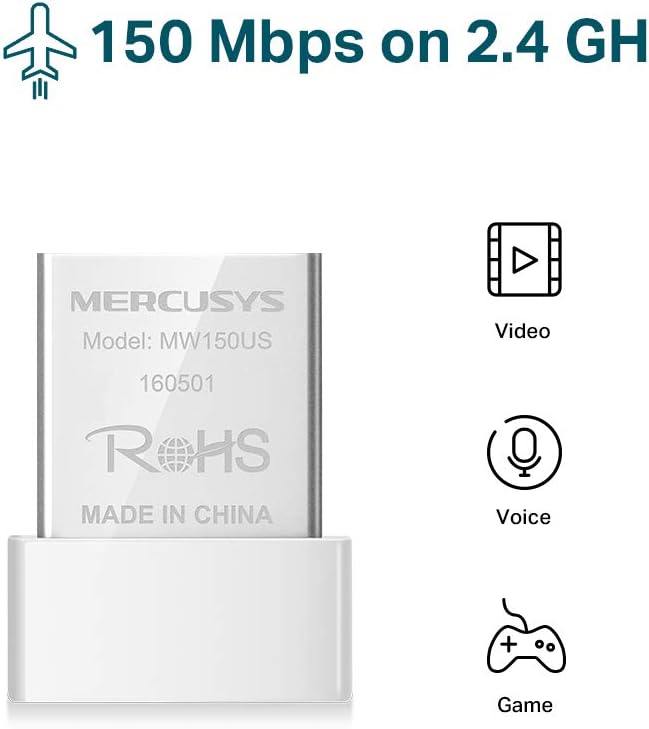
Image: The Mercusys MW150US N150 Wireless Nano USB Adapter, a compact device for wireless connectivity.
Руководство по настройке
Follow these steps to install and set up your Mercusys MW150US N150 Wireless Nano USB Adapter:
- Вставьте адаптер: Carefully insert the MW150US adapter into an available USB port on your computer.
- Установите драйверы:
- Using the included CD: Insert the driver CD into your computer's CD-ROM drive and follow the on-screen instructions to install the necessary drivers.
- Downloading from Mercusys webсайт: If your computer does not have a CD-ROM drive, or if you prefer the latest drivers, visit the official Mercusys webсайт (например, www.mercusys.com/en/download/MW150US) to download the drivers for your specific operating system.
- Примечание для пользователей Windows 10: In many cases, Windows 10 may automatically install the necessary drivers upon insertion, making manual installation unnecessary.
- Подключиться к сети: After driver installation, your computer should detect available Wi-Fi networks. Select your desired network from the list and enter the password to connect.

Image: Visual guide for the three easy setup steps: insert, install software, and connect to Wi-Fi.

Image: The Mercusys MW150US adapter is compatible with Windows 10, 8.1, 8, 7, and XP.
Инструкция по эксплуатации
Подключение к сети Wi-Fi
Once the adapter is installed and drivers are loaded, you can connect to any available Wi-Fi network.
- Нажмите на значок Wi-Fi в системном трее вашего компьютера (обычно в правом нижнем углу для Windows).
- A list of available wireless networks will appear. Select the name (SSID) of your desired network.
- Click "Connect" and enter the network's security key or password when prompted.
- После подключения значок Wi-Fi покажет успешное соединение, и вы сможете получить доступ к интернету.
Using Soft AP Function (Wi-Fi Hotspot)
The Soft AP function allows your computer to share its wired internet connection wirelessly. This feature requires your computer to have a wired internet connection.
- Убедитесь, что ваш компьютер подключен к Интернету через кабель Ethernet.
- Open the Mercusys utility software (usually installed with the drivers).
- Locate and enable the "Soft AP" or "Hotspot" function within the utility.
- Configure the hotspot's name (SSID) and password.
- Other wireless devices can now connect to your computer's Wi-Fi hotspot using the configured SSID and password.
Обслуживание
The Mercusys MW150US adapter is designed for durability and requires minimal maintenance.
- Содержать в чистоте: Periodically wipe the adapter with a soft, dry cloth to remove dust. Avoid using liquid cleaners.
- Защита от повреждений: While its nano size is convenient, avoid bending or applying excessive force to the adapter when it's plugged into a USB port.
- Хранилище: Когда адаптер не используется, храните его в чистом, сухом месте, вдали от экстремальных температур.

Image: The miniature design of the Mercusys MW150US adapter, highlighting its compact size for portability and convenience.
Поиск неисправностей
If you encounter issues with your Mercusys MW150US adapter, refer to the following common solutions:
- Адаптер не обнаружен:
- Убедитесь, что адаптер полностью вставлен в исправный USB-порт. Попробуйте использовать другой USB-порт.
- Verify that the drivers are correctly installed. Check Device Manager (Windows) for any yellow exclamation marks next to the network adapter. Reinstall drivers if necessary.
- Перезагрузите компьютер.
- Не удаётся подключиться к сети Wi-Fi:
- Еще раз проверьте пароль Wi-Fi.
- Убедитесь, что ваш Wi-Fi-роутер включен и передает сигнал.
- Чтобы улучшить сигнал, подойдите ближе к Wi-Fi роутеру.
- Restart your Wi-Fi router and your computer.
- Низкая скорость интернета:
- Ensure you are within a reasonable range of your Wi-Fi router.
- Проверьте наличие возможных помех от других электронных устройств (например, микроволновых печей, беспроводных телефонов).
- Verify that your internet service provider (ISP) is delivering the expected speed.
- Update the adapter's drivers to the latest version from the Mercusys webсайт.
Технические характеристики
| Бренд | MERCUSYS |
| Номер модели | MW150US |
| аппаратный интерфейс | USB |
| Скорость передачи данных | 150 Мбит/с |
| Совместимые устройства | Desktop, Laptop, Smartphone (for Soft AP) |
| Совместимые операционные системы | Windows (XP, 7, 8, 8.1, 10) |
| Вес товара | 50 грамм |
| Цвет | Красный |
Информация о гарантии
The Mercusys MW150US N150 Wireless Nano USB Adapter comes with a Гарантия 4 год directly from the manufacturer. Please retain your proof of purchase for warranty claims.
Поддерживать
For technical assistance, driver downloads, or warranty inquiries, please contact Mercusys customer support directly. Support services are provided by the manufacturer.
You can typically find contact information and support resources on the official Mercusys webсайт: www.mercusys.com.