
Введение
This manual provides detailed instructions for the setup, operation, maintenance, and troubleshooting of your ARRIS SURFboard SBR-AC3200P AC3200 Wi-Fi Router. The SBR-AC3200P is designed to deliver high-speed Wi-Fi performance for various home networking needs, including gaming, streaming, and general internet use. It features tri-band concurrent operation and integrated RipCurrent G.hn Powerline technology for extended network coverage.
Содержимое упаковки
- SURFboard WiFi Router SBR-AC3200P
- Ethernet-кабель
- Шнур питания переменного тока
- Краткое руководство пользователя
Настраивать
1. Физические соединения
Перед включением маршрутизатора убедитесь, что все необходимые кабели надежно подключены. Для определения портов обратитесь к схеме ниже.
Изображение: сзади view of the ARRIS SURFboard SBR-AC3200P AC3200 Wi-Fi Router. From left to right, the ports include the Power input, two USB ports (one USB 2.0, one USB 3.0), a blue WAN port for connecting to a modem, four yellow LAN ports (1-4) for wired devices, and a small recessed Reset button.
- Подключение к модему: Connect one end of the provided Ethernet cable to the WAN port (blue) on the back of the SBR-AC3200P router and the other end to your cable/DSL/fiber modem.
- Подключите питание: Plug the AC power cord into the Power input on the router and then into an electrical outlet. The router will begin its startup sequence.
- Включение питания: Wait for the router's indicator lights to stabilize. Refer to the Operating section for LED indicator meanings.
2. Первоначальная настройка
Вы можете настроить свой маршрутизатор с помощью web browser or the dedicated mobile application.
- Используя Web Браузер:
- Connect a computer to one of the router's LAN ports (yellow) using an Ethernet cable, or connect wirelessly to the default Wi-Fi network (SSID and password typically found on a label on the router).
- Откройте web браузер и введите IP-адрес маршрутизатора по умолчанию (например,
192.168.0.1or192.168.1.1) into the address bar. Consult the Quick Start Guide for the exact IP address and default login credentials. - Follow the on-screen instructions to set up your internet connection and customize your Wi-Fi network name (SSID) and password.
- Использование мобильного приложения: Download the ARRIS SURFboard Manager app from your device's app store. Follow the in-app instructions to set up and manage your router.
Операционная
Светодиодные индикаторы
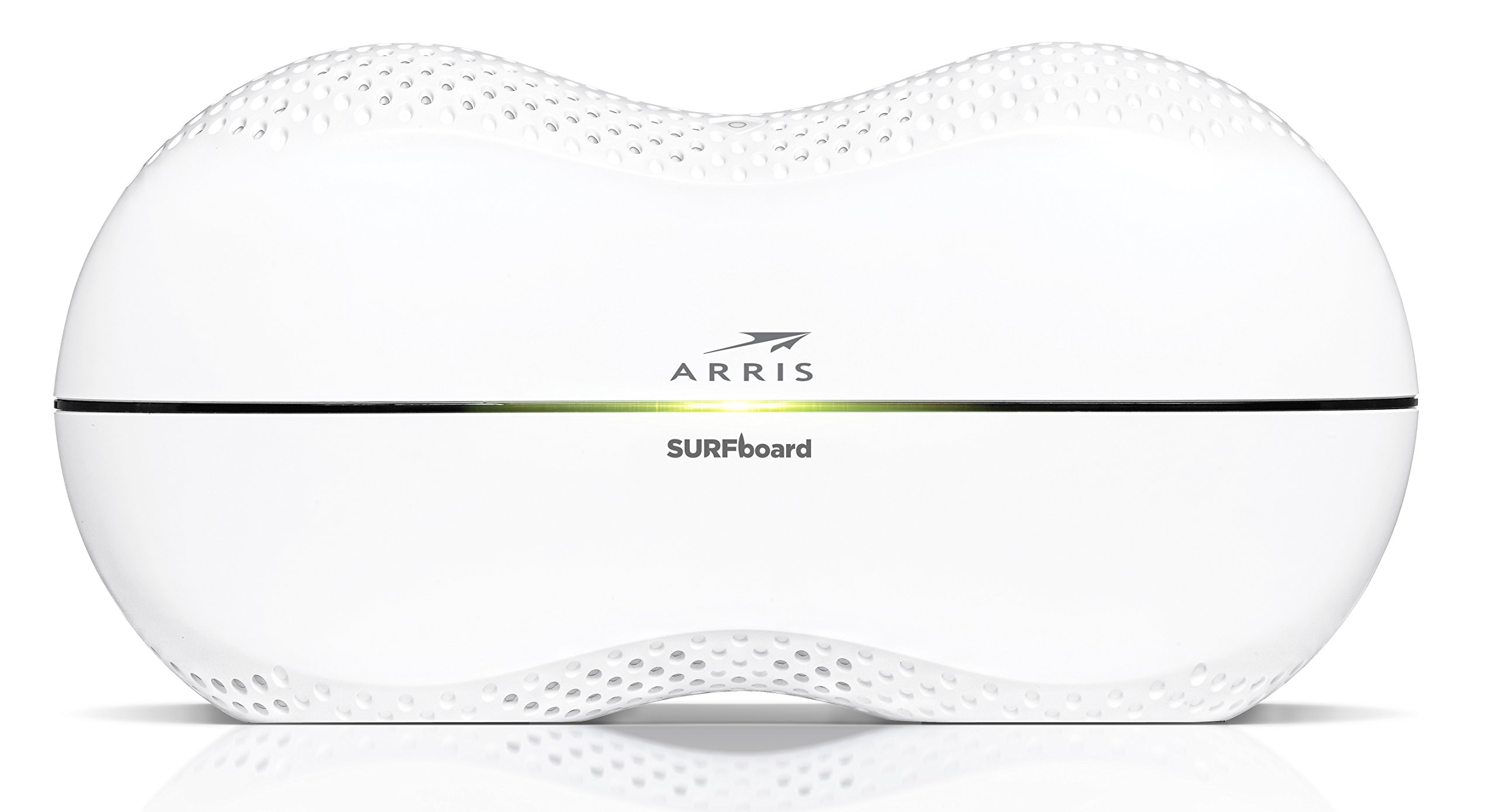
The front panel of the SBR-AC3200P features several LED indicators that provide status information:
- Светодиод питания: Указывает состояние питания устройства.
- Индикатор Интернета: Показывает состояние интернет-соединения.
- Светодиоды Wi-Fi (2.4 ГГц и 5 ГГц): Indicate the activity of the wireless networks.
- RipCurrent LED: Displays the status of the G.hn Powerline network.
Refer to the Quick Start Guide for specific color and blinking patterns and their meanings.
Подключение устройств
- Беспроводные устройства: Искать your customized Wi-Fi network name (SSID) on your device and enter the password you created during setup.
- Проводные устройства: Connect devices such as computers, gaming consoles, or smart TVs to the LAN ports (yellow) on the back of the router using Ethernet cables.
RipCurrent G.hn Technology
The SBR-AC3200P integrates RipCurrent G.hn Powerline technology, allowing you to expand your network coverage using your home's existing electrical wiring. This feature enables compatible SURFboard RipCurrent Wi-Fi Hotspots and network extenders (sold separately) to connect to your network through any electrical outlet, providing seamless Wi-Fi extension throughout your home.
Обслуживание
- Обновления прошивки: Периодически проверяйте поддержку ARRIS. website for firmware updates. Keeping your router's firmware up-to-date ensures optimal performance, security, and access to new features. Firmware updates are typically performed through the router's web interface or the mobile app.
- Уборка: Keep the router in a clean, dust-free environment. Use a soft, dry cloth to clean the exterior. Do not use liquid cleaners or abrasive materials. Ensure ventilation openings are not blocked.
- Сброс настроек маршрутизатора: If you experience persistent issues, you may need to reset the router. A soft reset (power cycle) can often resolve minor problems. For a factory reset, locate the recessed Reset button on the back of the router. Use a paperclip or similar pointed object to press and hold the button for approximately 10-15 seconds until the LEDs indicate a reset. Предупреждение: A factory reset will erase all custom settings, including your Wi-Fi name and password, reverting the router to its default factory settings.
Поиск неисправностей
- Нет соединения с интернетом:
- Убедитесь, что ваш модем работает правильно и имеет активное подключение к Интернету.
- Check all Ethernet cable connections between the modem and the router's WAN port.
- Restart both your modem and router by unplugging them from power for 30 seconds and then plugging them back in, starting with the modem.
- Низкая скорость Wi-Fi или обрывы соединения:
- Убедитесь, что маршрутизатор расположен в центральном месте, вдали от препятствий и источников помех (например, микроволновых печей, беспроводных телефонов).
- Проверьте наличие обновлений прошивки.
- Consider using RipCurrent extenders to improve coverage in dead zones.
- Если проблемы сохраняются после выполнения других шагов по устранению неполадок, выполните сброс до заводских настроек.
- Невозможно получить доступ к настройкам маршрутизатора:
- Убедитесь, что ваше устройство подключено к сети маршрутизатора (проводной или беспроводной).
- Verify the correct IP address for the router's web интерфейс.
- Очистите кэш браузера или попробуйте другой браузер.
Технические характеристики
| Особенность | Описание |
|---|---|
| Бренд | АРРИС |
| Название модели | СБР-AC3200P |
| Беспроводной стандарт | 802.11ac |
| Класс диапазона частот | Tri-Band (N450 + AC1350 + AC1350) |
| Скорость передачи данных | До 3200 мегабит в секунду |
| Ethernet-порты | 4 гигабитных порта Ethernet |
| USB-порты | 1x USB 2.0, 1x USB 3.0 |
| Особые возможности | RipCurrent G.hn Powerline Technology, Wi-Fi Beamforming |
| Протокол безопасности | ВПА2, ВПА3 |
| Метод контроля | Приложение |
| Вес товара | 3.8 фунта |
Информация о гарантии
The ARRIS SURFboard SBR-AC3200P AC3200 Wi-Fi Router comes with a Ограниченная гарантия сроком на 2 года. For detailed terms and conditions, please refer to the warranty documentation included with your product or visit the official ARRIS support webсайт.
Поддерживать
Для получения дополнительной помощи, технической поддержки или доступа к дополнительным ресурсам, пожалуйста, посетите официальную страницу поддержки ARRIS. website. You can find FAQs, updated documentation, and contact information for customer service.