
Coolgear CG-4PU31C1B1
Coolgear USB C Hub 4 Port USB 3.1 Gen1 SuperSpeed Type-B Upstream User Manual
Model: CG-4PU31C1B1
1. Введение
Thank you for choosing the Coolgear USB C Hub. This device is designed to expand your computer's connectivity by providing four additional USB 3.1 Gen1 SuperSpeed ports (one USB-C and three USB-A) from a single USB Type-B upstream connection. It is ideal for connecting multiple USB peripherals such as external hard drives, keyboards, mice, printers, and more, all while maintaining high-speed data transfer capabilities.
2. Особенности
- Compliant with USB 3.1 Gen 1 Specifications.
- Provides 4 (1 USB-C and 3 USB-A) downstream facing USB 3.1 ports.
- Supports 5Gbps (SuperSpeed), 480Mbps (High-Speed), 12Mbps (Full-Speed), and 1.5Mbps (Low-Speed) speeds.
- Supports 15KV ESD Surge Protection for enhanced durability.
- Supports USB battery charging: CDP (Charging Downstream Port) and DCP (Dedicated Charging Port) modes.
- Industrial-grade metal housing with mounting flanges for secure installation.
- Wide range 7-48V DC power input via terminal block.
3. Содержимое упаковки
Пожалуйста, проверьте наличие всех предметов в вашей посылке:
- Coolgear USB C Hub (Model CG-4PU31C1B1)
- Кабель USB 3.1 Type-B — Type-A
- Mounting Hardware (screws and clip)

Image: All components included in the Coolgear USB C Hub package.
4. Настройка
Follow these steps to set up your Coolgear USB C Hub:
- Подключитесь к главному компьютеру: Locate the USB 3.1 Type-B port on the hub (labeled '0' with a USB-B icon). Connect one end of the provided USB 3.1 Type-B to Type-A cable to this port. Connect the other end (Type-A) to an available USB 3.1 (or compatible) port on your host computer.
- Подключите периферийные устройства: Connect your USB devices (e.g., flash drives, external hard drives, keyboards, mice) to the available downstream USB-A ports (labeled '2', '3', '4') or the USB-C port (labeled '1').
- Power Connection (Optional/Required for high-power devices): For stable operation, especially with multiple high-power devices, connect a 7-48V DC power supply to the terminal block on the hub. Ensure correct polarity (+ and -). The 'PWR' LED indicator will illuminate when power is supplied.
- Монтаж (опционально): The hub features integrated mounting flanges. Use appropriate screws to secure the hub to a surface if permanent installation is desired.

Image: The USB 3.1 Type-B upstream cable connected to the hub.
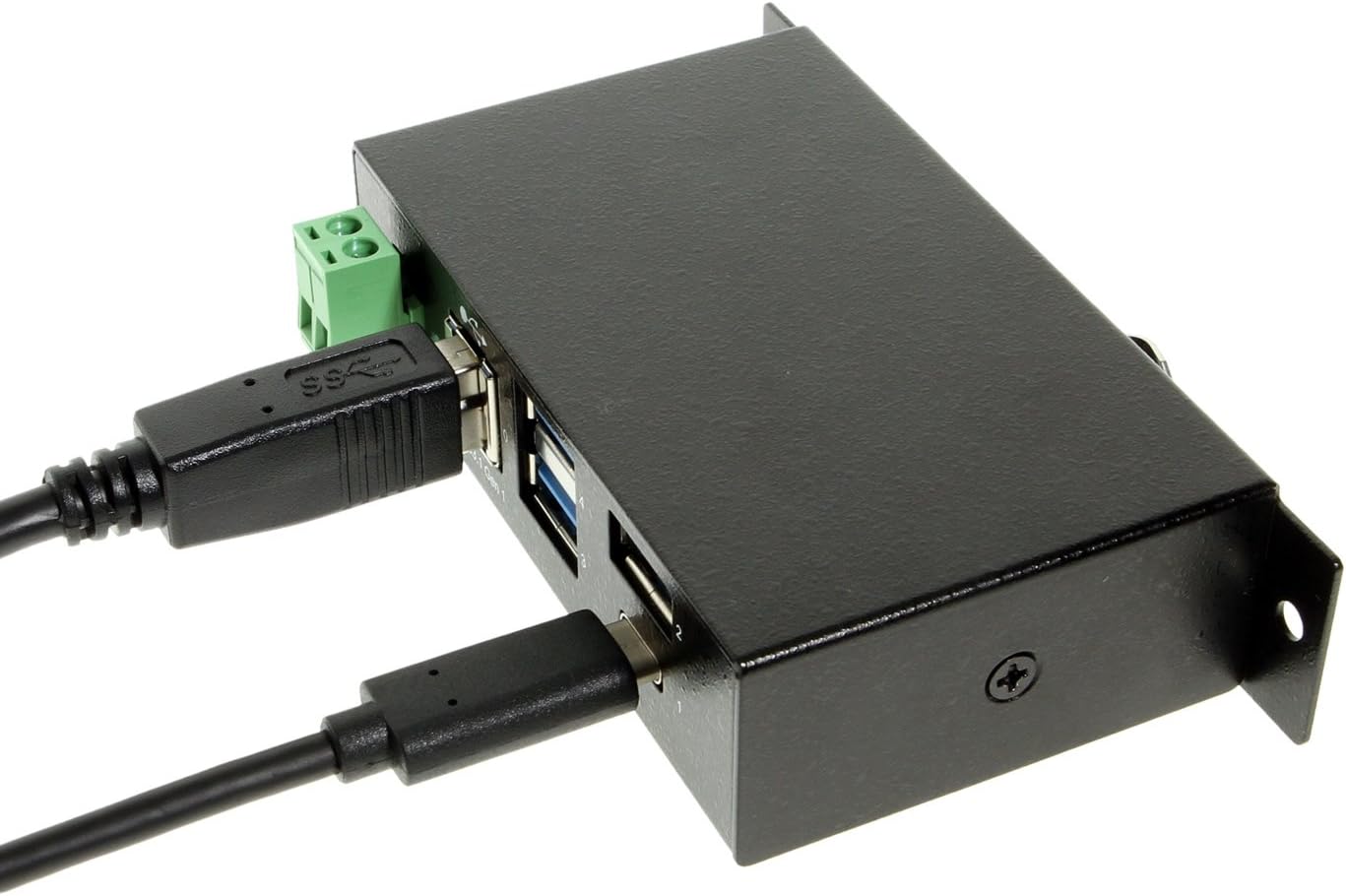
Image: The hub with both upstream (Type-B) and a downstream (Type-C) device connected.

Изображение: Спереди view of the hub, highlighting the power input terminal block and various USB ports.

Изображение: сбоку view of the hub demonstrating the integrated mounting bracket.
5. Операция
The Coolgear USB C Hub is a plug-and-play device, requiring no special drivers for most operating systems. Once connected, your computer should automatically detect the hub and any connected devices.
- Передача данных: Enjoy SuperSpeed data transfer rates of up to 5Gbps with compatible USB 3.1 Gen1 devices. The hub is also backward compatible with USB 2.0 and USB 1.1 devices, operating at their respective speeds.
- Зарядка: The hub supports USB battery charging (CDP and DCP modes), allowing you to charge compatible devices connected to its downstream ports.
- Светодиодный индикатор: The 'PWR' LED indicates that the hub is receiving power.
6. Технические характеристики
| Особенность | Спецификация |
|---|---|
| Номер модели | CG-4PU31C1B1 |
| Размеры продукта | 3.74 x 2.23 x 1.03 дюйма |
| Вес товара | 15 унции |
| Бренд | Coolgear |
| Цвет | Черный |
| аппаратный интерфейс | USB, USB тип C |
| Скорость передачи данных | Up to 5Gbps (USB 3.1 Gen1 SuperSpeed) |
| Защита от электростатического разряда | 15КВ |
| Входная мощность | +7~48V DC via Terminal Block |
| Совместимые устройства | Laptops, Desktops, Keyboards, Mouse, Printers, Tablets |
7. Поиск Неисправностей
If you encounter issues with your Coolgear USB C Hub, please refer to the following common problems and solutions:
- Устройство не распознано:
- Ensure all cables are securely connected to both the hub and the host computer.
- Попробуйте подключить концентратор к другому USB-порту на вашем компьютере.
- If using an external power supply, ensure it is correctly connected and providing the specified voltage.
- Перезагрузите компьютер.
- Низкая скорость передачи данных:
- Verify that both your host computer's USB port and the connected device support USB 3.1 Gen1 (SuperSpeed).
- Ensure you are using a high-quality USB 3.1 cable.
- Избегайте одновременного подключения слишком большого количества устройств с высокой пропускной способностью.
- Power Issues / Devices Not Charging:
- Ensure an external power supply is connected if you are using high-power devices or charging.
- Проверьте источник питания vol.tage and current to ensure it meets the hub's requirements.
- Some devices may require more power than the hub can provide, even with an external power supply.
8. Техническое обслуживание
To ensure the longevity and optimal performance of your Coolgear USB C Hub, follow these maintenance guidelines:
- Уборка: Для очистки внешней поверхности ступицы используйте мягкую сухую ткань. Не используйте жидкие чистящие средства или аэрозоли.
- Хранилище: Когда устройство не используется, храните его в прохладном, сухом месте, вдали от прямых солнечных лучей и экстремальных температур.
- Умение обращаться: Avoid dropping the hub or subjecting it to strong impacts. Do not attempt to disassemble the unit.
- Среда: Keep the hub away from water, moisture, and excessive dust.
9. Гарантия и поддержка
Coolgear products are designed for reliability and performance. For specific warranty information, please refer to the documentation included with your purchase or visit the official Coolgear website. If you require technical assistance or have questions about your product, please contact Coolgear customer support through their official channels.
Для получения дополнительной информации и поддержки посетите Coolgear Store on Amazon.
Ask a question about this manual
Ask about setup, troubleshooting, compatibility, parts, safety, or missing instructions. Manuals+ will review the question and use this page’s manual context to help answer it.