
NETGEAR C6300BD
NETGEAR AC1900 WiFi Modem-Dual Band (C6300BD)
Руководство пользователя
1. Продукт закончилсяview
The NETGEAR AC1900 WiFi Modem-Dual Band (C6300BD) is an advanced gateway combining a cable modem and a dual-band WiFi router. It is designed to provide high-speed internet access and robust wireless connectivity for your home or office network. This device is compatible with major cable internet service providers such as Comcast/Xfinity, Time Warner/Spectrum, and Cox.
Key features include 8x4 channel bonding for reliable internet speeds, a 4-port Gigabit router for wired connections, and dual-band WiFi (2.4GHz and 5GHz) supporting speeds up to 600+1300Mbps, enabling seamless HD streaming and online activities.
2. Содержимое упаковки
Прежде чем начать, убедитесь, что в упаковке присутствуют все предметы:
- NETGEAR AC1900 WiFi Modem-Dual Band (C6300BD)
- Modem Stand
- Шнур питания
- Ethernet-кабель
3. Настройка и установка
Follow these steps to set up your NETGEAR C6300BD modem router:
- Positioning the Modem: Place the modem router in a central location in your home, away from obstructions and electronic devices that may cause interference. Ensure adequate ventilation.
- Подключите коаксиальный кабель: Connect one end of a coaxial cable (not included) to the cable wall outlet and the other end to the Cable In port on the back of the modem router.
- Подключите питание: Connect the power cord to the modem router's power port and then plug the other end into an electrical outlet. The Power LED on the front panel should illuminate.
- Подключите Ethernet (опционально): For a wired connection, connect one end of the provided Ethernet cable to a LAN port on the modem router and the other end to your computer's Ethernet port.
- Активируйте свой интернет-сервис:
- Contact your Internet Service Provider (ISP) to activate your new modem router. You will need to provide them with the modem's MAC address, which is usually found on a sticker on the bottom or back of the device.
- Follow your ISP's instructions for activation. This may involve visiting a specific activation website or calling their customer support.
- Подключиться к Wi-Fi: Once activated, locate the default WiFi network name (SSID) and password on the modem router's label. Connect your wireless devices to this network.
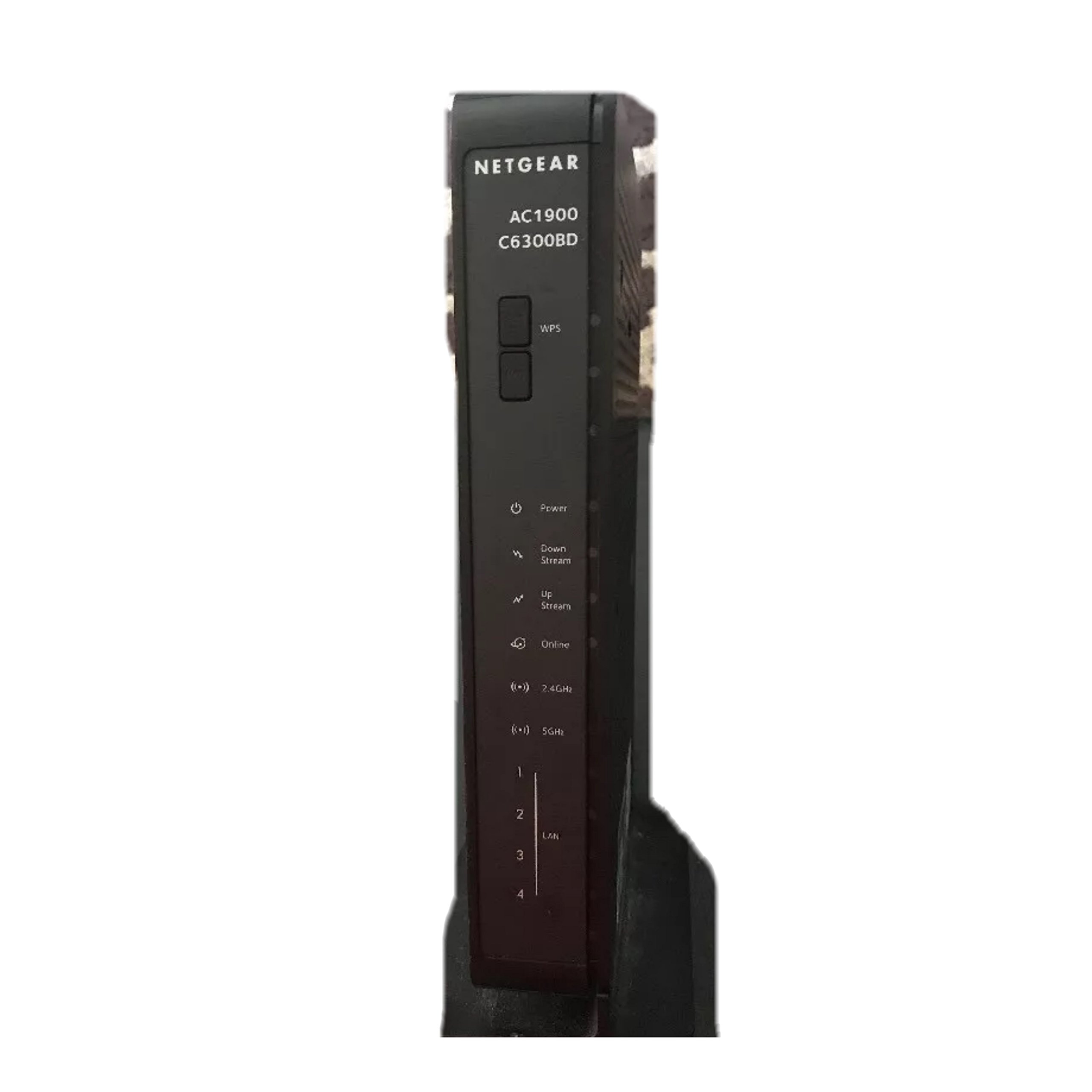
Figure 1: Front panel of the NETGEAR C6300BD modem router, displaying the NETGEAR logo, model number (AC1900 C6300BD), WPS button, and status indicator lights for Power, Down Stream, Up Stream, Online, 2.4GHz WiFi, 5GHz WiFi, and LAN ports 1-4.
4. Operating the Modem Router
Understanding the LED indicators on the front panel is crucial for monitoring the modem router's status.
| Индикатор | Статус | Описание |
|---|---|---|
| Власть | Сплошной зеленый | Modem router is powered on. |
| Down Stream | Сплошной зеленый | One or more downstream channels are connected. |
| Вверх по течению | Сплошной зеленый | One or more upstream channels are connected. |
| Онлайн | Сплошной зеленый | Modem router is connected to the internet. |
| 2.4GHz WiFi | Сплошной зеленый | 2.4 GHz wireless network is enabled. Blinking indicates activity. |
| 5GHz WiFi | Сплошной зеленый | 5 GHz wireless network is enabled. Blinking indicates activity. |
| ЛВС (1-4) | Сплошной зеленый | A device is connected to the corresponding Gigabit Ethernet port. Blinking indicates activity. |
| ВПС | моргание | Сопряжение WPS активно. |
The WPS (Wi-Fi Protected Setup) button allows for easy connection of WPS-compatible devices to your wireless network without manually entering the password. Press the WPS button on the modem router, then activate WPS on your device within two minutes.
5. Техническое обслуживание
To ensure optimal performance and longevity of your NETGEAR C6300BD modem router, consider the following maintenance tips:
- Соблюдайте чистоту: Regularly dust the device to prevent accumulation in ventilation openings, which can lead to overheating. Use a soft, dry cloth.
- Правильная вентиляция: Ensure the modem router is placed in an area with good airflow. Do not cover ventilation holes or place it in an enclosed space.
- Избегайте экстремальных условий: Protect the device from direct sunlight, excessive heat, humidity, and extreme cold.
- Обновления прошивки: Периодически проверяйте службу поддержки NETGEAR. webСайт для обновления прошивки. Регулярное обновление прошивки может улучшить производительность, добавить новые функции и повысить безопасность.
- Периодически перезагружайте: A periodic reboot (unplugging the power for 10-15 seconds and plugging it back in) can help clear temporary issues and improve performance.
6. Поиск Неисправностей
If you encounter issues with your modem router, try the following troubleshooting steps:
- Нет питания:
Ensure the power cord is securely connected to both the modem router and a working electrical outlet. Check if the Power LED is illuminated. Try a different outlet if necessary.
- No Internet Connection (Online LED is off or blinking):
- Verify that the coaxial cable is securely connected to both the modem router and the wall outlet.
- Power cycle the modem router: Unplug the power cord, wait 10-15 seconds, then plug it back in. Wait for all indicator lights to stabilize.
- Обратитесь к своему интернет-провайдеру (ISP), чтобы убедиться в отсутствии перебоев в обслуживании.tages in your area and that your modem is properly provisioned on their network.
- Slow Internet Speeds or Frequent Disconnections:
- Убедитесь, что ваши устройства подключены к соответствующему диапазону Wi-Fi (5 ГГц для более высокой скорости, 2.4 ГГц для лучшего радиуса действия).
- Reduce interference by moving the modem router away from other electronic devices.
- Perform a speed test to verify your internet speed. If it's consistently lower than your plan, contact your ISP.
- Consider updating the modem router's firmware if available.
- Невозможно подключиться к WiFi:
- Ensure the 2.4GHz and 5GHz WiFi LEDs are solid green.
- Дважды проверьте название сети Wi-Fi (SSID) и пароль.
- Try using the WPS button for compatible devices.
7. Технические характеристики
| Особенность | Деталь |
|---|---|
| Модель | C6300BD |
| Технология Wi-Fi | 802.11ac Dual Band Gigabit |
| Производительность WiFi | AC1900 (600 + 1300Mbps) |
| Модемная технология | 8x4 канальное соединение |
| Ethernet-порты | 4 Gigabit Ethernet LAN ports |
| Совместимые интернет-провайдеры | Comcast/Xfinity, Time Warner/Spectrum, Cox, and more |
| Томtage Совместимость | 100-240В |
| Вес товара | 2.64 фунта |
| Размеры упаковки | 11.9 x 10.3 x 4.3 дюйма |
8. Гарантия и поддержка
For information regarding product warranty, please refer to the warranty card included with your product or visit the official NETGEAR support webСайт. Условия гарантии могут различаться в зависимости от региона и продавца.
For technical support, firmware downloads, and additional resources, please visit the NETGEAR support portal. You can often find FAQs, troubleshooting guides, and contact information for customer service there.
Производитель: NETGEAR
Webсайт: www.netgear.com/support
Ask a question about this manual
Ask about setup, troubleshooting, compatibility, parts, safety, or missing instructions. Manuals+ will review the question and use this page’s manual context to help answer it.