
1. Введение
This manual provides detailed instructions for the setup, operation, maintenance, and troubleshooting of your LUXUL XWC-1000 Stand Alone Wireless Controller. Please read this manual thoroughly before using the device to ensure proper functionality and to maximize its performance.
2. Продукт закончилсяview
The LUXUL XWC-1000 is a stand-alone wireless controller designed to manage Luxul access points within a network environment. It provides centralized control for simplified network management.

Figure 2.1: The LUXUL XWC-1000 Stand Alone Wireless Controller unit.

Figure 2.2: Packaging detail showing the LUXUL XWC-1000 Wireless Controller model name.
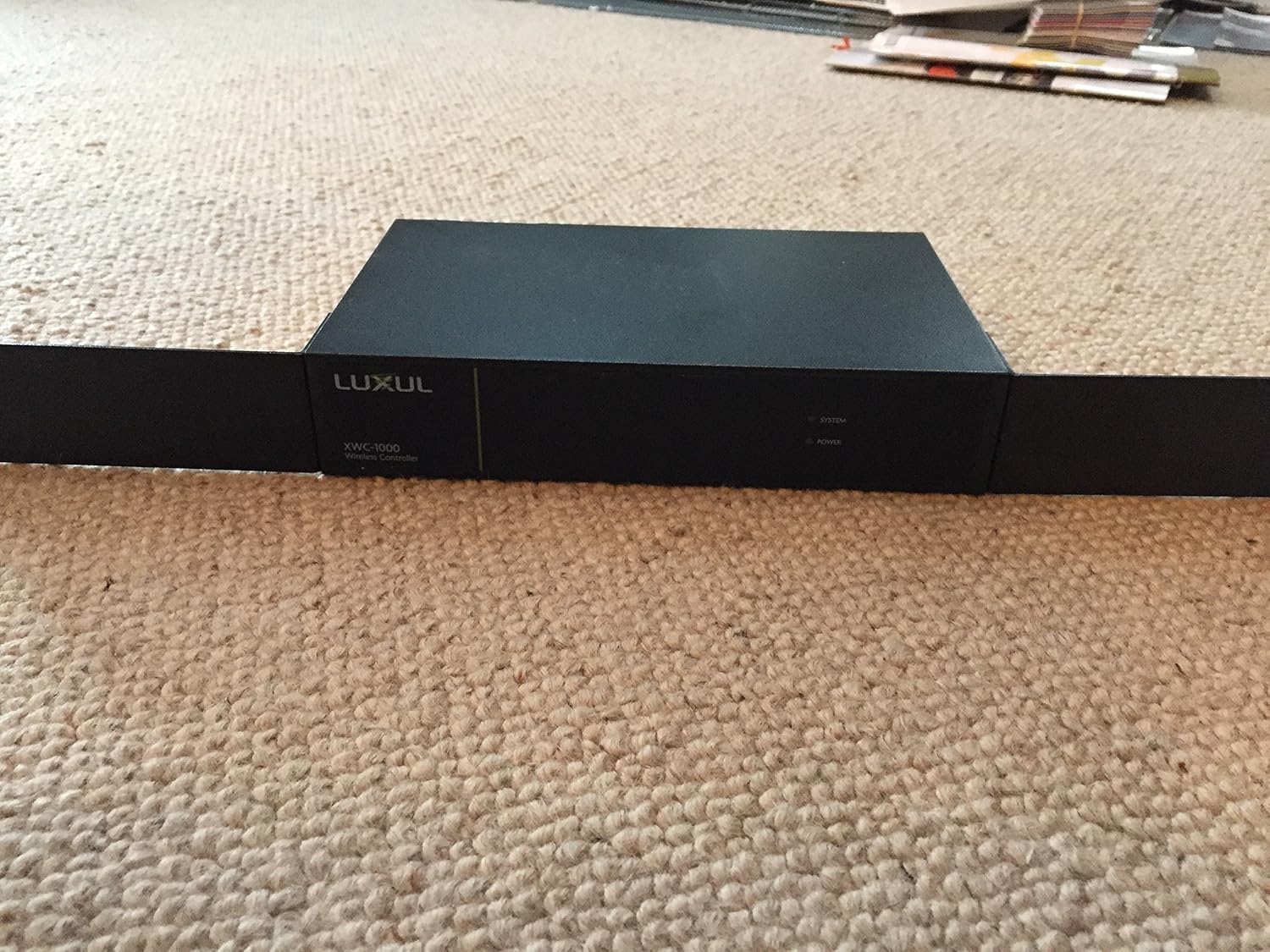
Figure 2.3: Product label displaying essential information including Model No.: XWC-1000, Vers. 2, default IP Address: 192.168.0.19, User Name: admin, Password: admin, Power: 100-240VAC 50/60Hz 0.6A. Serial numbers are XWC100010151097 and A4134E294581.

Figure 2.4: Front panel of the controller, showing SYSTEM, POWER, and RESET indicators, along with the LAN port and its LINK/ACTIVITY and 1000Mbps status lights.
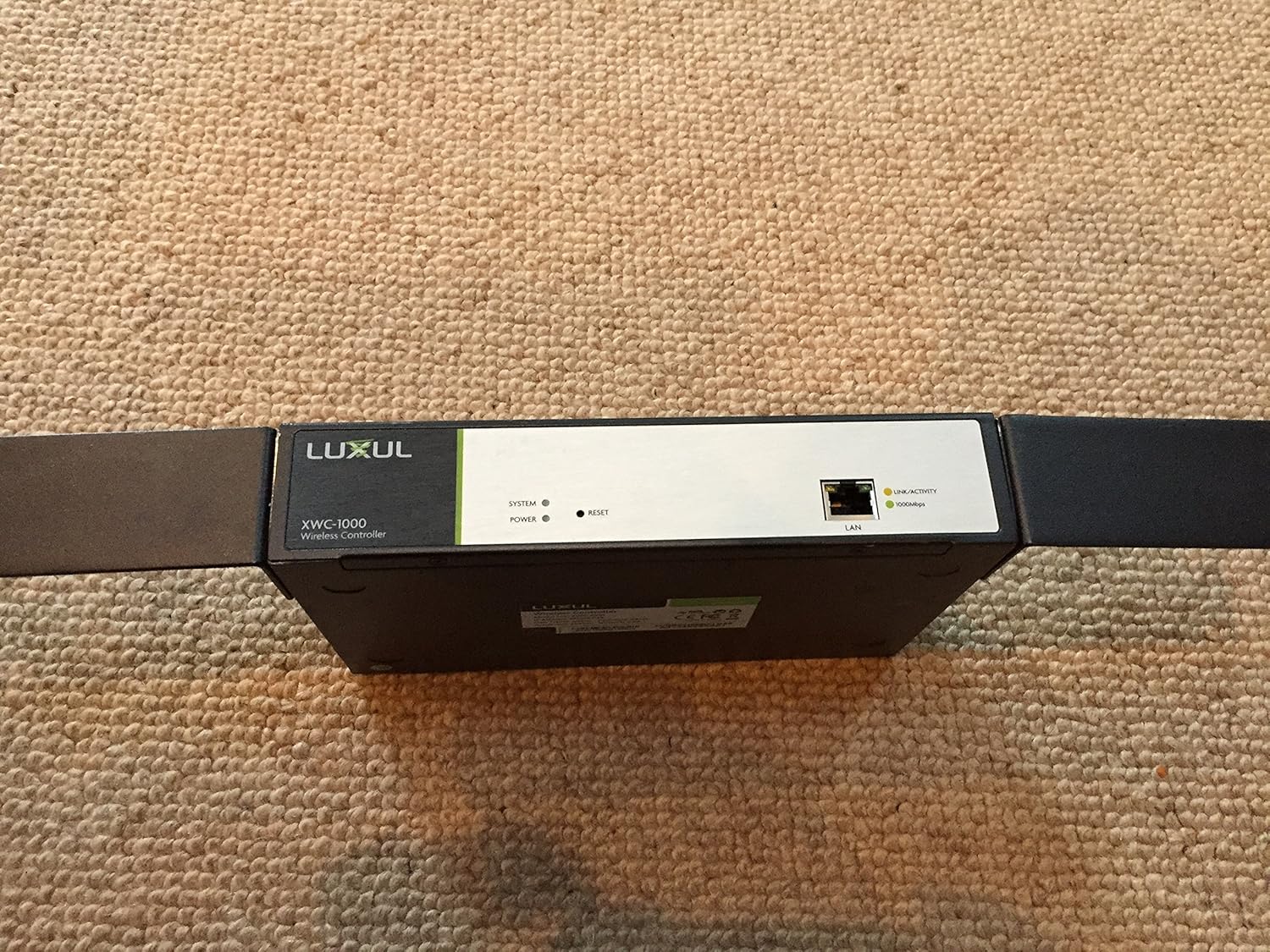
Figure 2.5: Close-up of the LAN port area, highlighting the BLUE/GREEN indicator switch, LAN port, and RESET button, along with LINK/ACTIVITY and 1000Mbps indicators.
3. Настройка
- Распаковка: Carefully remove the XWC-1000 controller from its packaging. Ensure all components are present.
- Подключение питания: Connect the provided power adapter to the XWC-1000 and then to a suitable power outlet (100-240VAC, 50/60Hz). The POWER indicator light should illuminate.
- Подключение к сети: Connect an Ethernet cable from your network router or switch to the LAN port on the XWC-1000. The LINK/ACTIVITY and 1000Mbps indicators should show network activity.
- Первоначальный доступ: To access the controller's web интерфейс, откройте web браузер и перейдите на IP-адрес по умолчанию: 192.168.0.19. Use the default credentials: User Name: админ, Пароль: админ. В целях безопасности настоятельно рекомендуется сменить пароль по умолчанию сразу после первого входа в систему.
- Access Point Integration: Once logged in, follow the on-screen instructions or refer to the controller's internal help documentation to discover and integrate your Luxul Access Points (APs).
4. Инструкция по эксплуатации
The LUXUL XWC-1000 provides a centralized interface for managing your wireless network. Key operational aspects include:
- Access Point Management: View the status of connected APs, configure their settings, and monitor their performance.
- Конфигурация беспроводной сети: Set up SSIDs, security protocols (WPA2/WPA3), and guest network access.
- Обновления прошивки: Regularly check for and apply firmware updates to the controller and connected APs to ensure optimal performance and security.
- Мониторинг системы: Monitor network traffic, client connections, and system logs for diagnostic purposes.
- Управление пользователями: Create and manage user accounts with different access levels for the controller interface.
5. Техническое обслуживание
- Регулярные обновления прошивки: Periodically check the Luxul website for the latest firmware versions for your XWC-1000 and connected access points. Updating firmware can resolve issues and introduce new features.
- Физическая очистка: Keep the device free from dust and debris. Use a soft, dry cloth for cleaning. Do not use liquid cleaners directly on the device.
- Условия окружающей среды: Ensure the controller is operated within its specified temperature and humidity ranges to prevent damage. Avoid placing it near heat sources or in direct sunlight.
- Резервная конфигурация: Regularly back up your controller's configuration settings. This allows for quick restoration in case of a system reset or replacement.
6. Поиск Неисправностей
If you encounter issues with your LUXUL XWC-1000, consider the following troubleshooting steps:
- Контроллер не включается: Verify the power adapter is securely connected to both the device and the power outlet. Check the power outlet with another device.
- Невозможно получить доступ Web Интерфейс:
- Ensure your computer is on the same network segment as the controller (e.g., if the controller is 192.168.0.19, your computer should be 192.168.0.x).
- Confirm the Ethernet cable is properly connected and the LAN port indicators are active.
- Try resetting the controller by pressing the RESET button (refer to Figure 2.5).
- Verify you are using the correct IP address (default is 192.168.0.19) and login credentials.
- Access Points Not Recognized:
- Ensure your access points are Luxul brand and compatible with the XWC-1000.
- Check that the APs are powered on and properly connected to the network.
- Verify that the controller's firmware is up to date. Outdated firmware can sometimes cause compatibility issues with newer AP models.
- Consult the Luxul support documentation for specific AP discovery procedures.
- Проблемы с сетевым подключением: Check all network cables and ensure your router/switch is functioning correctly.
If problems persist, contact Luxul technical support for further assistance.
7. Технические характеристики
| Особенность | Деталь |
|---|---|
| Бренд | ЛЮКС |
| Ряд | ХВК-1000 |
| Номер модели | ХВК-1000 |
| Вес товара | 2.58 фунта |
| Размеры продукта (ДxШxВ) | 1 x 1 x 1 дюйма |
| Источник питания | Battery Powered (Note: This may refer to internal clock battery or general power source type, actual operation is via AC adapter) |
| Производитель | ЛЮКС |
| ASIN | B0144D61GA |
| Дата первой доступности | 11 августа 2015 г. |
8. Гарантия и поддержка
For warranty information, please refer to the documentation included with your product or visit the official LUXUL webДля получения технической поддержки, регистрации продукта или загрузки последних драйверов и микропрограмм, пожалуйста, посетите сайт. www.luxul.com or contact Luxul customer service directly.