
1. Введение
The Canon PowerShot S110 is a compact digital camera designed for high-quality imaging and versatile shooting. It features a 12.1 Megapixel High-Sensitivity CMOS sensor, a DIGIC 5 Image Processor, and a bright f/2.0 lens with 5x Optical Zoom. This camera also includes built-in Wi-Fi for convenient image sharing and a capacitive touch panel LCD for intuitive operation. This manual provides essential information for setting up, operating, and maintaining your PowerShot S110 camera.

Рисунок 1.1: Передний view На изображении показана цифровая фотокамера Canon PowerShot S110. Демонстрируются объектив, вспышка и компактный дизайн камеры в целом.
2. Что в коробке
Убедитесь, что в комплект поставки входят все следующие предметы:
- Canon PowerShot S110 Digital Camera
- Аккумуляторная батарея
- Зарядное устройство для аккумулятора
- USB-кабель
- HDMI-кабель
- Ремешок на запястье
- Software CD-ROM (for bundled software)
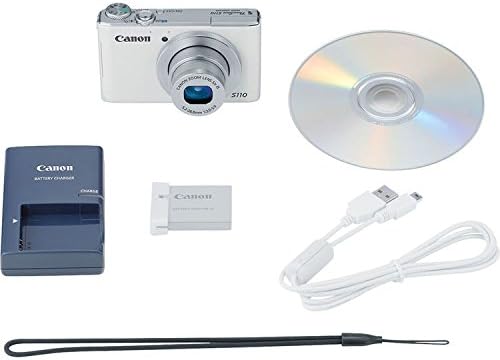
Рисунок 2.1: The Canon PowerShot S110 camera alongside its standard accessories, including the battery, charger, cables, and software disc.
3. Настройка
3.1. Зарядка аккумулятора
- Insert the battery pack into the provided battery charger.
- Подключите зарядное устройство к розетке. Загорится индикатор зарядки.
- Once charging is complete, the indicator light will change or turn off. Remove the battery.
3.2. Установка аккумулятора и карты памяти
- Откройте крышку отсека для аккумулятора/карты памяти в нижней части камеры.
- Insert the charged battery pack firmly until it clicks into place.
- Insert an SD/SDHC/SDXC memory card into the card slot with the label facing the correct direction, pushing until it clicks.
- Плотно закройте крышку отсека.
3.3. Начальные настройки
Upon first power-on, you will be prompted to set the date, time, and language. Follow the on-screen instructions using the camera's controls or touch screen.
3.4. Подключение к Wi-Fi
The PowerShot S110 features built-in Wi-Fi for image transfer. To connect:
- Нажмите МЕНЮ button and navigate to the Wi-Fi settings.
- Select your desired connection method (e.g., connect to a smartphone, computer, or Wi-Fi printer).
- Follow the on-screen prompts to establish a connection. For smartphone connectivity, download the free Canon CameraWindow app.
4. Операция
4.1. Базовая фотография
Чтобы сделать фотографию:
- Включите камеру, нажав кнопку ВЛАСТЬ кнопка.
- Скомпонуйте кадр с помощью 3.0-дюймового ЖК-экрана.
- Нажмите кнопку спуска затвора наполовину, чтобы сфокусироваться. Рамка фокусировки станет зелёной, когда объект будет сфокусирован.
- Чтобы сделать снимок, нажмите кнопку спуска затвора до конца.
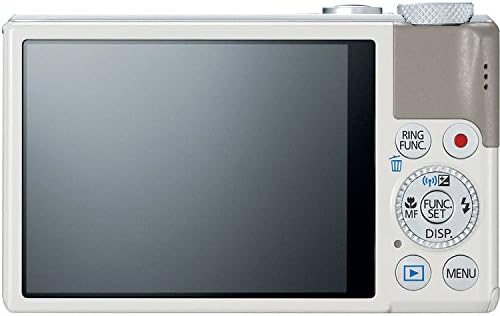
Рисунок 4.1: Задний view of the Canon PowerShot S110, showing the LCD screen, control buttons, and the control ring.
4.2. Режимы съемки.
The PowerShot S110 offers various shooting modes accessible via the mode dial or menu:
- Умный АВТО: The camera automatically selects optimal settings based on the scene.
- Программа AE (P): The camera sets aperture and shutter speed, while you control other settings like ISO and white balance.
- Экспрессия с приоритетом выдержки (ТВ): You set the shutter speed, and the camera adjusts the aperture. Ideal for controlling motion blur.
- Апертура с приоритетом апертуры (Av): You set the aperture, and the camera adjusts the shutter speed. Useful for controlling depth of field.
- Руководство (М): Полный контроль над диафрагмой, выдержкой и ISO.
- Custom (C): Save and recall your preferred settings.
- Special Scene Modes (SCN): Includes modes like Portrait, Smooth Skin, Handheld Night Scene, Snow, and Fireworks for specific situations.
- Креативные фильтры: Apply effects such as Toy Camera Effect, Miniature Effect, Super Vivid, and Color Accent.
- Movie Digest: Records a short video clip before each still image and compiles them into a daily video.
4.3. Запись видео
To record Full HD (1080p) video:
- Нажмите специальную кнопку ФИЛЬМ button (red dot icon) located on the rear of the camera.
- Нажмите кнопку еще раз, чтобы остановить запись.
The camera supports zooming during video recording, and audio is captured in stereo. Videos can be viewed on an HDTV via the HDMI output.
4.4. Image Stabilization (Intelligent IS)
The Intelligent IS system automatically selects the optimal image stabilization mode for your shooting conditions:
- Normal IS: Corrects general camera movement for stills.
- Panning IS: Disables vertical shake correction when panning horizontally.
- Macro (Hybrid) IS: Corrects shift-type shake common in close-up photography.
- Dynamic IS: Effective for video shooting at wide-angle, reducing shake while walking.
- Powered IS: Compensates for hand movement during telephoto video recording.
- Tripod IS: Automatically disables IS when a tripod is detected.
4.5. Touch Panel LCD and Control Ring
The 3.0-inch capacitive touch panel allows for intuitive control:
- Touch Shutter: Tap the screen to focus and take a picture.
- Playback Gestures: Use pinch-to-zoom and swipe gestures to navigate images.
- Настройка настроек: Quickly select camera settings by tapping.
The control ring around the lens barrel can be customized to adjust settings such as focus, aperture, shutter speed, ISO, or exposure compensation. Use the dedicated RING FUNC. button to select its function.
4.6. RAW+JPEG Recording
The camera supports simultaneous recording of RAW and JPEG images, providing maximum flexibility for post-processing. RAW files capture all sensor data, while JPEG files are processed in-camera for immediate use.
4.7. GPS Tagджин
Utilize the Canon CameraWindow app on your smartphone to record GPS data. This data can then be wirelessly transferred to your camera to tag images with location information, aiding in organization.
4.8. Image Transfer and Printing
Images and videos can be transferred wirelessly to social networking sites via CANON iMAGE GATEWAY, to a PC, or to iOS/Android devices using the Canon CameraWindow app. You can also print directly to Wi-Fi compatible printers.
5. Техническое обслуживание
5.1. Чистка камеры
- Корпус камеры: Протрите мягкой сухой тканью. Для удаления стойких загрязнений используйте ткань, слегка смоченную водой.ampсмочите водой и тщательно высушите.
- Объектив: Удалите пыль с помощью груши для чистки объективов, а затем аккуратно протрите линзы салфеткой. Не прикасайтесь к поверхности объектива пальцами.
- ЖК-экран: Use a soft, dry cloth. For smudges, use a screen cleaner specifically designed for electronics.
Do not use organic solvents such as alcohol, benzene, or paint thinner, as these can damage the camera finish.
5.2. Уход за аккумулятором
- Когда батарейки не используются, храните их в прохладном сухом месте.
- Чтобы продлить срок службы аккумулятора, избегайте его частой полной разрядки.
- Если камера не будет использоваться в течение длительного времени, извлеките аккумулятор.
5.3. Хранение
Store the camera in a dry, well-ventilated area, away from direct sunlight, high temperatures, and humidity. Consider using a desiccant to prevent mold growth, especially in humid environments.
6. Поиск Неисправностей
6.1. Камера не включается
- Убедитесь, что аккумулятор полностью заряжен и правильно вставлен.
- Убедитесь, что крышка батарейного отсека надежно закрыта.
6.2. Lens Error / Lens Not Extending
- Check for any obstructions around the lens barrel.
- Turn the camera off and then on again. If the error persists, contact customer support.
6.3. Изображения размыты.
- Убедитесь, что линза чистая.
- Confirm that the camera has focused correctly (focus frame turns green).
- In low light, use a higher ISO setting or enable flash.
- Hold the camera steady or use a tripod, especially with slower shutter speeds.
6.4. Проблемы с подключением к Wi-Fi
- Ensure your smartphone or computer's Wi-Fi is enabled and within range.
- Verify that the correct password or network settings are entered.
- Перезагрузите как камеру, так и подключенное устройство.
- Ensure the Canon CameraWindow app is updated to the latest version.
7. Технические характеристики
| Название модели | Canon PowerShot S110 |
| Разрешение фотодатчика | 12.1 МП |
| Тип фотодатчика | КМОП |
| Оптический зум | 5x |
| Минимальное фокусное расстояние | 24 мм |
| Максимальное фокусное расстояние | 120 мм |
| Максимальная диафрагма | f/2.0 |
| Стабилизация изображения | Оптический |
| Тип дисплея | 3.0-дюймовый сенсорный ЖК-экран |
| Разрешение видео | Full HD 1000p |
| Связность | HDMI, USB, Wi-Fi |
| Поддерживается File Формат | JPEG, СЫРЬЕ |
| Тип флэш-памяти | SD/SDHC/SDXC |
| Вес товара | 6.98 унции |
8. Гарантия и поддержка
8.1. Информация о гарантии
The Canon PowerShot S110 Digital Camera comes with a Ограниченная гарантия сроком на 1 год. This warranty covers defects in materials and workmanship under normal use. For full terms and conditions, please refer to the warranty card included with your product or visit the official Canon webсайт.
8.2. Поддержка клиентов
For technical assistance, service, or additional information, please contact Canon customer support. You can find contact details and support resources on the official Canon webсайт: www.usa.canon.com/support.
Before contacting support, please have your camera's model name (PowerShot S110) and serial number ready.